Widgets
Widgets are the building blocks of playlists. Every playlist item is a widget with its own options: an image, a video, a web page, a weather forecast, a news feed and so on. This page explains how to work with the widgets available to your organization. To build your own widgets, see Building widgets.
The widgets list
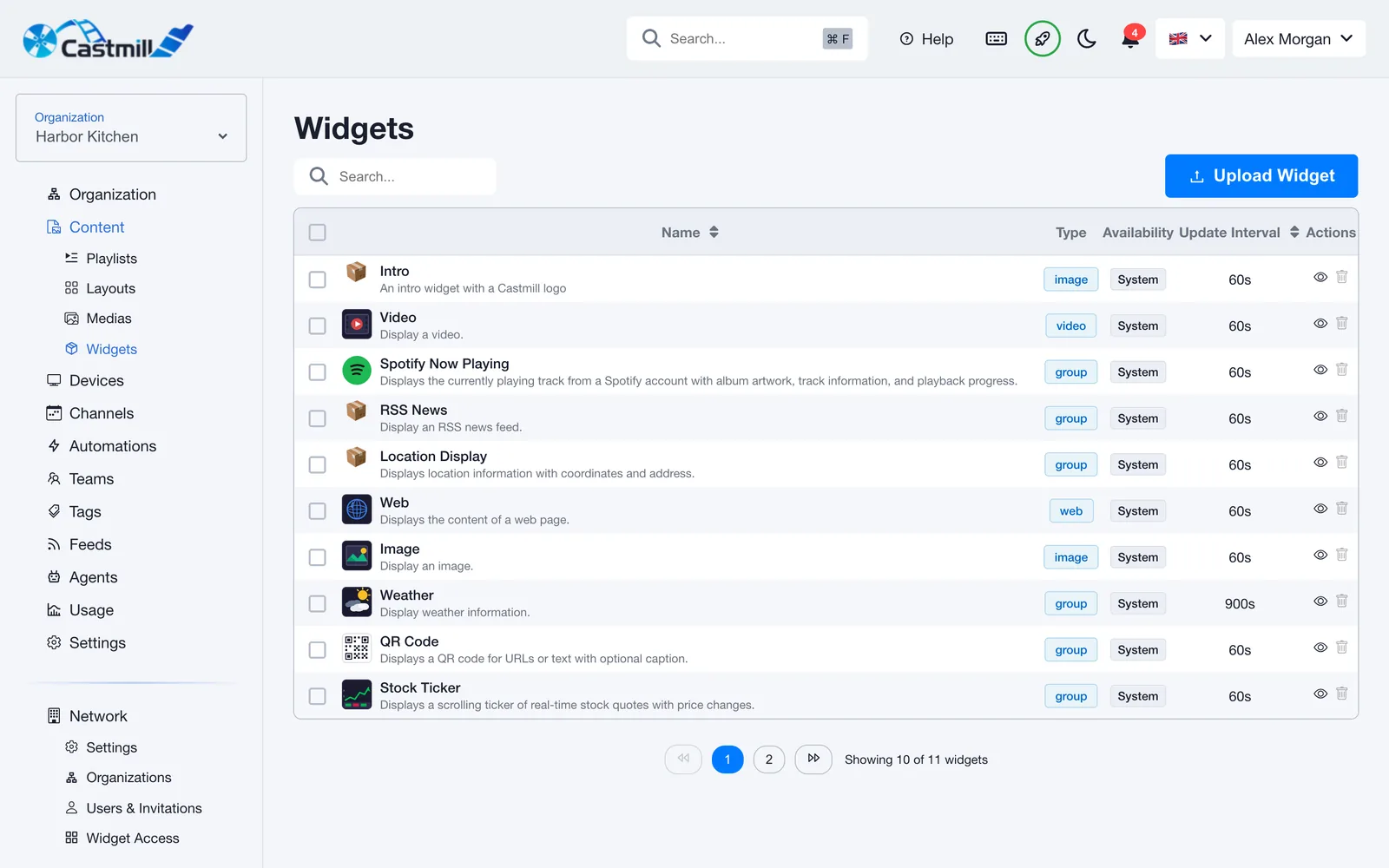
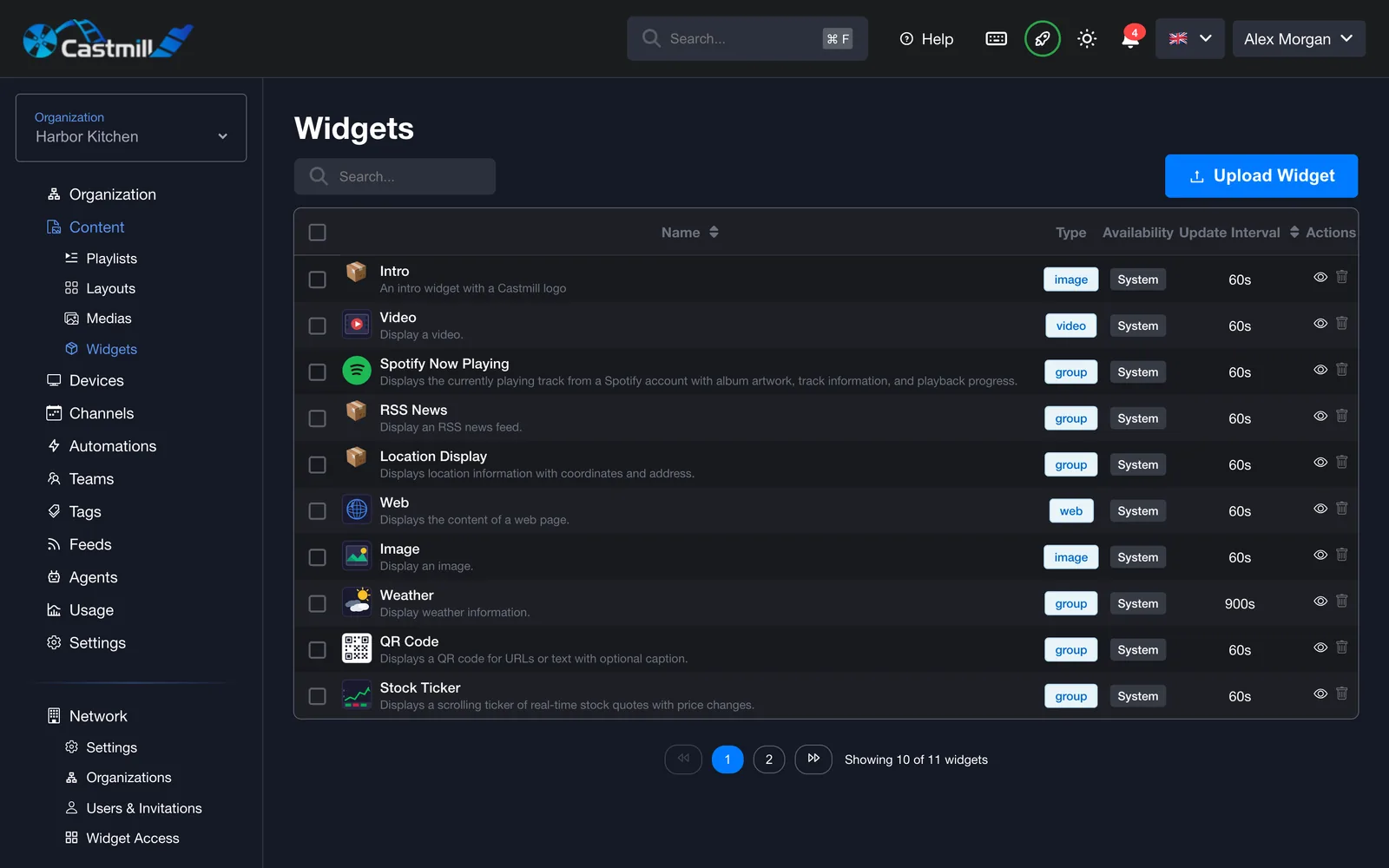
Open Content → Widgets. The list shows each widget's Name, its type, its Availability and its Update Interval (how often the widget fetches new data, for widgets that do).
Availability tells you where the widget comes from:
| Availability | Meaning |
|---|---|
| System | Included with Castmill and offered on every network |
| Network | Added by your network administrator for organizations in the network |
| This organization | Uploaded by your organization; only your organization can use it |
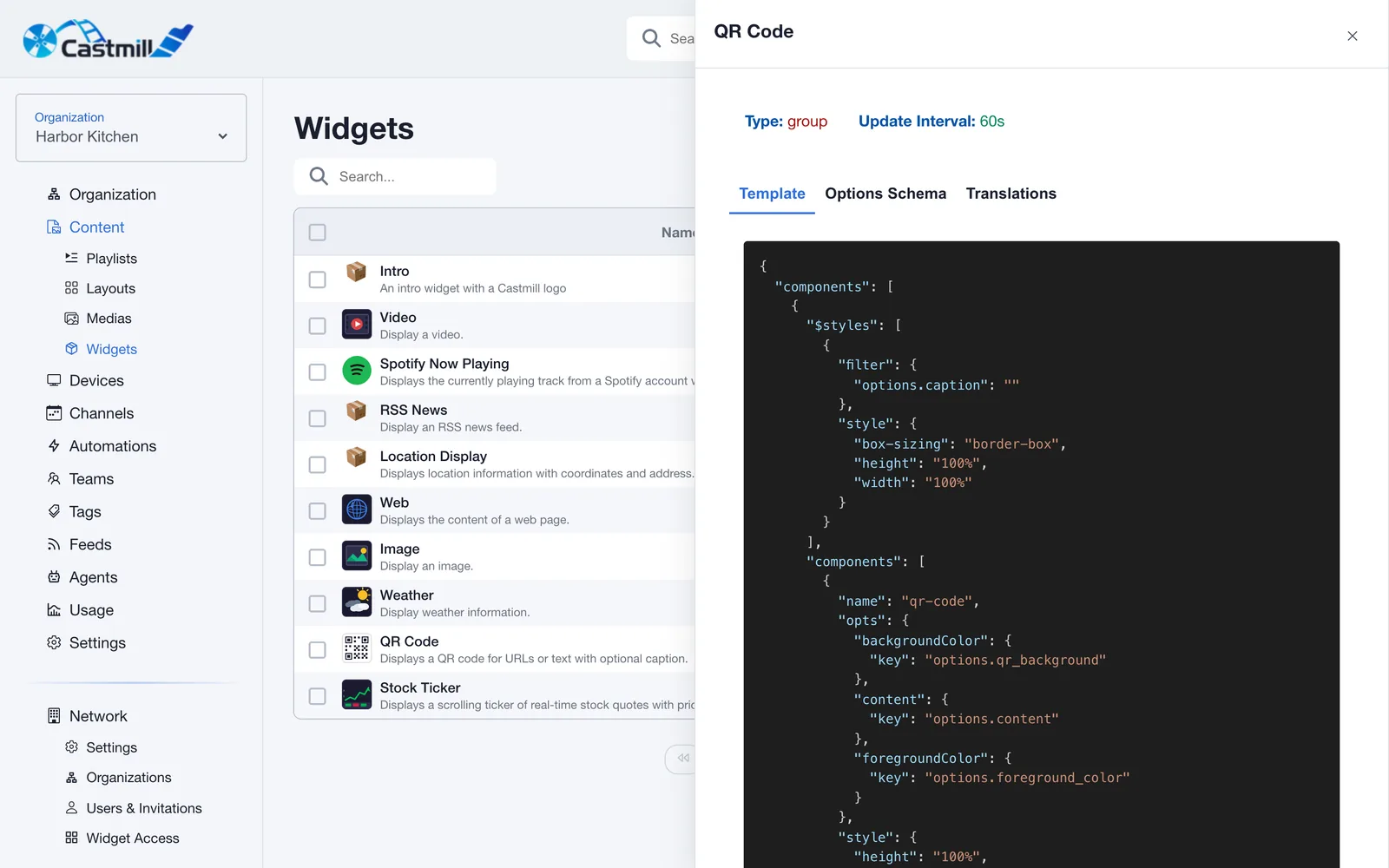
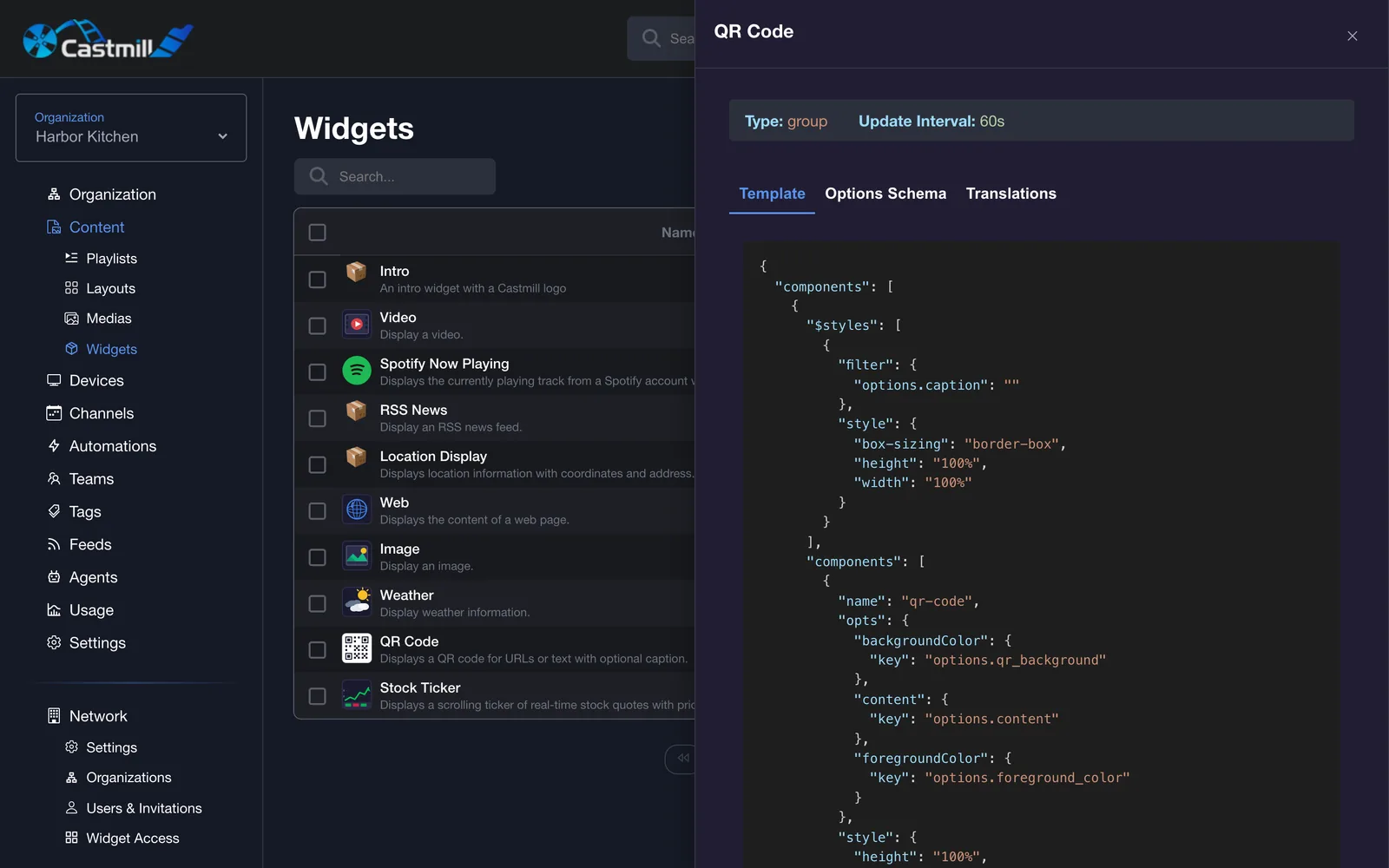
Use View Details to inspect a widget. The details show the Template, Options Schema, Data Schema, Translations, bundled Assets and, for widgets that connect to external services, Integrations.
Built-in widgets
Castmill includes these system widgets:
| Widget | What it shows |
|---|---|
| Image | An image from your media library |
| Video | A video from your media library |
| Web | A web page |
| Weather | Current weather and forecast from Open-Meteo |
| QR Code | A QR code for a URL or text |
| Stock Ticker | Stock quotes from Finnhub; needs a Finnhub API key |
| RSS News | Headlines from an RSS feed |
| Spotify Now Playing | The track currently playing on a Spotify account; needs a Spotify connection |
| Layout Widget | A layout, with a playlist in each zone |
| Location Display | A demonstration widget that shows the location you choose |
| Intro | The welcome content placed on newly registered devices |
Your network administrator decides which widgets your organization can use, so your list can differ. Image, Video and Layout Widget are core widgets and are always available, because media and layouts depend on them.
Using widgets in playlists
You add widgets to playlists in the playlist editor: drag a widget into the playlist and fill in its options. See Playlists.
Some widgets show editable texts. In the widget settings, Edit texts lets you click a highlighted text in the preview to change or hide it, without changing the widget itself.
Integration credentials
Some widgets fetch data from external services that need credentials, such as an API key or an OAuth connection. You configure them in the widget's Integrations tab: open Content → Widgets, click View Details on the widget and select Integrations.
Credentials have a scope:
| Scope | Applies to |
|---|---|
| Organization-wide | Every use of the integration in your organization |
| Widget-specific | This widget only |
Depending on the service, you enter an API Key and click Save Credentials, or you connect an account with OAuth 2.0, for example Connect to Spotify. Test Connection checks that the credentials work. Connection Status shows Valid, Invalid or Pending Setup.
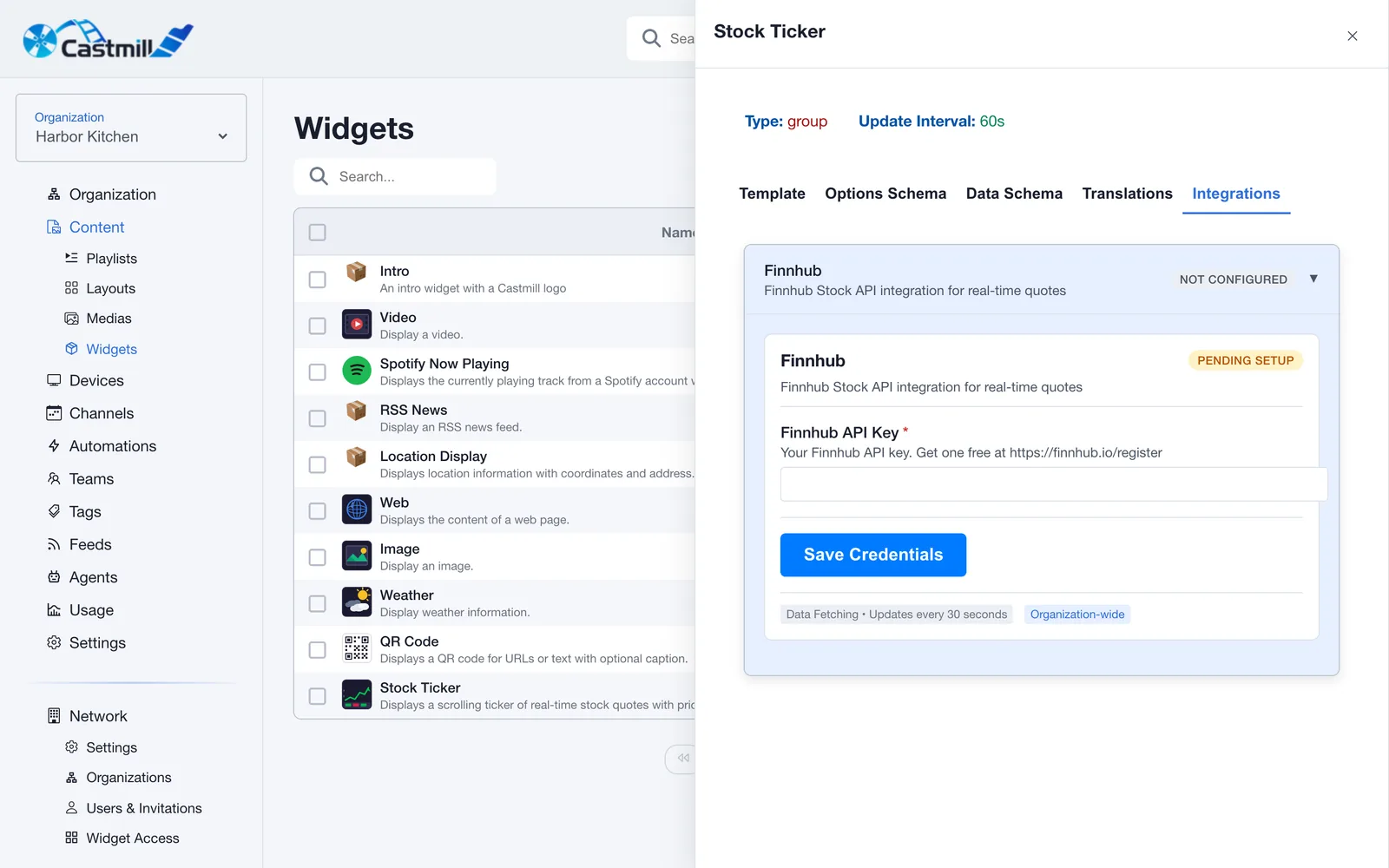
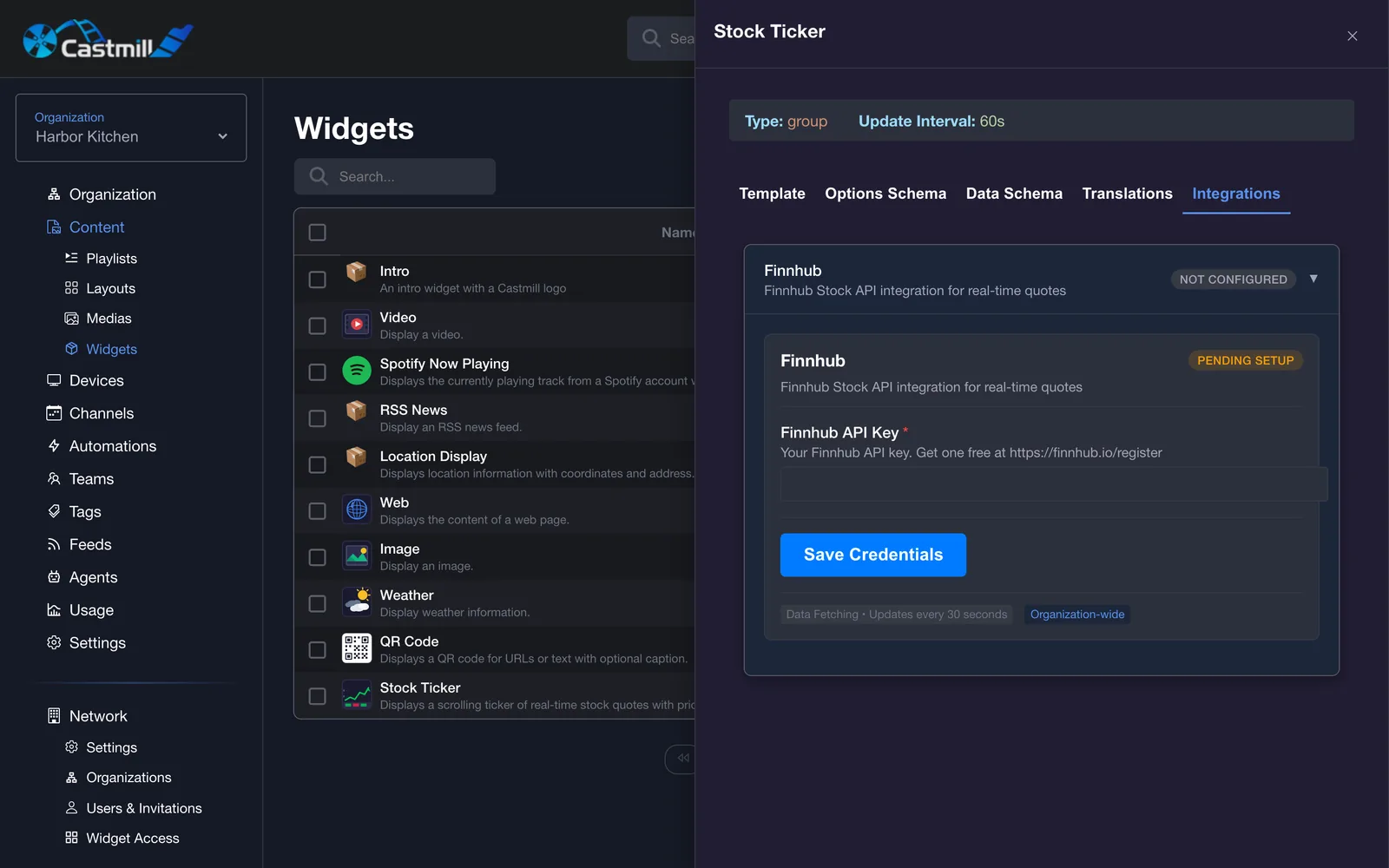
A network administrator can also configure credentials for the whole network. In that case the Integrations tab tells you that the credentials already exist, and for OAuth services you only connect your account.
When you add a widget whose credentials are missing to a playlist, the dashboard shows Credentials Required with a Go to Integrations button.
Credentials are stored encrypted on the server.
Uploading a widget
Organizations can add their own widgets.
- Open Content → Widgets.
- Click Upload Widget.
- Select or drop a widget file. A JSON definition must contain at least the
nameandtemplatefields. A ZIP file can bundle the definition with assets such as icons, images and fonts. - Click Upload Widget in the dialog.
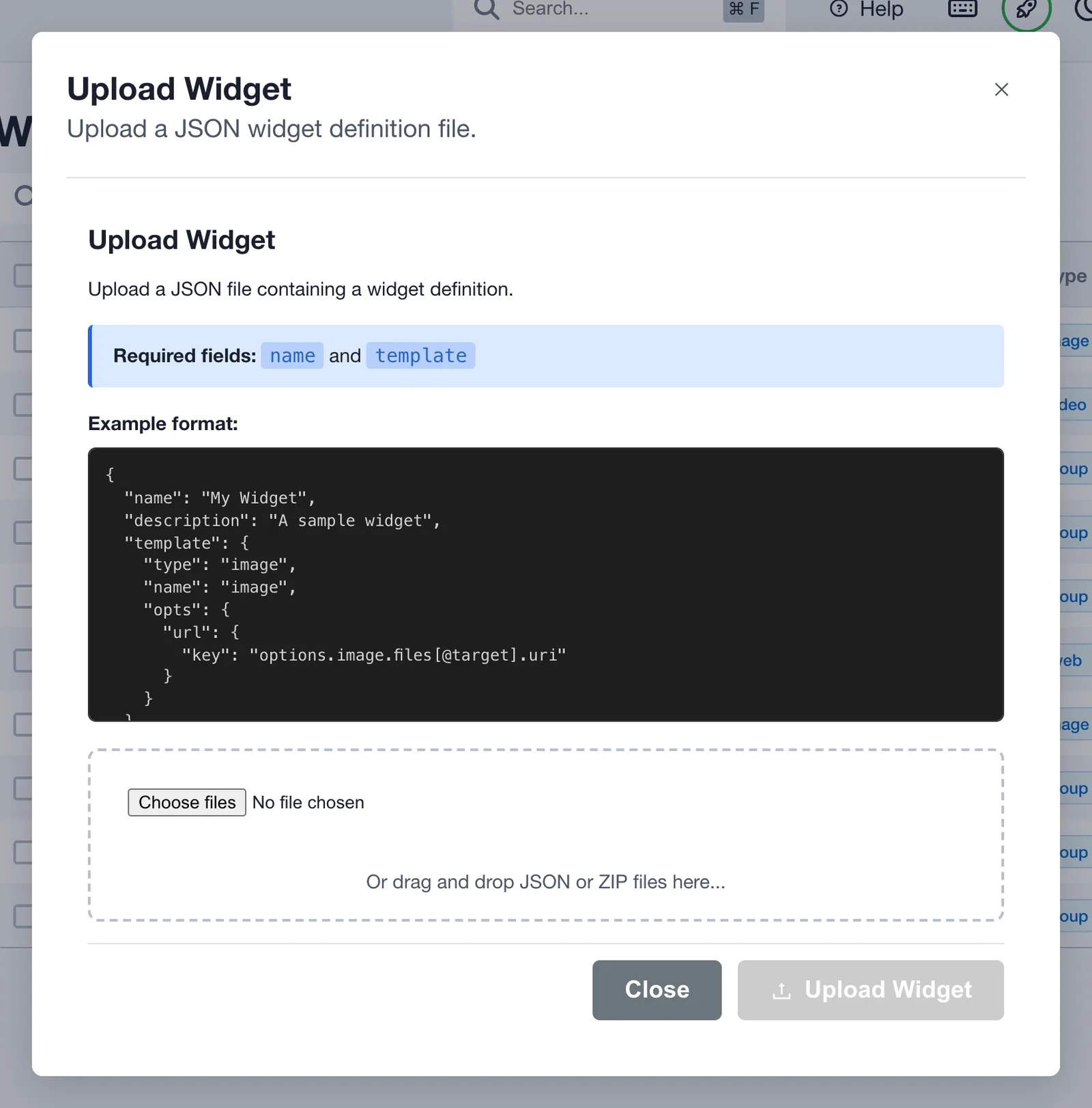
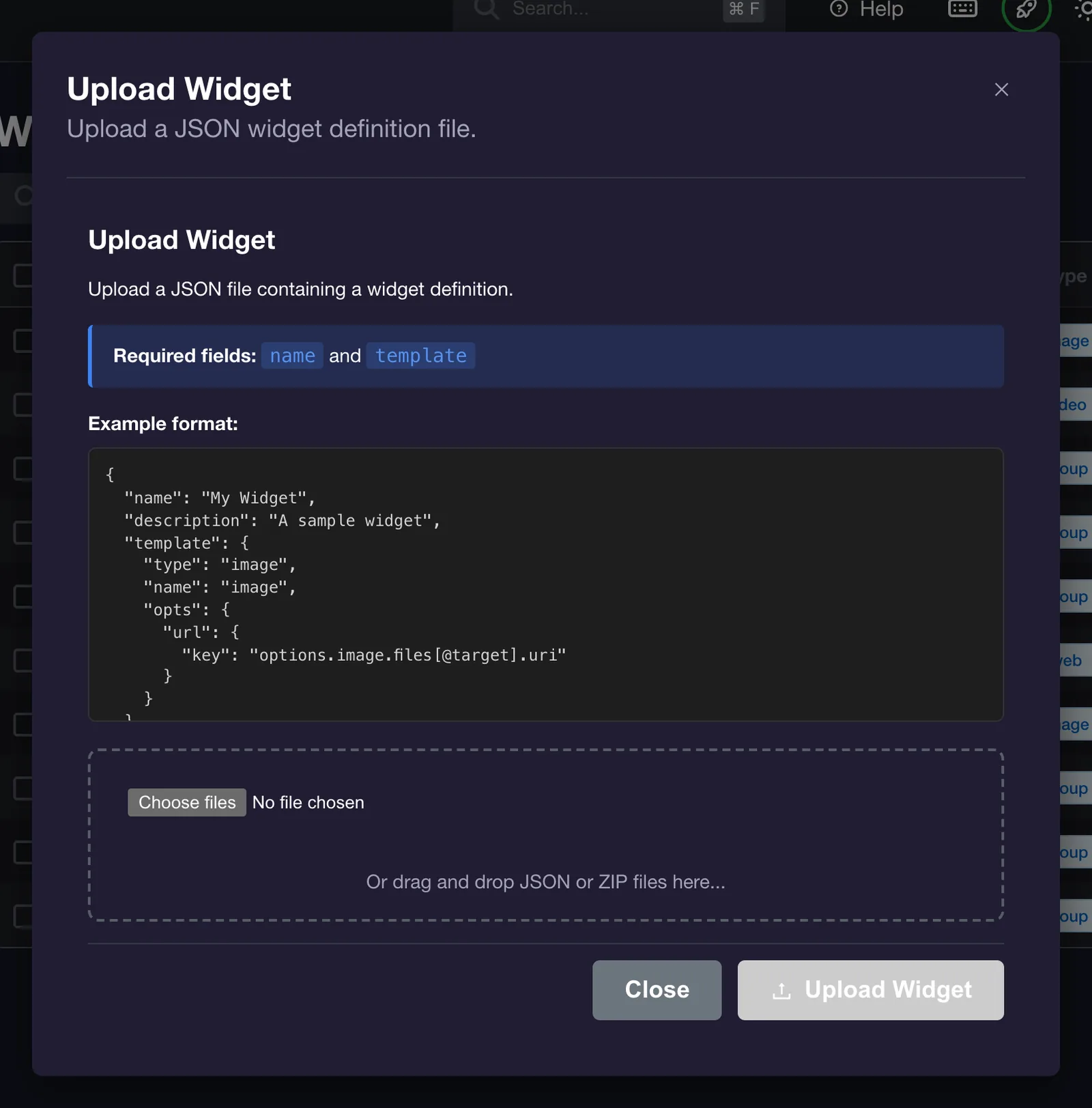
The widget is added with the availability This organization. Uploading and deleting widgets needs the Administrator, Manager, Editor or Publisher role.
Deleting a widget
You can delete widgets that your organization uploaded. If the widget is used in playlists, the confirmation lists them: deleting the widget also removes its items from those playlists. This cannot be undone.
You cannot delete system or network widgets. To stop offering them, ask your network administrator.
Widget access for network administrators
Network administrators control which organizations can use each system and network widget in Widget Access, with these options:
| Option | Who can use the widget |
|---|---|
| All organizations | Every organization, including ones created later |
| All except… | Every organization except those you exclude |
| Only selected… | Only the organizations you add |
| Hidden | No organization in the network |
You cannot remove access from an organization that still uses the widget in its playlists. See Network administration.