Teams
A team is a group of organization members, such as a department, a store or a regional office. Media, playlists, channels and devices can belong to a team, and the resource pages can filter their lists by team. This helps people find the content they work on in a large organization.
For how teams relate to organizations and roles, see Users and teams.
Teams organize resources; they are not a strict access boundary. What members can do in the organization is decided by their organization role.
Creating a team
Creating, renaming and removing teams needs the Administrator or Manager role.
- Open Teams in the sidebar.
- Click Add Team.
- Enter the team name and click Save.
Click a team to open it. Besides the name, the team has two tabs: Members and Invitations.
Adding members
Only people who are already members of the organization can join a team. Invite them to the organization first.
- Open the team and go to Members.
- Click Invite Member.
- Under Select User, search for and choose an organization member.
- Choose the role and send the invitation.
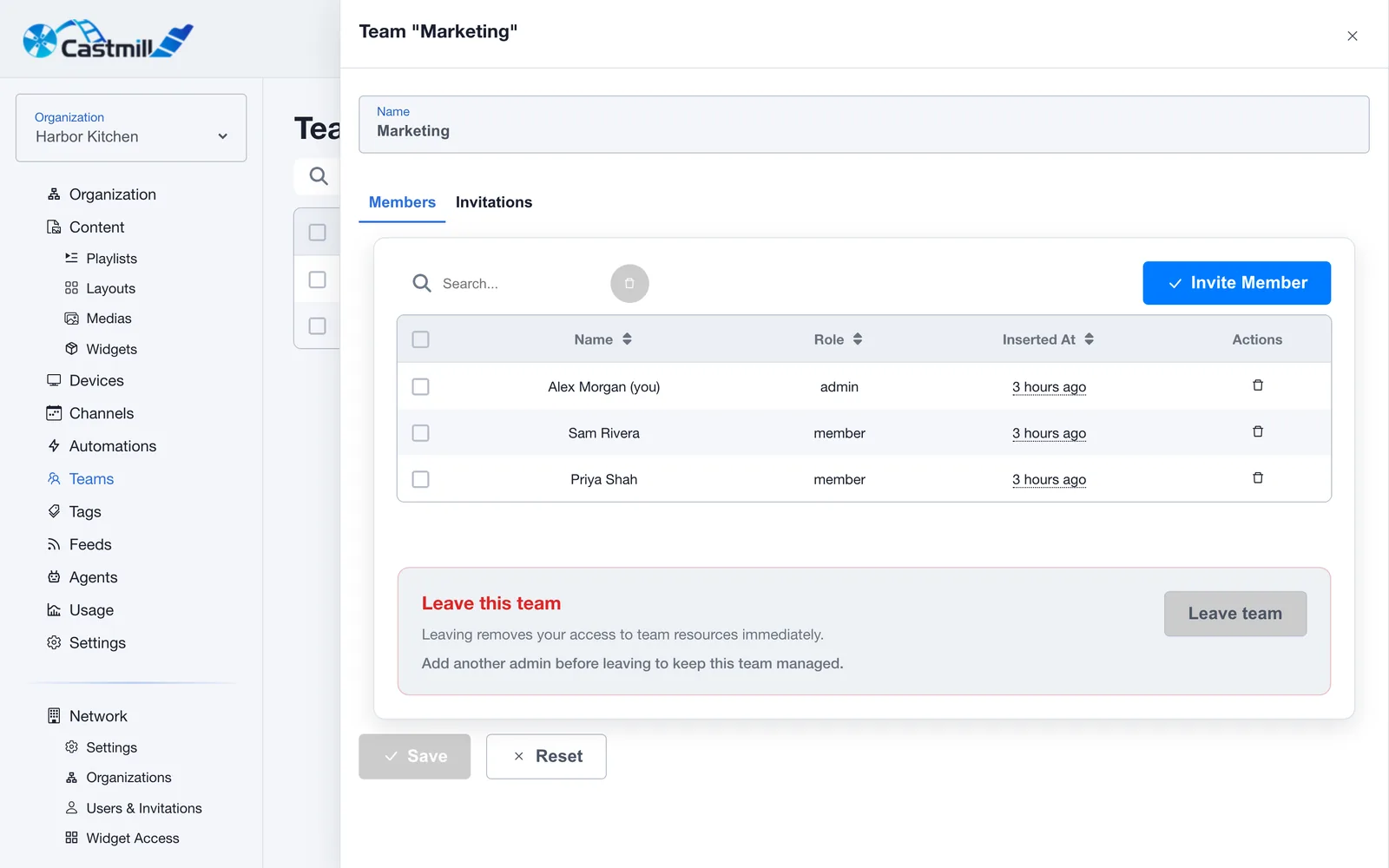
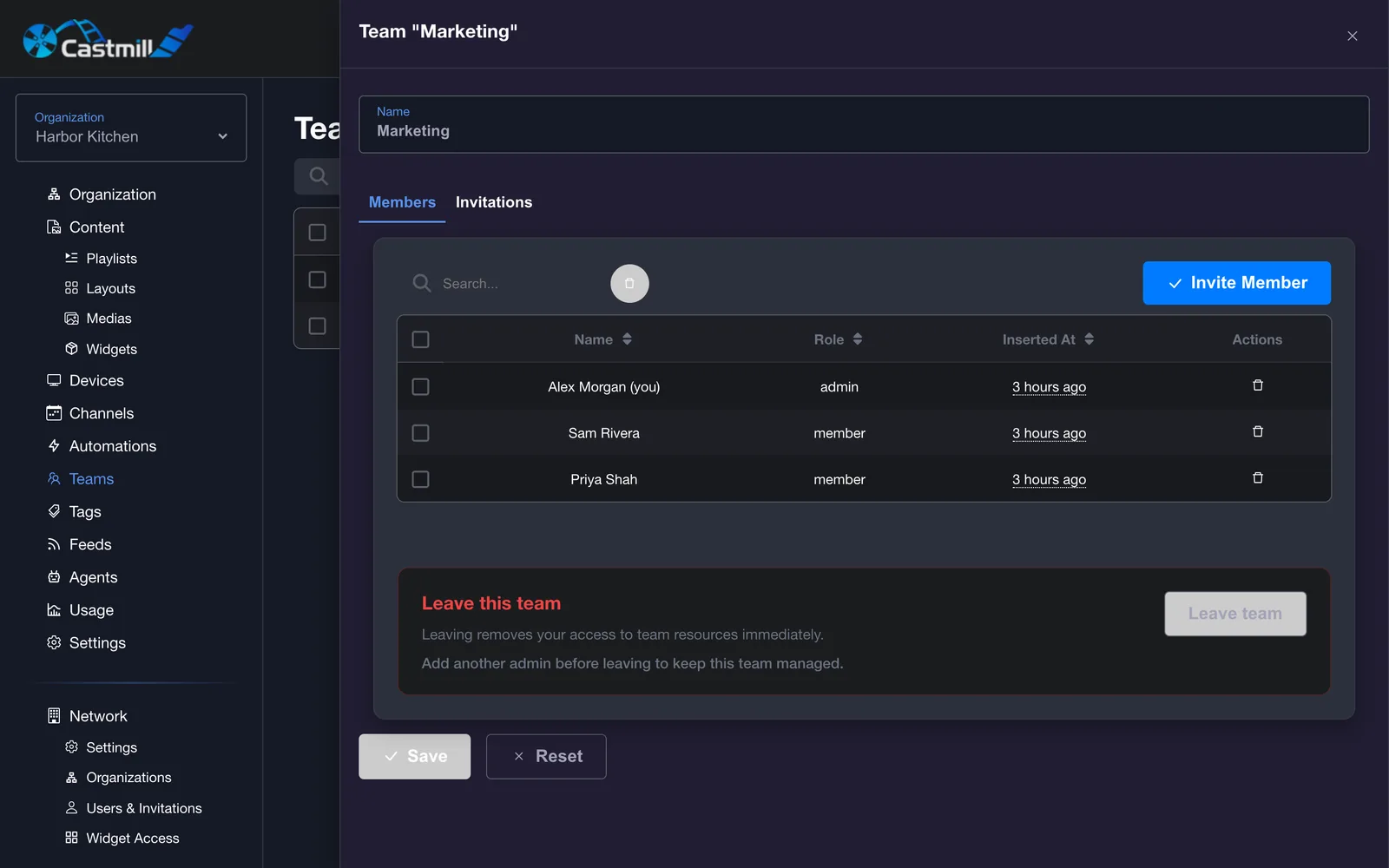
The person receives an invitation and joins the team when they accept it. Pending invitations are listed on the Invitations tab, where you can remove them. A team invitation expires after 7 days.
Team roles
| Role | Can do |
|---|---|
| Team Admin | Manage the team's members and the team's resources |
| Team Member | Work with the team's media and playlists, and view and update its channels and devices |
A team always needs at least one Team Admin, so you cannot remove the last one. Members can leave a team with Leave team; a last admin should add another admin first.
The backend also has an installer role for temporary helpers: it only allows registering devices and expires after 24 hours. It is available through the API, not in the dashboard.
Adding resources to a team
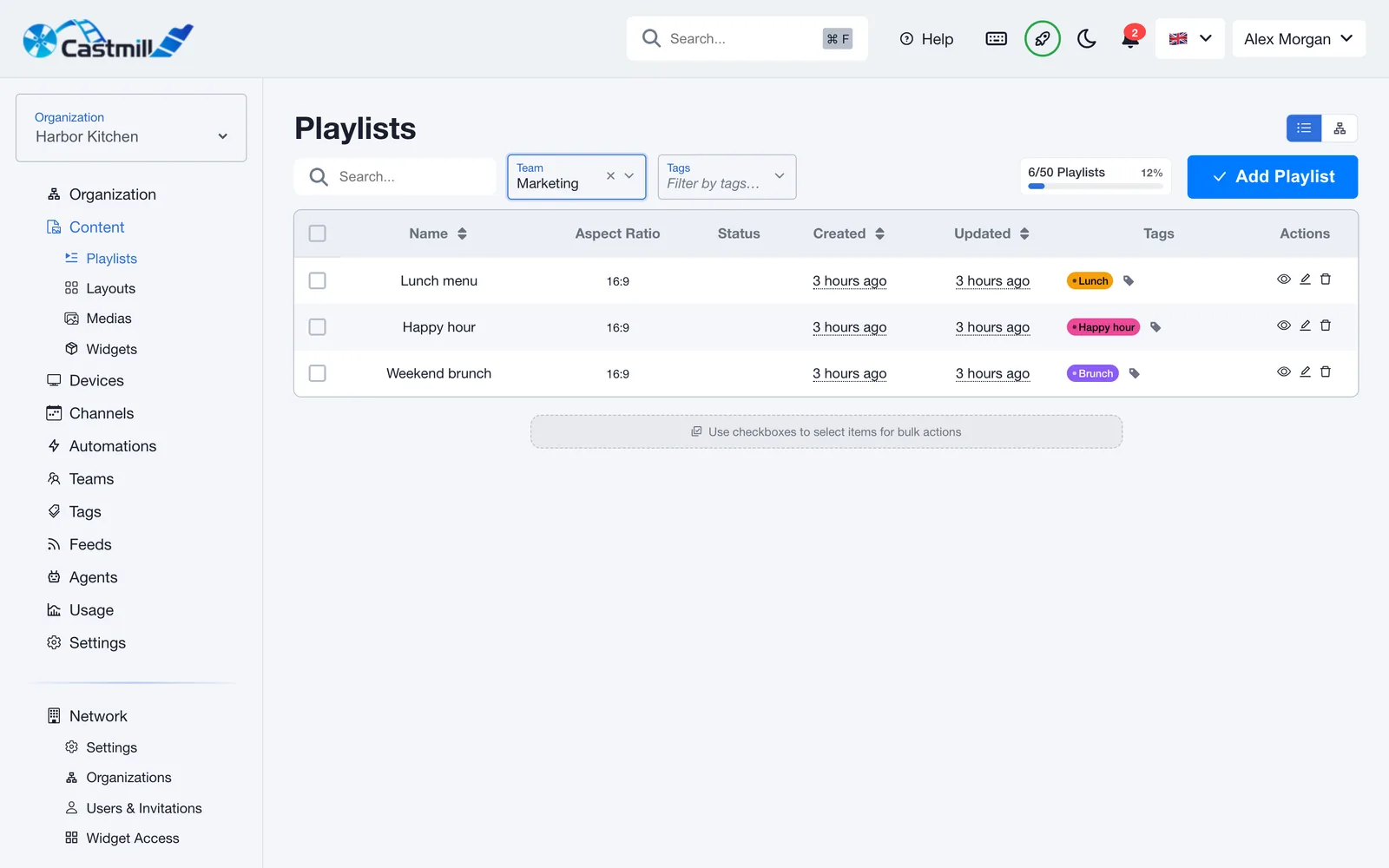
A resource joins a team when you create it while a team is selected in the page's Team filter. For example, select a team on the Medias page and upload files: the files belong to that team.
The Team filter on the Medias, Playlists, Channels and Devices pages then shows only the resources of the selected team.
Removing a team
Use Remove Team on a row, or select several teams and remove them together.