Your first screen
In this tutorial you upload an image, put it in a playlist, schedule the playlist on a channel and play the channel in a browser window that acts as a screen. It takes about ten minutes and works the same on a local installation and on a hosted one.
You need:
- A Castmill account with the admin or manager role. A new account is the admin of its own organization.
- One or two images or a short video.
- A second browser window, or another computer or tablet, to act as the screen.
Upload media
- In the sidebar, open Content → Medias.
- Choose Upload Media, then drag your files into the dialog or select them.
- Choose Upload.
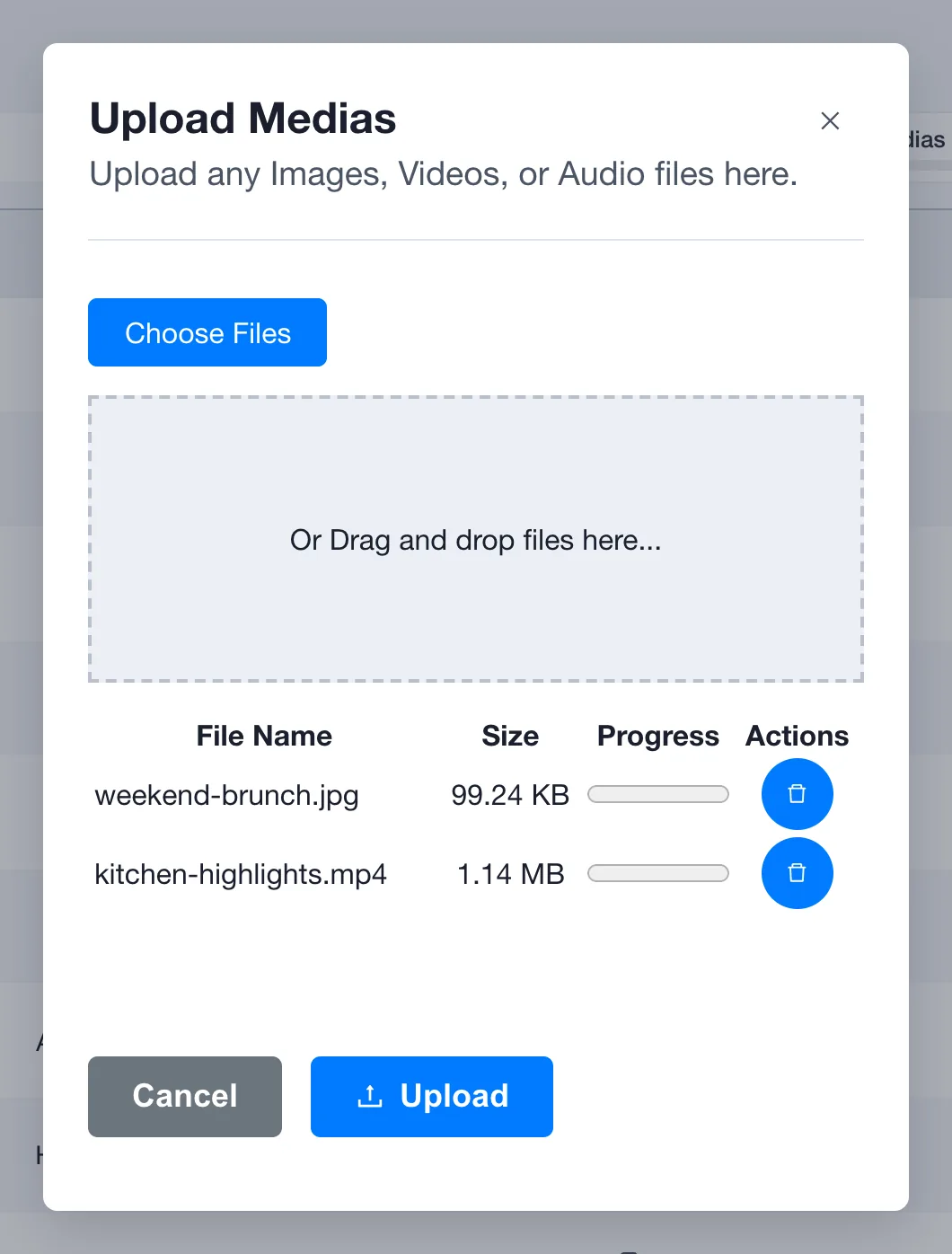
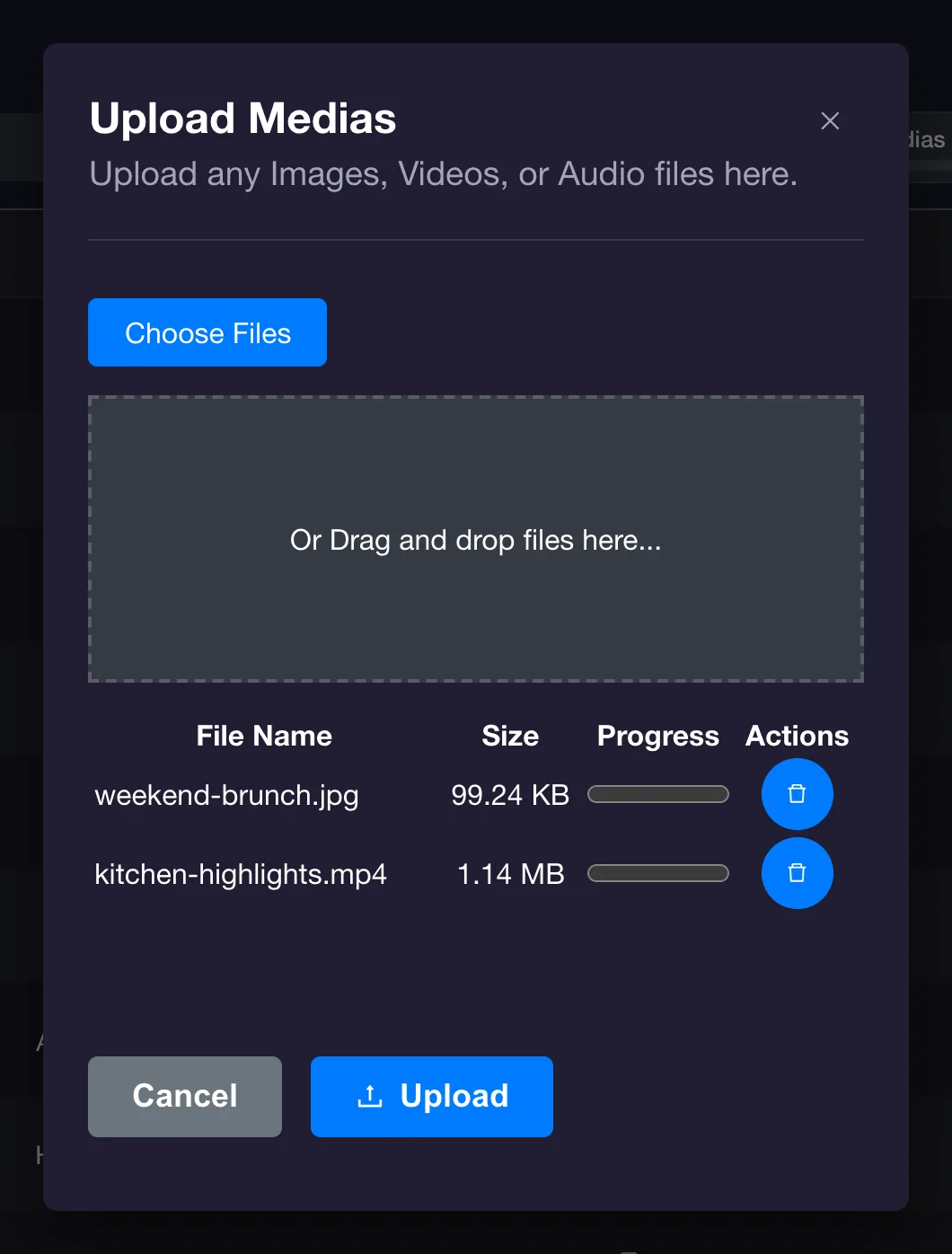
Castmill creates thumbnails for images and transcodes videos in the background. The media is ready when its thumbnail appears. See Media for supported formats and limits.
Build a playlist
- Open Content → Playlists and choose Add Playlist. Name it, for example Lobby.
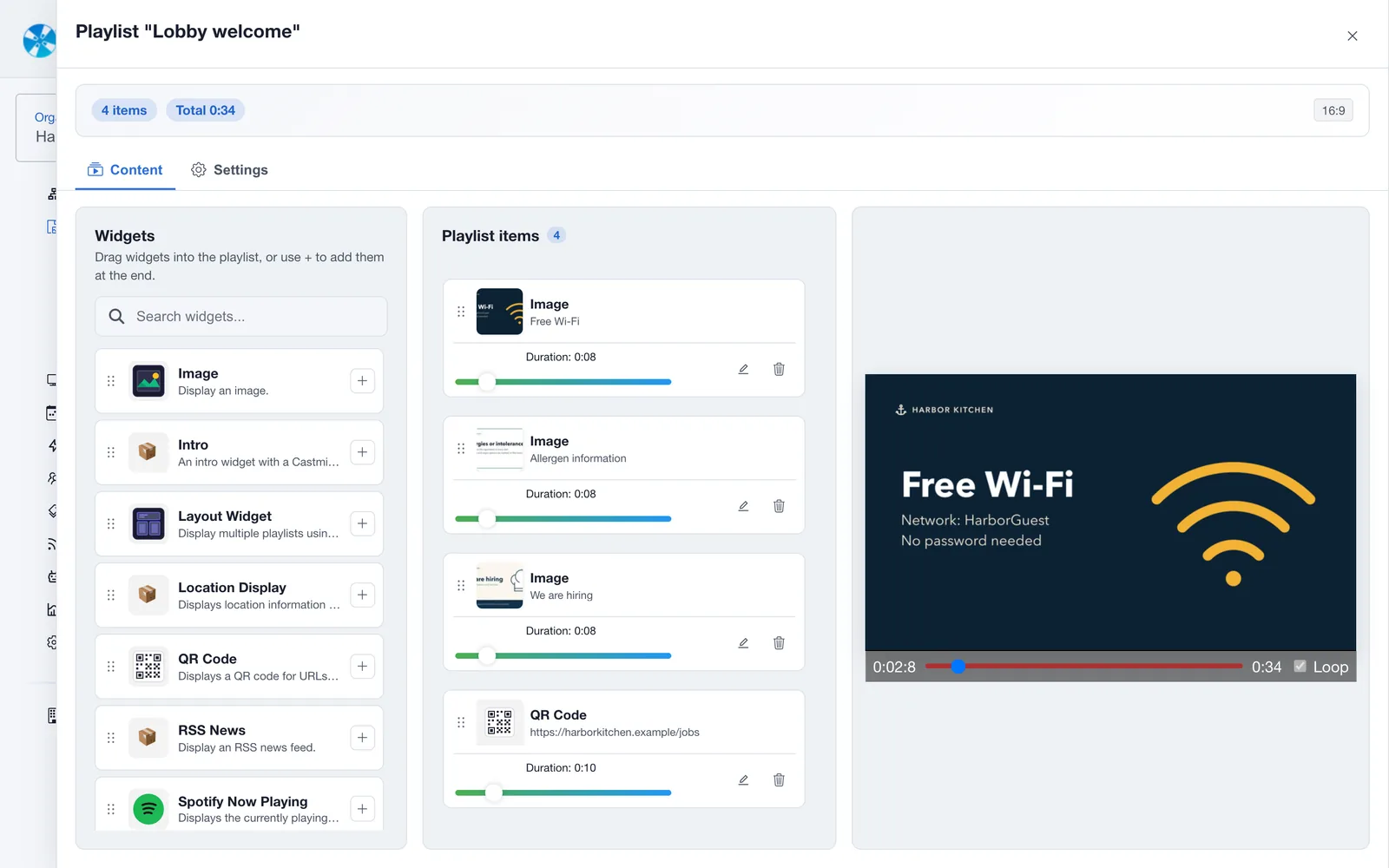
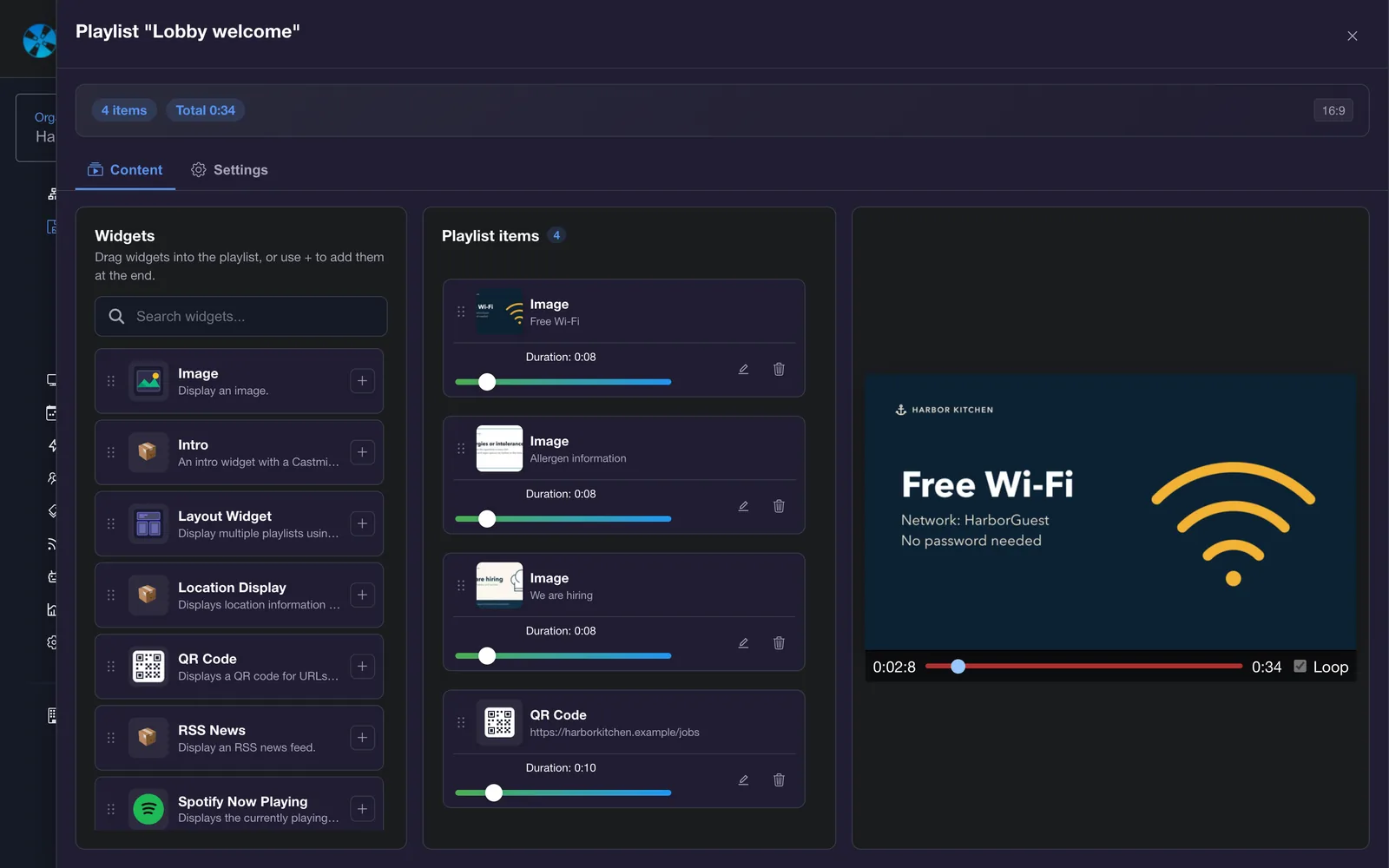
- Open the playlist. The editor shows the available widgets on one side and the playlist on the other.
- Drag the Image widget into the playlist, then select the image you uploaded and confirm.
- Set the Duration, for example 10 seconds.
- Repeat for more images. Use the Video widget for videos; a video item plays for the length of the video.
The preview next to the items plays the playlist as a screen would show it. Playlists covers transitions, aspect ratios and the other widgets.
Create a channel
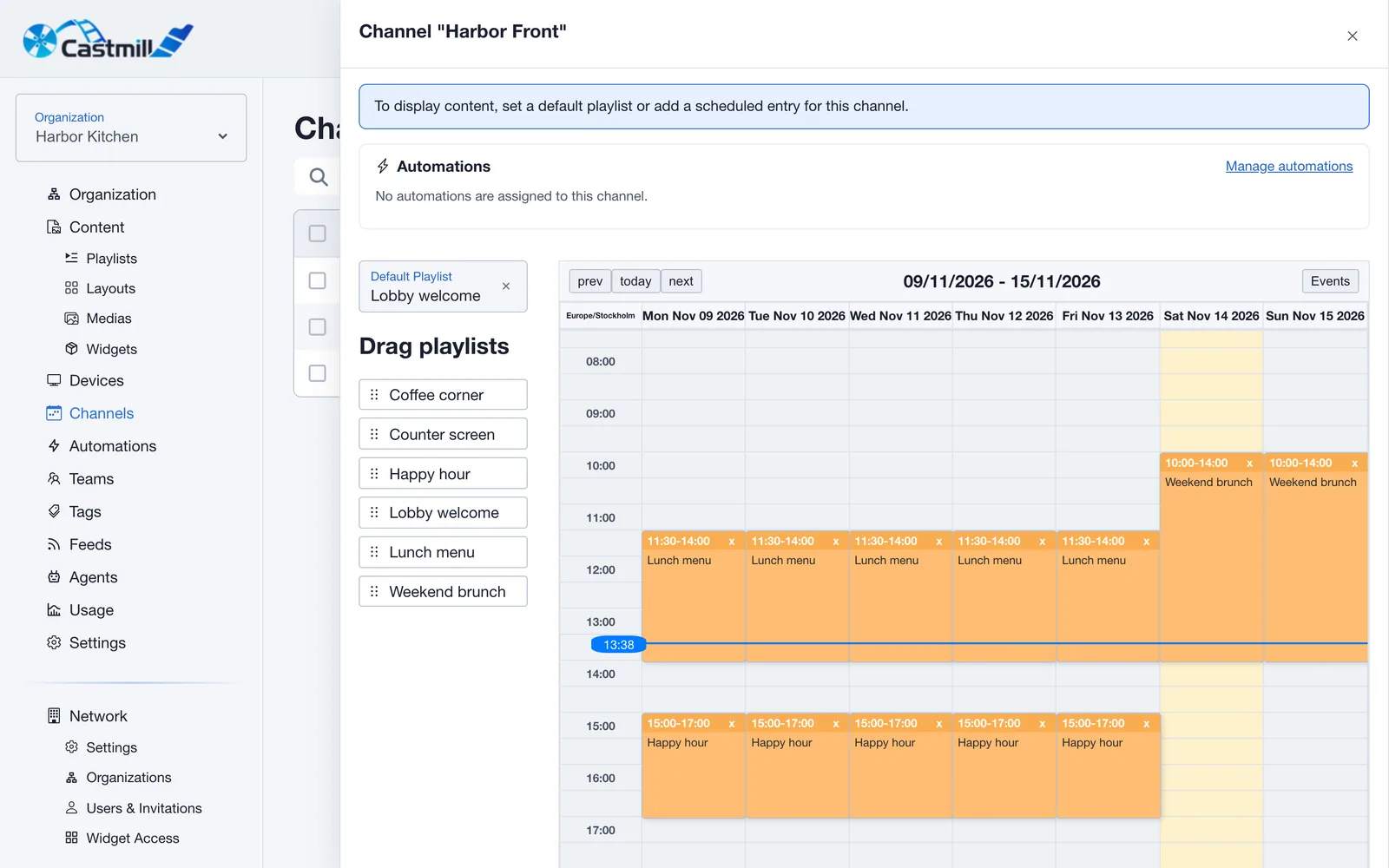
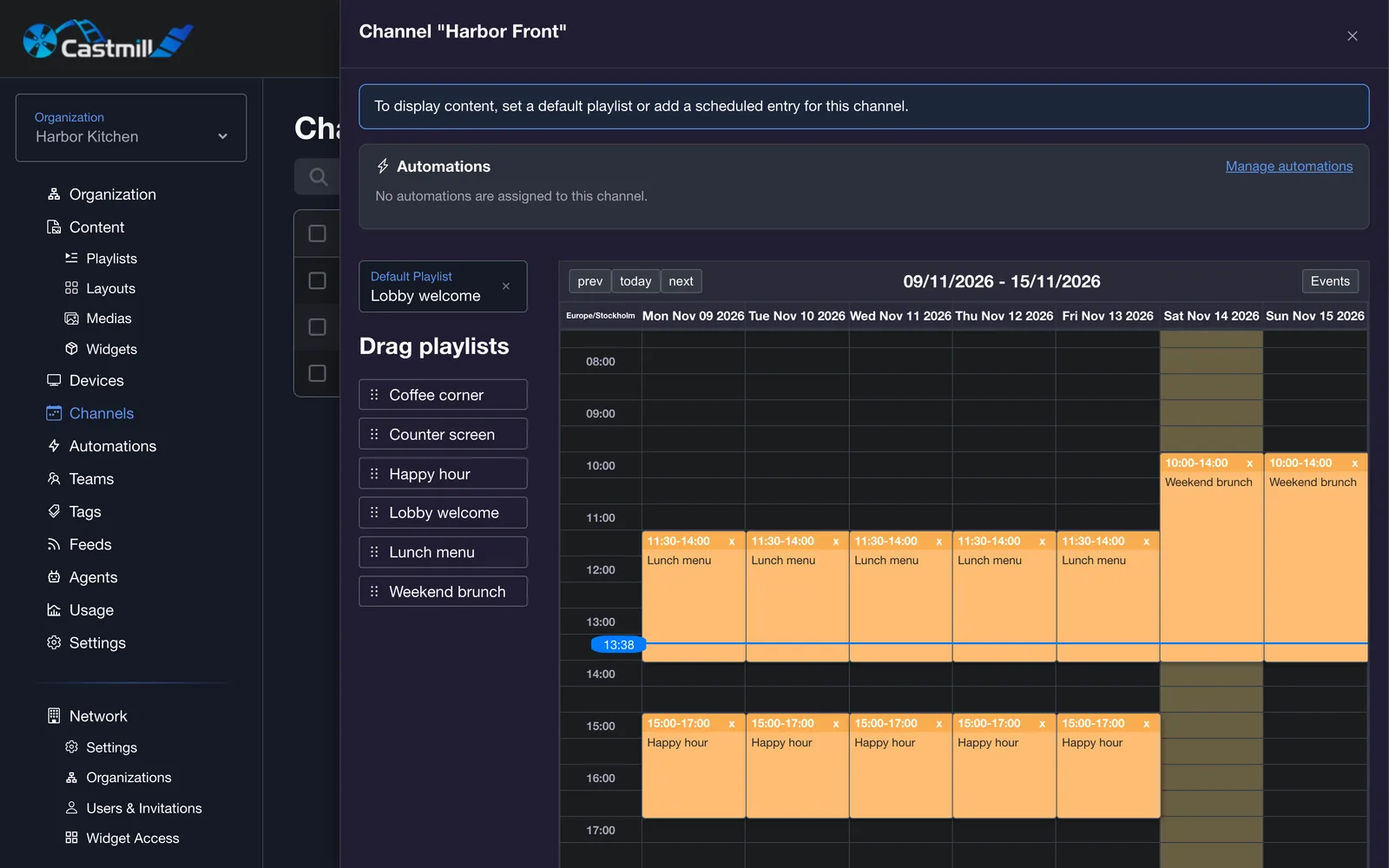
A channel decides which playlist plays at what time.
- Open Channels and choose Add Channel. Name it Lobby screen.
- Open the channel and set its Timezone to the location of the screen.
- Set Default playlist to Lobby.
The default playlist plays whenever the calendar has no other entry, so this channel now plays Lobby around the clock. You can add time-based entries later; see Channels.
Start a player
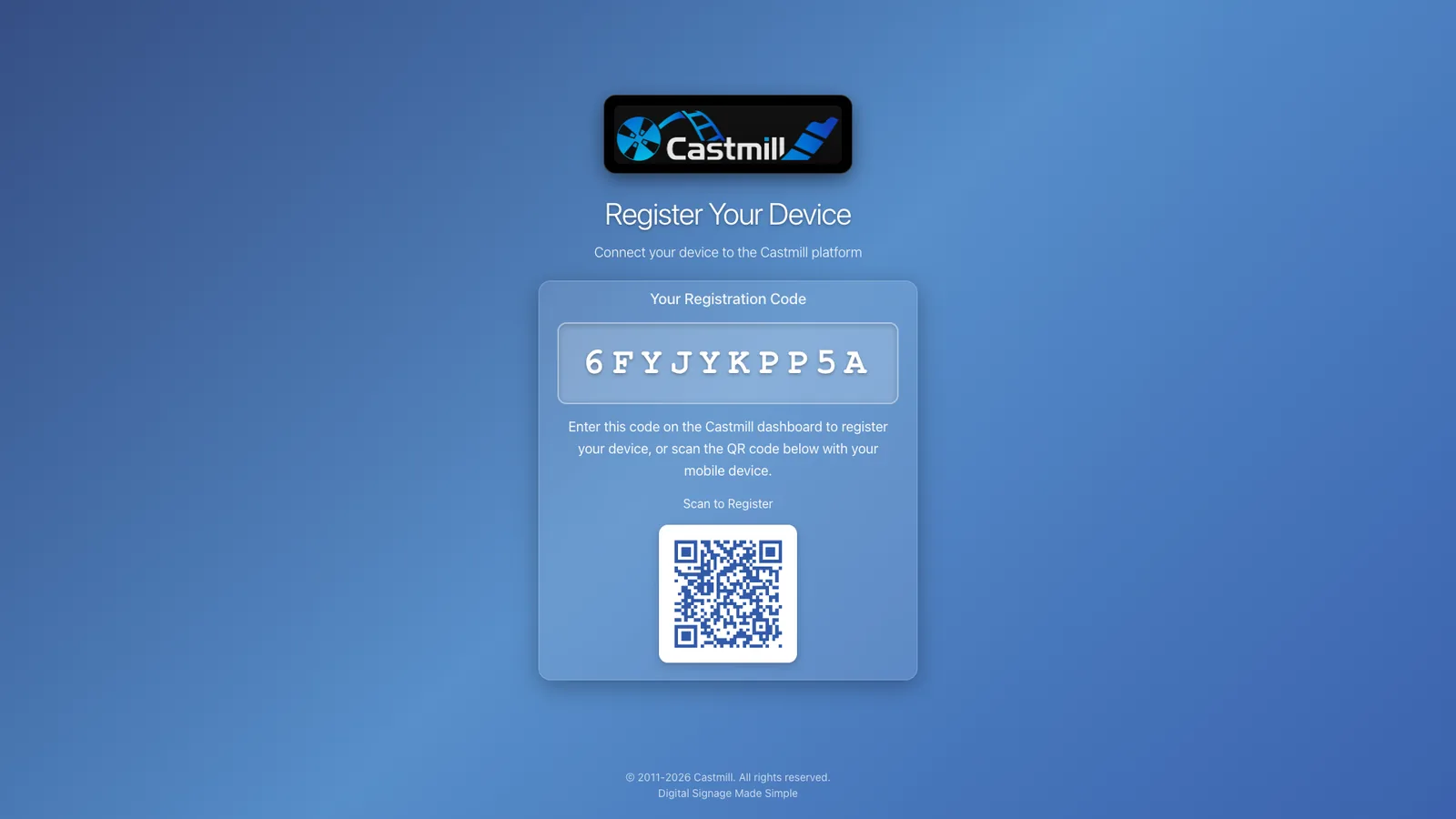
Any modern browser can act as a Castmill player.
- In a new browser window, open the address of your Castmill server, for example http://localhost:4000 for a local installation.
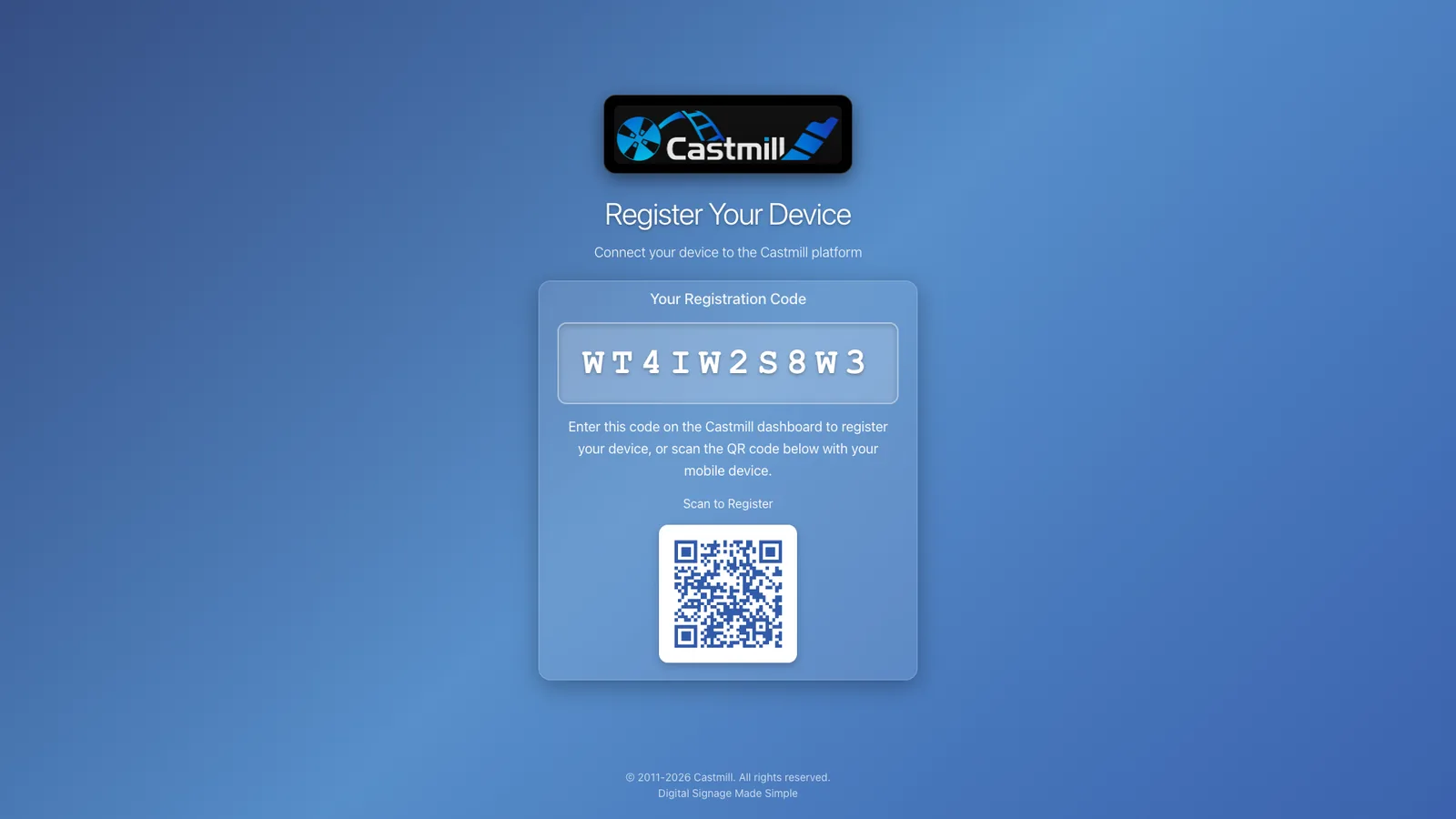
- The player shows a pincode of 10 characters. Keep this window open.
For permanent installations, use one of the dedicated players instead. They start automatically, run full screen and keep playing without a network connection.
Register the device
- In the dashboard, open Devices and choose Add Device.
- Enter a name, for example Lobby, and type the pincode shown by the player.
- Choose Register.
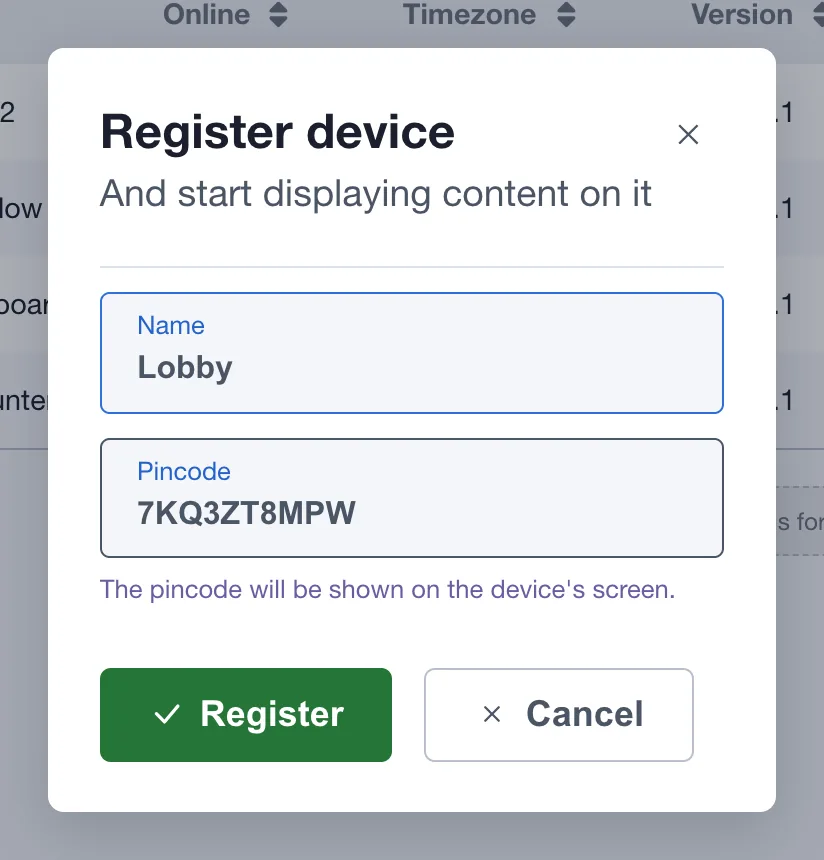
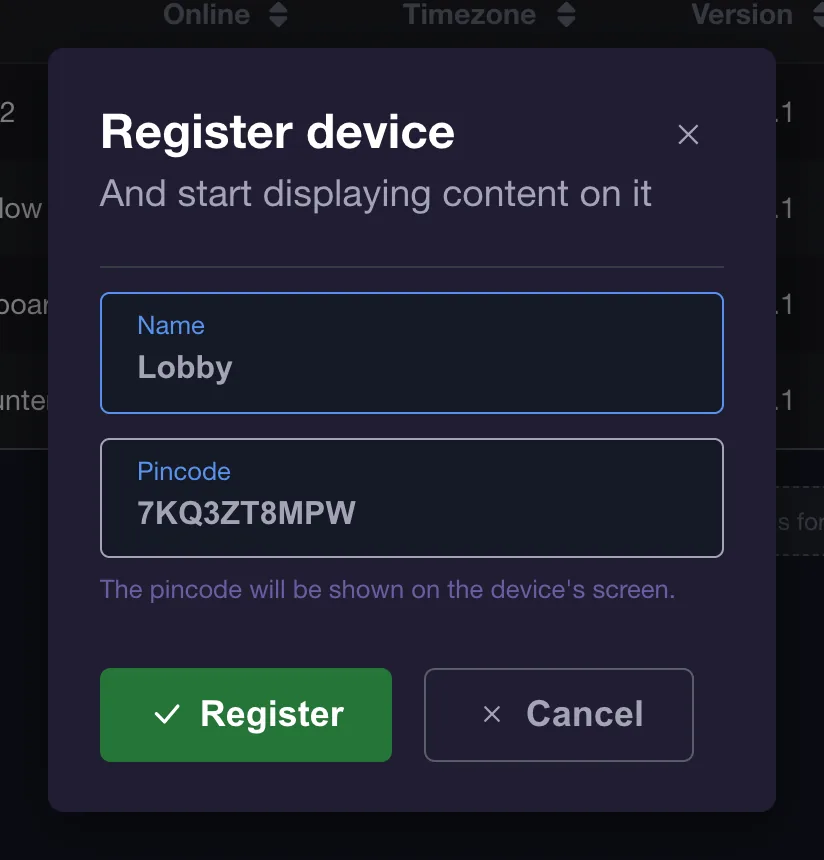
The player switches from the pincode to content within a few seconds. A pincode expires after one hour; reload the player to get a new one.
Castmill gives every newly registered device its own channel, named after the device, with a welcome playlist. That is what the player shows now.
Assign your channel
- Open the device in Devices and select the Channels tab.
- Add Lobby screen.
- Remove the channel that was created for the device.
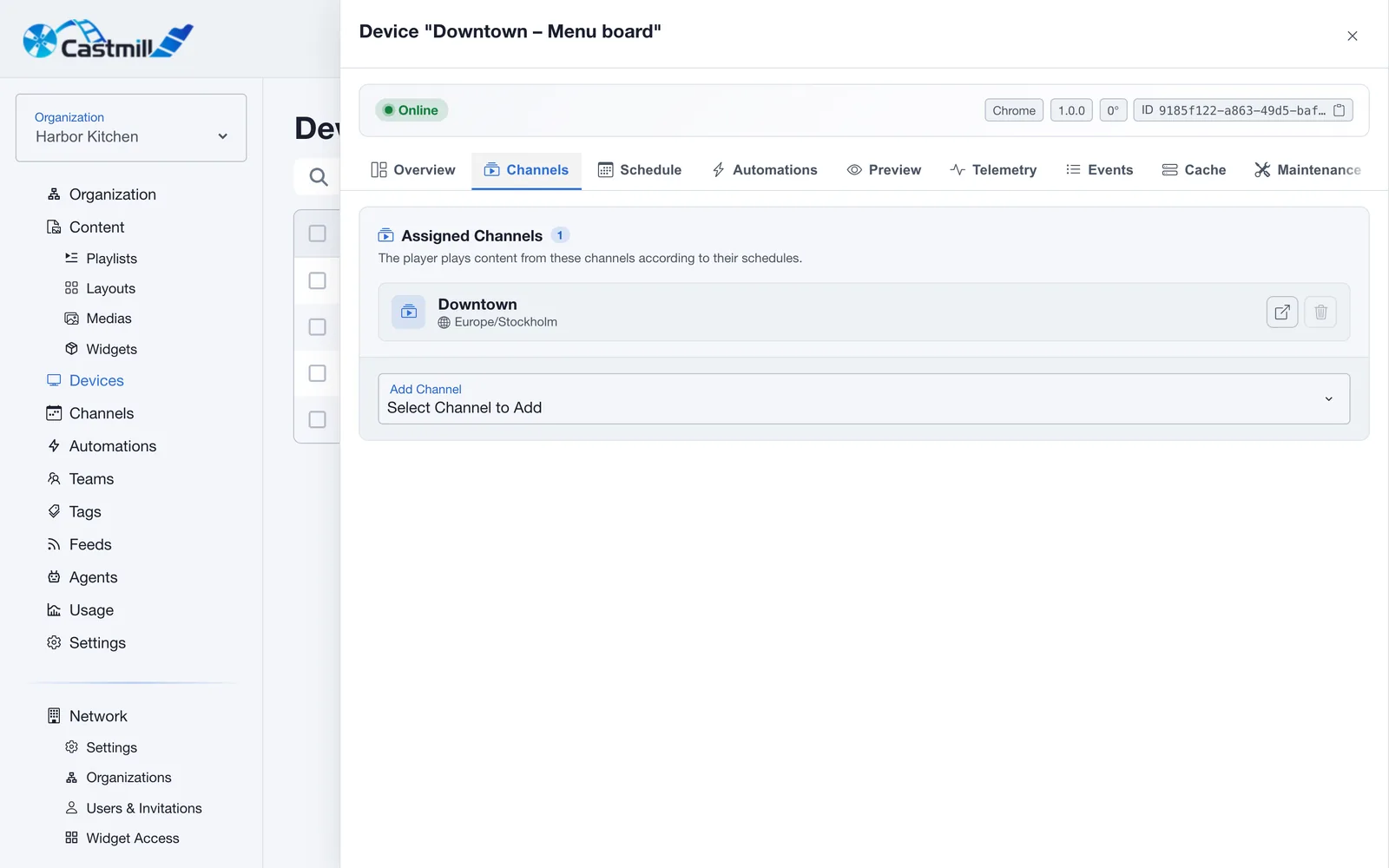
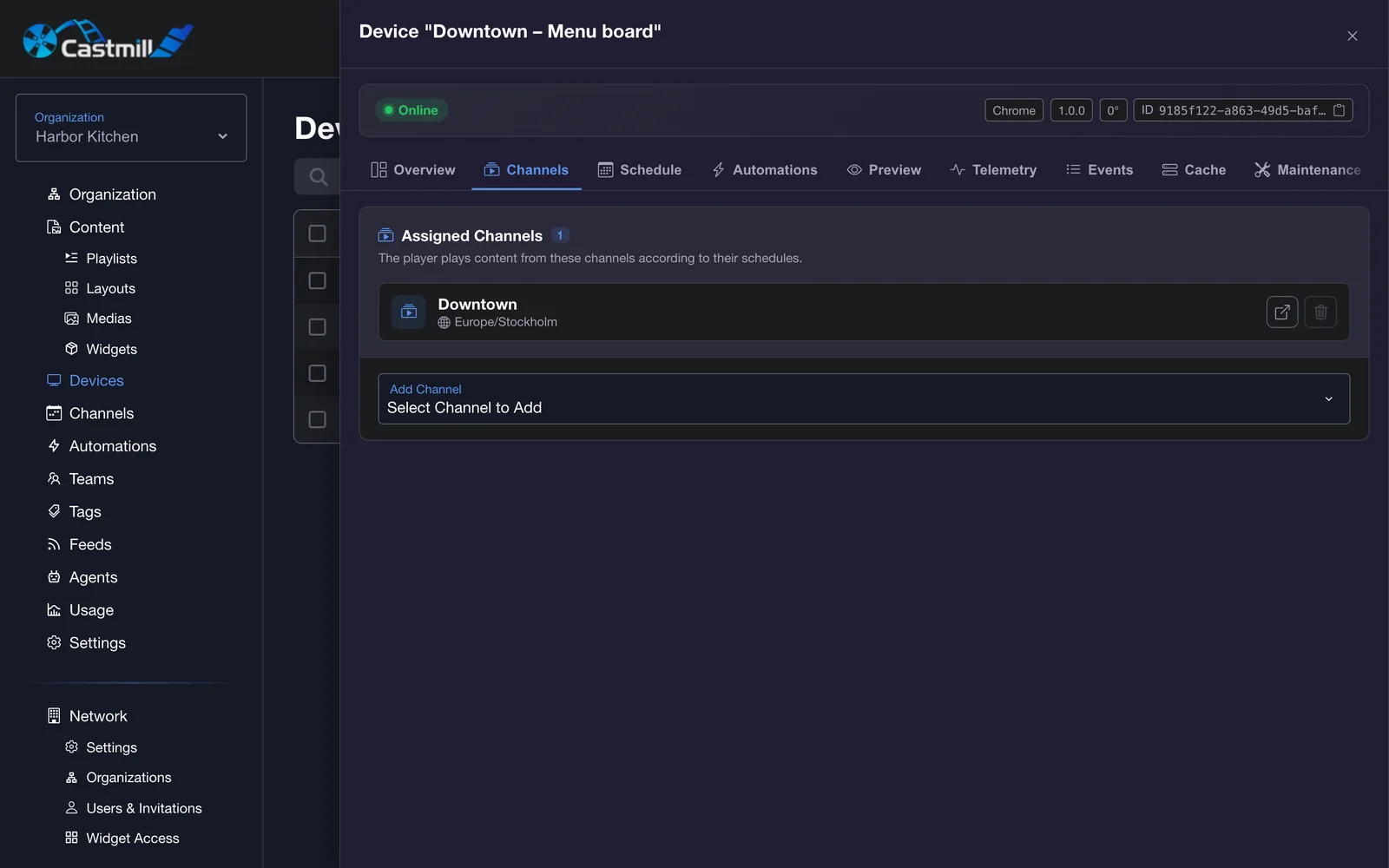
The player switches to your playlist. Your first screen is live.
What you can do next
Play different playlists in the morning, at lunch and after hours.
Split the screenShow a video, a news ticker and the weather side by side.
Add live dataAdd weather, RSS headlines, QR codes or your own data.
Monitor the deviceSee a live preview, telemetry and events, and run maintenance actions.
Install a real playerAndroid, LG webOS, macOS and Linux players.
Invite your teamAdd colleagues and give them the role they need.