Feeds
A feed stores data that another system pushes to Castmill through the REST API. You can send updates from your own software or automate them with Make or Zapier; a custom widget reads the feed and displays the data on screens. Castmill does not poll the source. For the separate pull-integration model, where a Castmill server fetcher retrieves data from an external service, see Pull integrations.
You manage feeds in Feeds in the sidebar, on the Data feeds page.
Examples
Feeds let your existing systems publish information to screens without building a Castmill server integration for each source. For example, you can:
| Use case | Example screen content | Feed type |
|---|---|---|
| Corporate KPIs | Current sales, production, service-level or quality metrics from an internal reporting system | Document |
| Ticketing and queues | Open tickets, queue positions, wait times or the next number to serve | List or document |
| Timetables and schedules | Upcoming departures, class times, room bookings or appointments | List or document |
| Retail pricing and promotions | Product prices, availability and timed offers from a point-of-sale or catalog system | Document or list |
| Operations and alerts | Service status, incidents, safety notices or other time-sensitive updates | List or document |
Choose a list when you want to append individual updates, such as new tickets or alerts. Choose a document when each update replaces the current state, such as a KPI board or price list. See Feed types for details.
Feed types
| Type | Holds | Typical use |
|---|---|---|
| List | The latest entries, newest first. Systems add entries one at a time. | News items, social posts, orders, messages |
| Document | One JSON document that systems replace on each update | A menu, a price list, a status board |
For a list feed, Entries to keep sets how many entries the feed keeps, from 1 to 100 (default 10). Older entries are removed when new ones arrive.
Creating a feed
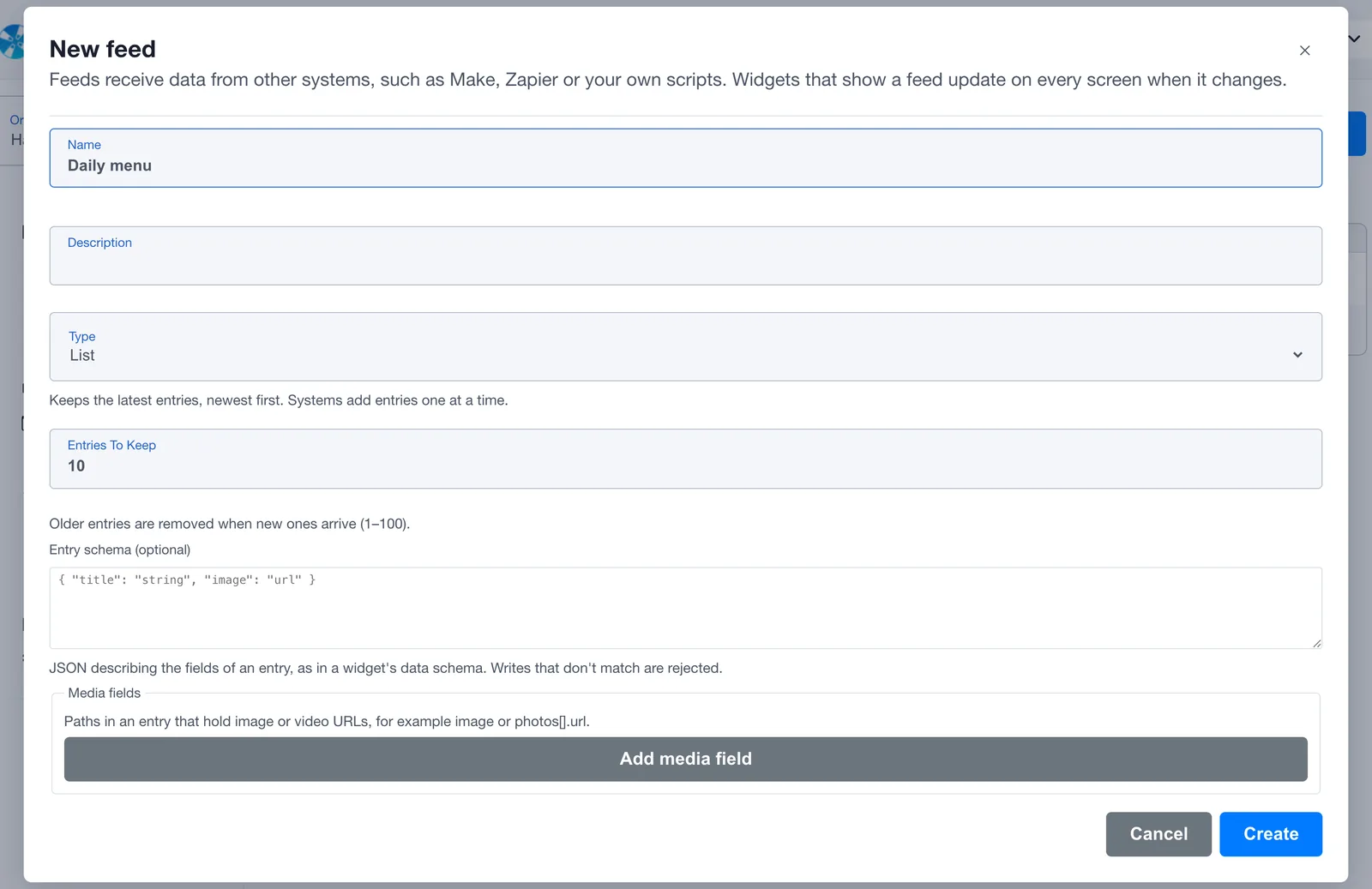
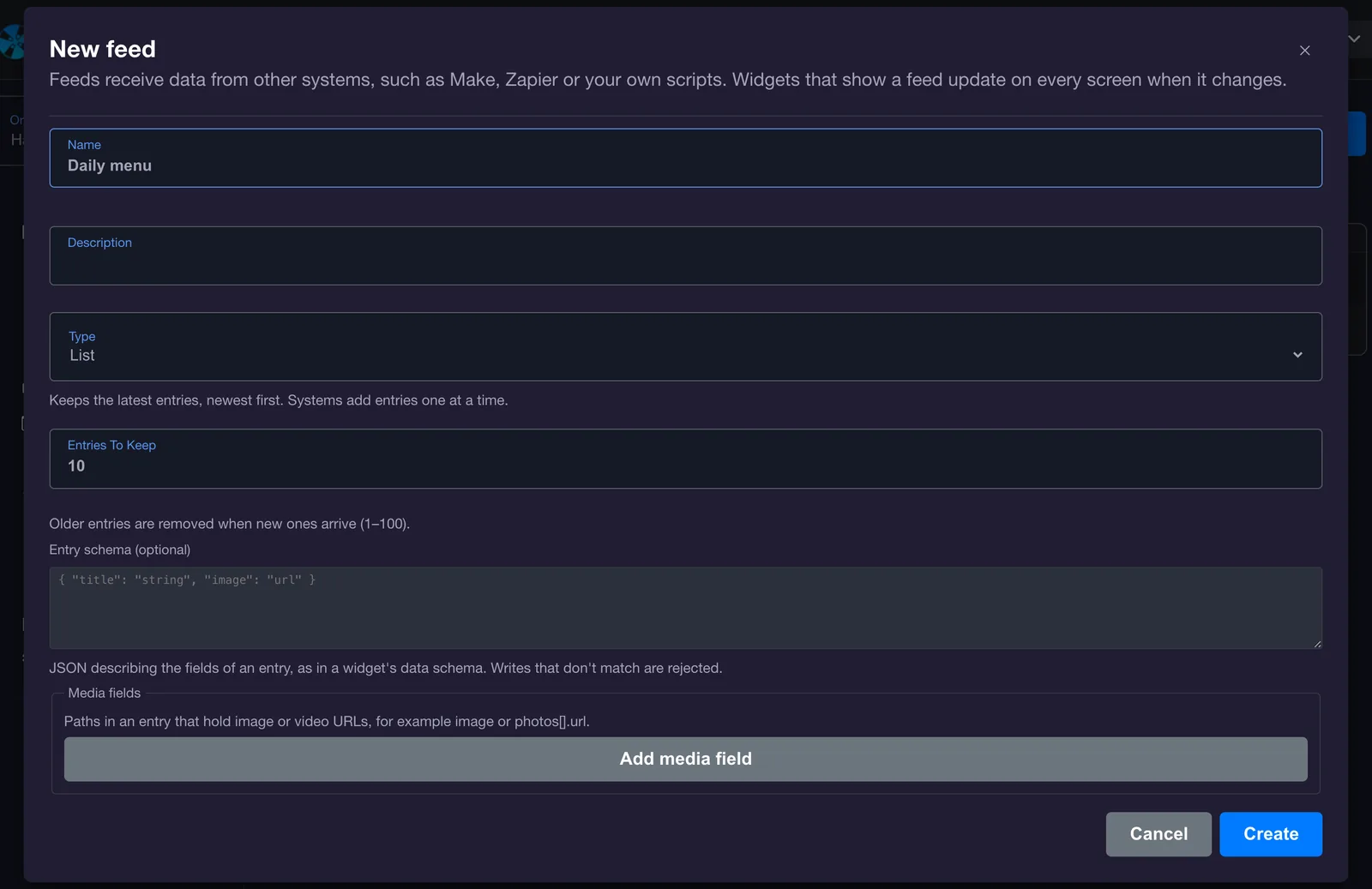
- Open Feeds and click New feed.
- Enter a name and choose the Type.
- For a list feed, set Entries to keep.
- Optionally, set an Entry schema and Media fields (see below).
- Save the feed.
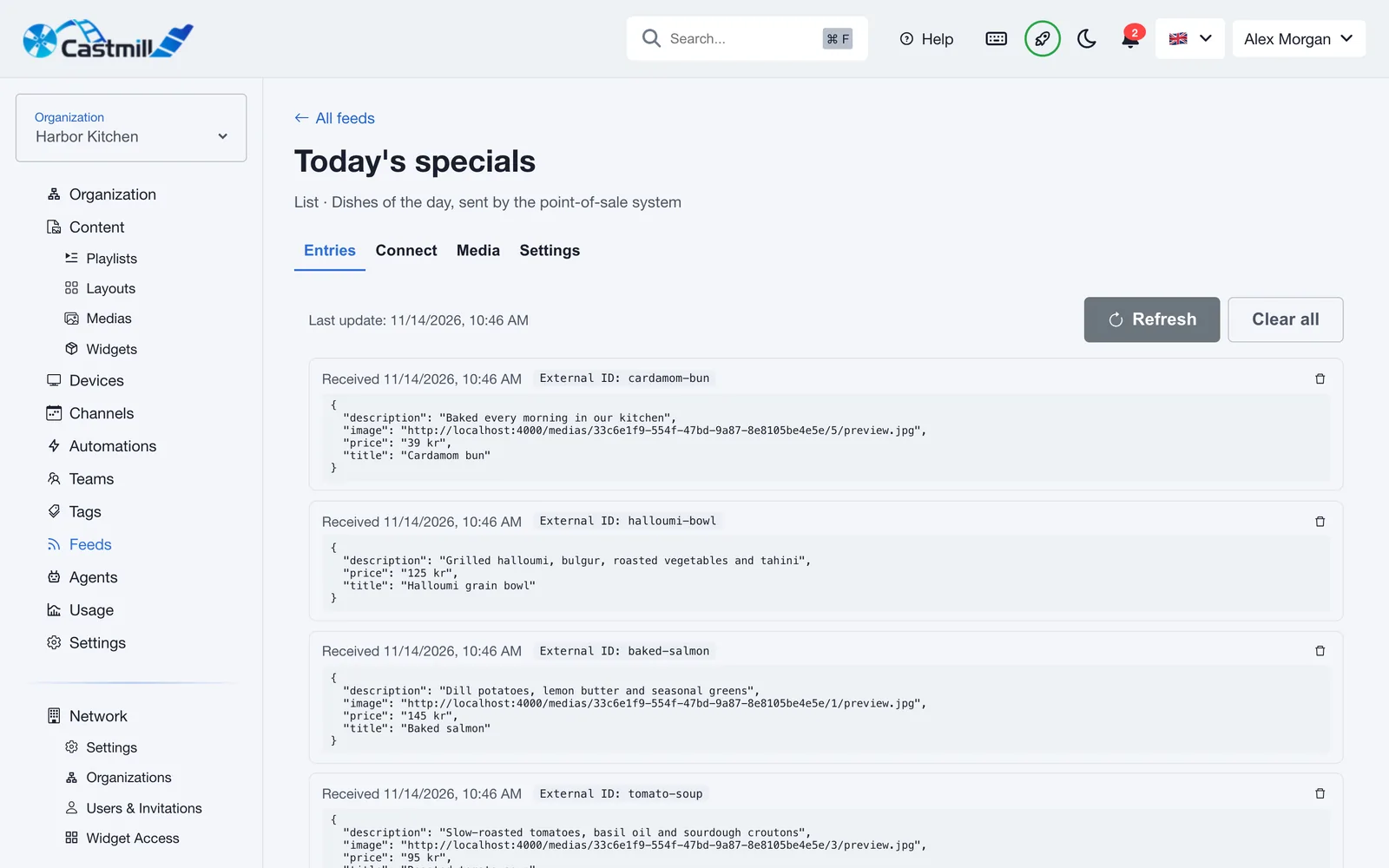
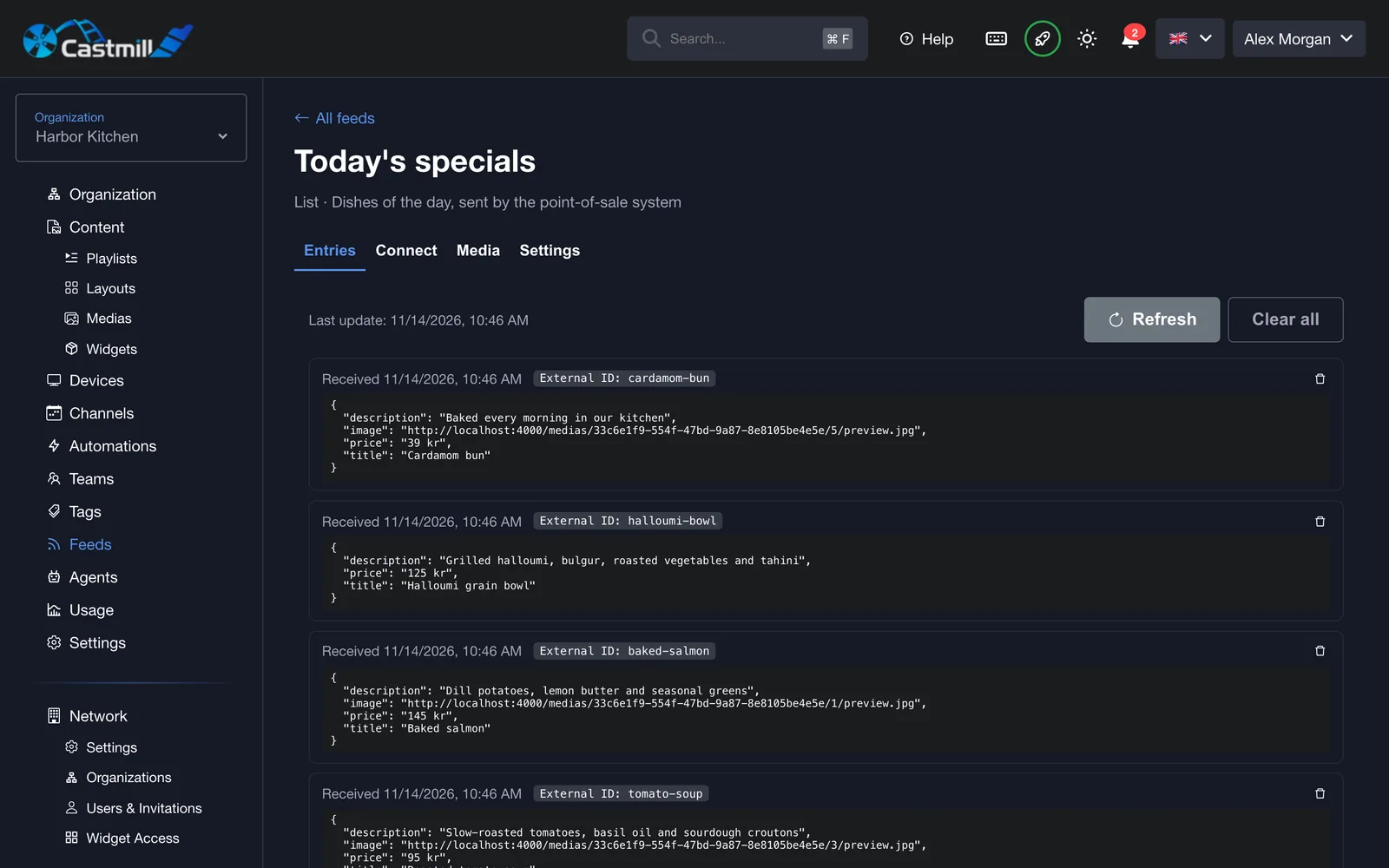
The feed page has four tabs:
| Tab | Content |
|---|---|
| Entries | The current data. Send a test entry stores a JSON object as if a system had sent it. You can delete single entries or Clear all. |
| Connect | The Endpoints of this feed (Add entries, Replace all data, Read data), its Tokens, and examples for curl and Make |
| Settings | Name, type, entries to keep, entry schema and media fields |
| Media | The images and videos copied from entries, with their status |
Entry schema
An Entry schema is optional JSON describing the fields of an entry, written like a widget's data schema. When a feed has a schema, writes that don't match it are rejected.
Media fields
Entries often contain links to images or videos. List the paths that hold them under Media fields, for example image or photos[].url, and choose the Handling:
| Handling | What happens |
|---|---|
| Copy to storage | Castmill downloads the file and replaces the link with the stored copy, so screens keep showing it after the original link expires. |
| Keep the link | The original URL is used as is. |
Copying happens in the background after the write. While it runs, the entry keeps the original link. When the copy is ready, the field holds the stored URL and the original URL is kept in a field with the suffix _original, for example image_original.
Copied files can be JPEG, PNG, GIF, WebP, MP4, MOV or WebM, up to 20 MB or your organization's maximum upload size, whichever is smaller. They count toward your storage quota. The Media tab shows each file as Copying, Stored or Failed, with the reason for failures, and Retry copies a failed file again. A failed file keeps its original link.
Connecting a system
Tokens
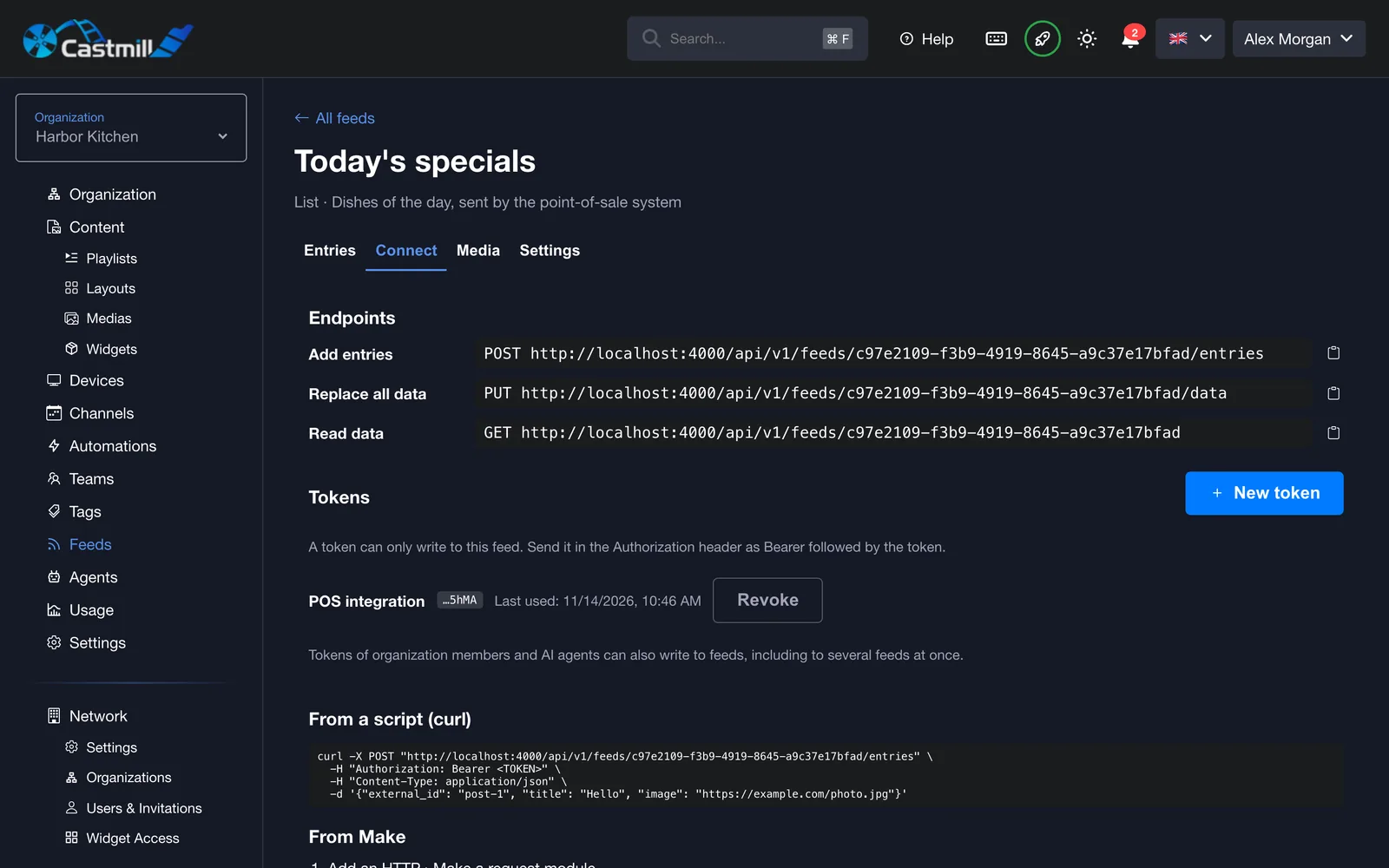
On the Connect tab, click New token and give it a name, for example "Make scenario". The token is shown once: copy it into the system that sends data. A feed token can read and write only its own feed. Revoke stops a token from working.
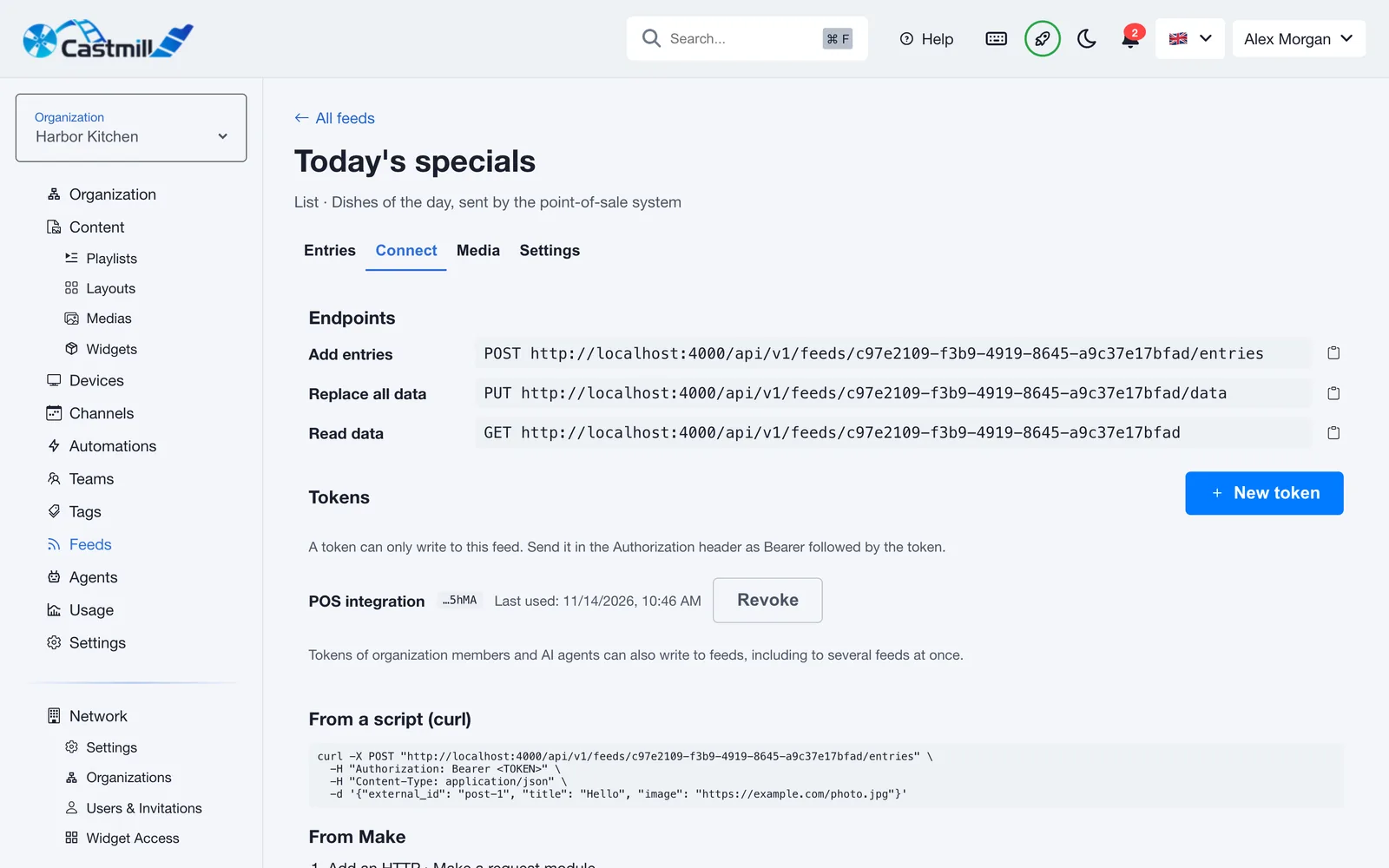
Tokens of organization members and AI agents can also write to feeds, as long as the member's role allows it, and they can write to several feeds at once. See AI agents.
Send the token in the Authorization header as Bearer <token>.
Endpoints
All endpoints accept and return JSON. $FEED_ID is the feed's ID, shown on the Connect tab.
| Method and path | Purpose |
|---|---|
POST /api/v1/feeds/:id/entries | Add one or more entries to a list feed |
PUT /api/v1/feeds/:id/data | Replace all data of a feed |
DELETE /api/v1/feeds/:id/entries/:entry_id | Delete one entry |
DELETE /api/v1/feeds/:id/entries | Delete all data of the feed |
GET /api/v1/feeds/:id | Read the feed |
POST /api/v1/feeds/entries | Add the same entry to several feeds (member or agent token only) |
Adding entries
Send one JSON object to add one entry:
curl -X POST "$CASTMILL_URL/api/v1/feeds/$FEED_ID/entries" \
  -H "Authorization: Bearer $FEED_TOKEN" \
  -H "Content-Type: application/json" \
  -d '{"external_id": "post-123", "title": "Spring offer", "image": "https://example.com/offer.jpg"}'
To add several entries in one call, send {"entries": [ ... ]} or a JSON array, oldest first. The response has status 201 and contains the stored entries.
Castmill adds id and received_at to every entry. These keys and external_id are reserved.
Updating entries with external_id
Set external_id (a string or integer, up to 255 characters) to the ID the item has in your system. If the feed already has an entry with that external_id, the new data replaces it in place instead of adding a new entry. This way an edited post or order updates on screen instead of appearing twice.
Replacing all data
For a document feed, send the whole document:
curl -X PUT "$CASTMILL_URL/api/v1/feeds/$FEED_ID/data" \
  -H "Authorization: Bearer $FEED_TOKEN" \
  -H "Content-Type: application/json" \
  -d '{"title": "Lunch menu", "dishes": [{"name": "Soup", "price": 9}]}'
For a list feed, send {"entries": [ ... ]} to replace all entries.
Reading and deleting
# Read the feed
curl "$CASTMILL_URL/api/v1/feeds/$FEED_ID" \
  -H "Authorization: Bearer $FEED_TOKEN"

# Delete one entry by its id
curl -X DELETE "$CASTMILL_URL/api/v1/feeds/$FEED_ID/entries/$ENTRY_ID" \
  -H "Authorization: Bearer $FEED_TOKEN"

# Delete all data
curl -X DELETE "$CASTMILL_URL/api/v1/feeds/$FEED_ID/entries" \
  -H "Authorization: Bearer $FEED_TOKEN"
A read returns the feed's id, name, mode, keep, version and data. Deletes return status 204.
Writing to several feeds
With a member access token or an agent secret, you can add the same entry to several feeds in one call:
curl -X POST "$CASTMILL_URL/api/v1/feeds/entries" \
  -H "Authorization: Bearer $CASTMILL_TOKEN" \
  -H "Content-Type: application/json" \
  -d '{"feeds": ["FEED_ID_1", "FEED_ID_2"], "entry": {"title": "Store closes at 18:00"}}'
Feed tokens cannot use this endpoint.
Limits
| Limit | Value |
|---|---|
| Entry size | 64 KB |
| Document size | 256 KB |
| Entries per call, or feeds per multi-feed call | 100 |
| Requests per token, member or agent | 120 per minute |
| Requests per feed | 240 per minute |
Errors
| Status | Meaning |
|---|---|
| 400 | Invalid body, an entry that doesn't match the schema, or entries sent to a document feed |
| 401 | Missing or invalid token |
| 403 | The token can't access this feed |
| 404 | The feed doesn't exist |
| 413 | Too many entries, or an entry or document is too large |
| 429 | Rate limit reached; retry later |
For the rest of the API, see REST API.
Showing a feed on screens
A widget shows a feed when it has an option for choosing one. You pick the feed in the widget's settings in the playlist, and the widget receives the feed's data: data.entries (newest first, each with id, received_at and external_id) for a list feed, or data.document for a document feed. The built-in widgets don't read feeds yet, so you need a custom widget. See Building widgets.
The feed list shows which playlists use each feed. When a feed changes, previews in the dashboard update right away. Devices do not receive feed changes as live updates; they see new data when the player fetches the playlist containing the widget again. The timing depends on the device's playlist loading and cache behavior, so do not assume the widget refreshes once per loop, including in a playlist with one widget.
Deleting a feed
Deleting a feed removes its entries and tokens. Widgets that show it become empty.
Permissions and limits
Administrators, managers, members, editors and publishers can create and change feeds. Device managers and guests can view them. Your plan sets the maximum number of feeds. See Usage and quotas.