AI agents
Castmill can be controlled by AI agents such as Claude, GitHub Copilot or Cursor through the Model Context Protocol (MCP). An agent is an organization member like any other user: it has a role and goes through the same permission checks. An agent cannot log in to the dashboard, but its secret can authenticate to the MCP server and the Feeds API, subject to its organization role.
Typical uses:
- "Create a playlist with the five newest images and add it to the lobby channel."
- "Which devices are offline right now?"
- "Replace the weekend entry of the cafeteria channel with the summer playlist."
Who can manage agents
| Role | View agents and activity | Create, edit, rotate, revoke, delete |
|---|---|---|
| Administrator | Yes | Yes |
| Manager | Yes | No |
| Other roles | No | No |
Agents never appear in the Members list and cannot manage other agents.
Creating an agent
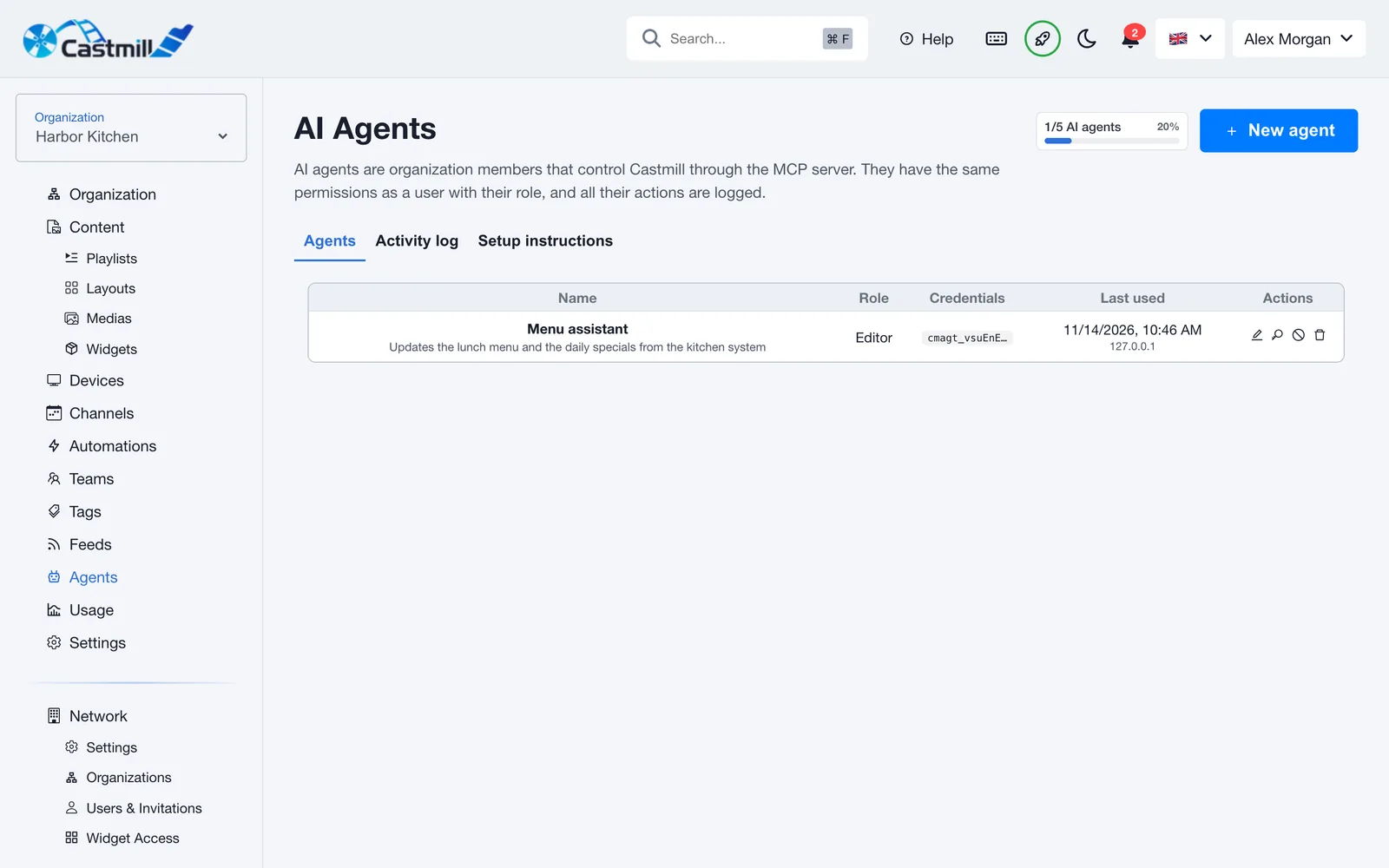
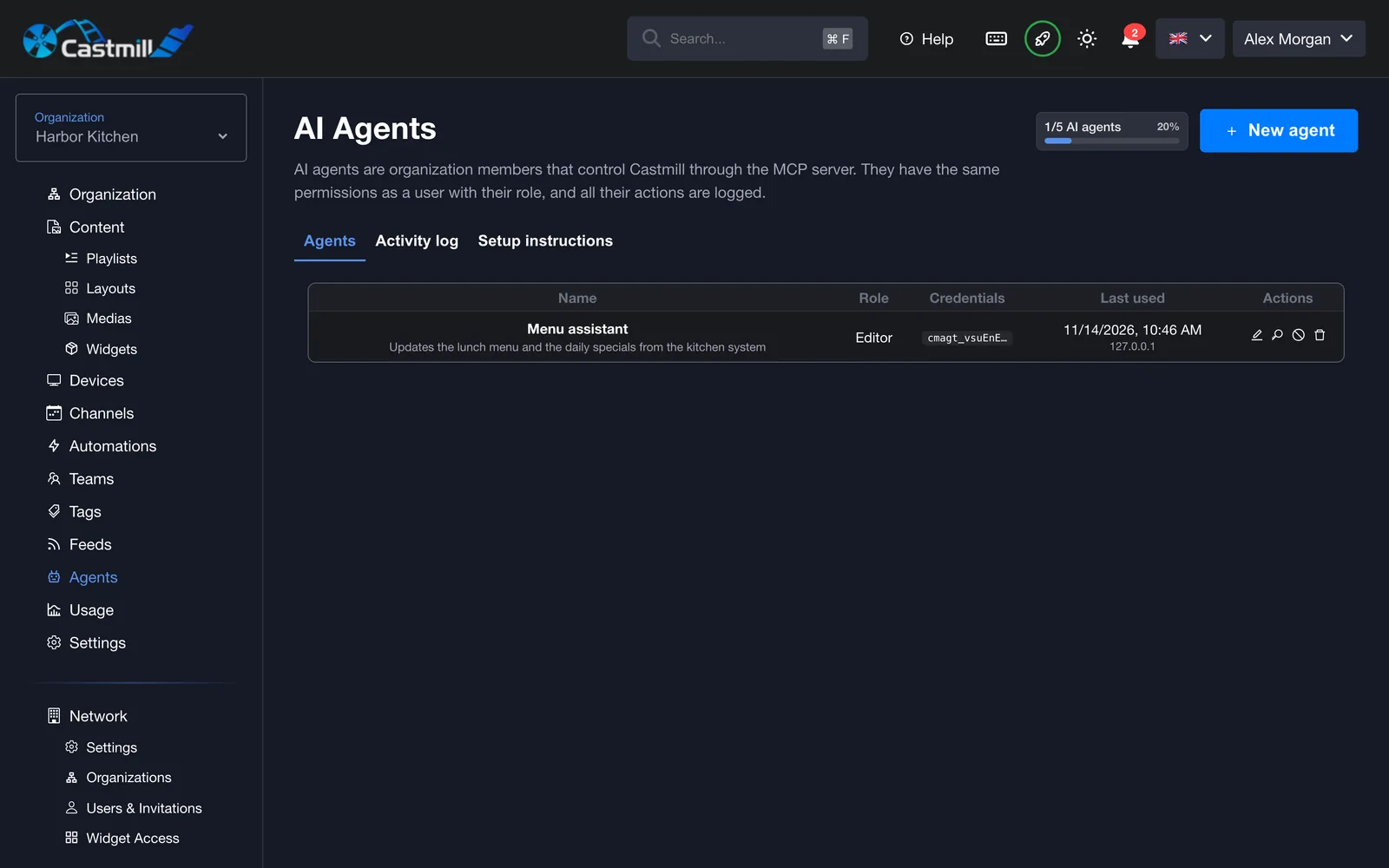
- Open Agents in the sidebar.
- Click New agent.
- Enter a name and an optional description, then choose a role:
- Guest: read-only access.
- Editor or Member: can create and edit content (medias, playlists, channels).
- Publisher: like Editor, and can also publish.
- Device manager: can manage devices and channels, with read-only access to content.
- Manager or Administrator: broad access. Give these roles only to agents you fully trust.
- Click Create. The agent's secret (it starts with
cmagt_) is shown only once. Copy it, or copy one of the ready-made client configurations, and store it in a safe place.
Give each agent the lowest role that lets it do its job, and use one agent per tool or person. Then the activity log shows exactly who did what, and you can revoke a single integration without affecting the others.
Connecting an MCP client
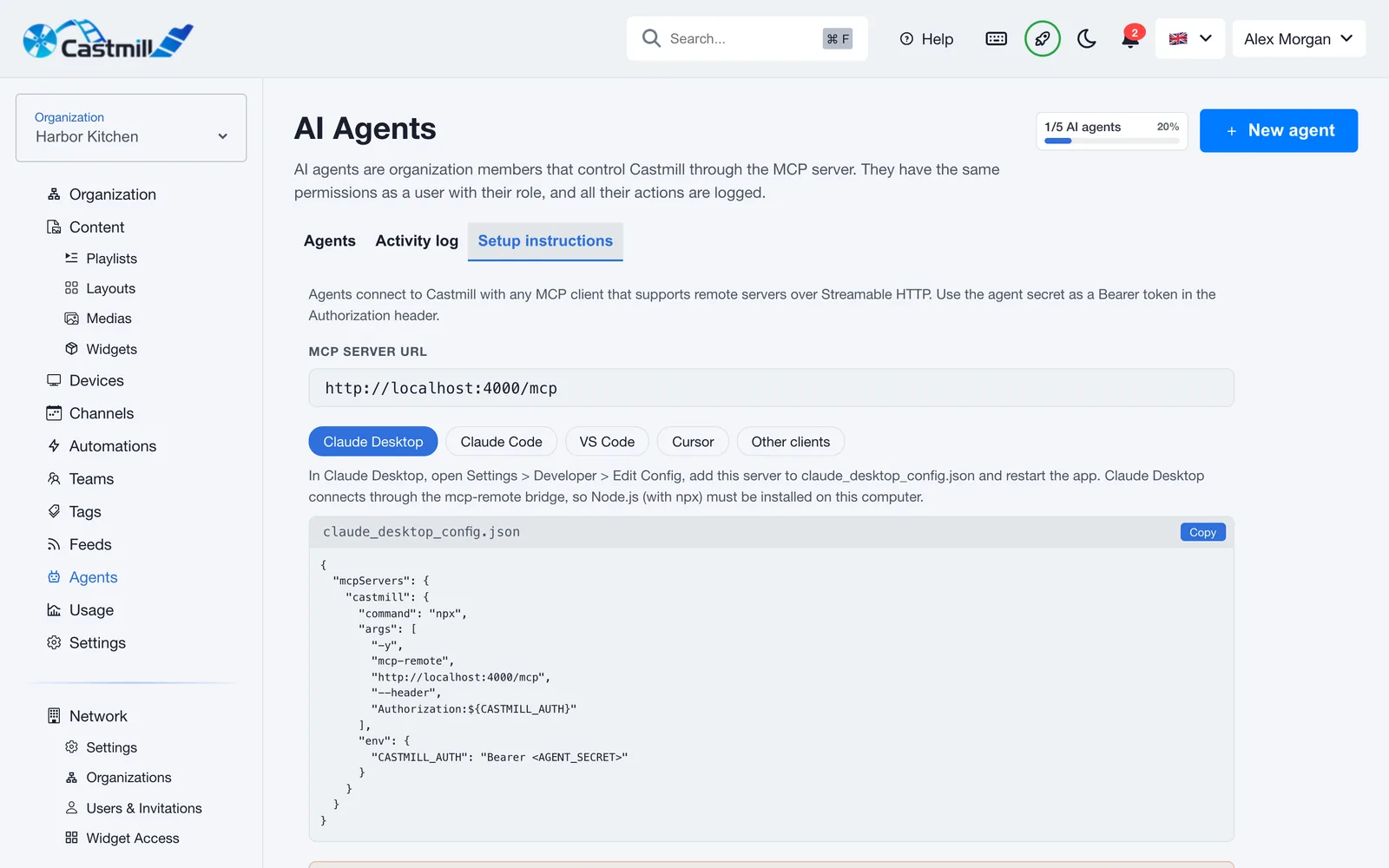
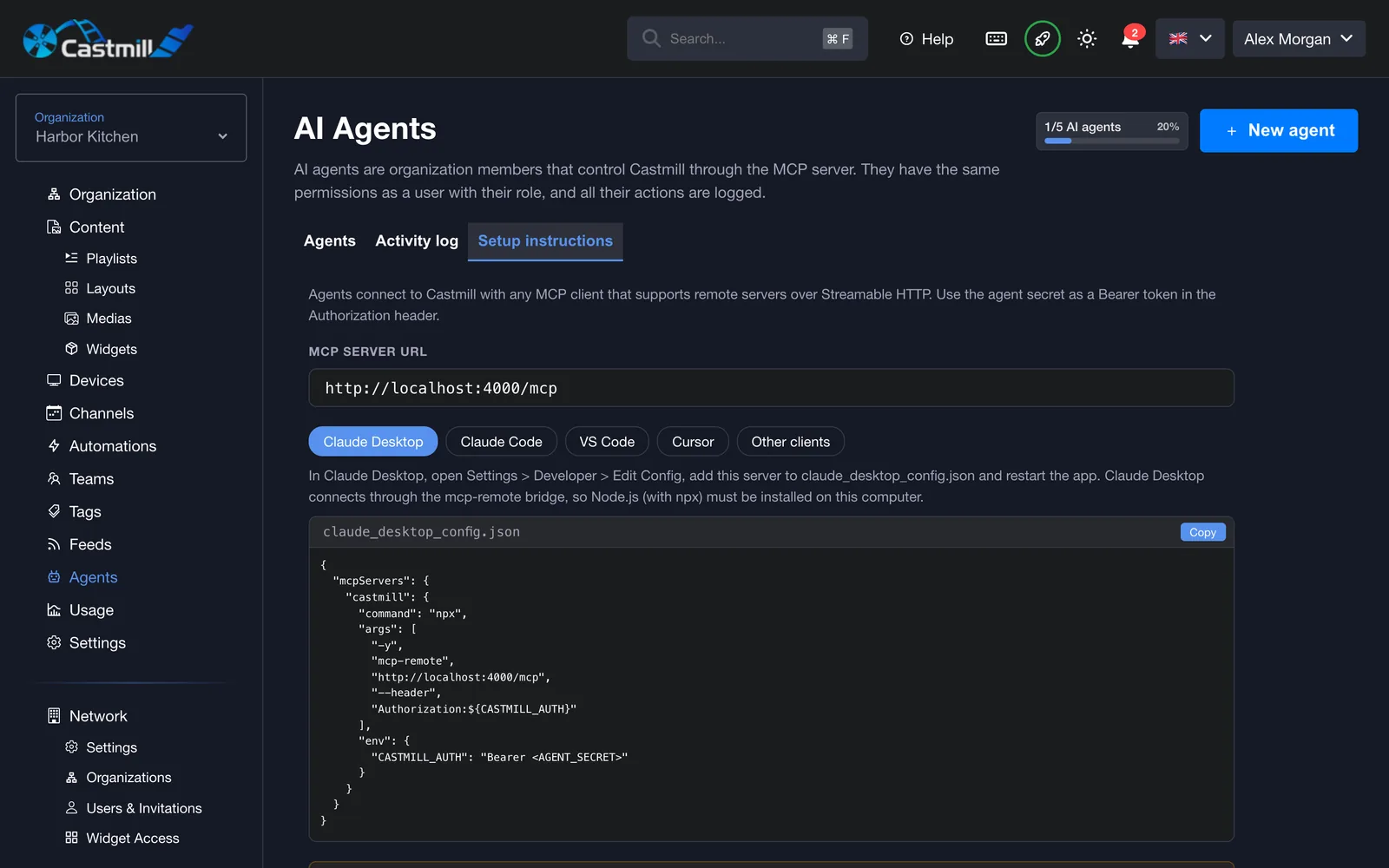
The MCP server URL is shown on the Setup instructions tab of the Agents page. It is your Castmill server address followed by /mcp, for example https://api.example.com/mcp. The server uses the Streamable HTTP transport. Every request must send the secret in the Authorization header:
Authorization: Bearer cmagt_...
The Setup instructions tab and the dialog that shows a new secret contain copy-ready configurations for the clients below.
Claude Desktop
Claude Desktop starts local MCP servers, so it connects to Castmill through the mcp-remote bridge (Node.js must be installed). Open Settings → Developer → Edit Config and add:
{
  "mcpServers": {
    "castmill": {
      "command": "npx",
      "args": [
        "-y",
        "mcp-remote",
        "https://api.example.com/mcp",
        "--header",
        "Authorization:${CASTMILL_AUTH}"
      ],
      "env": { "CASTMILL_AUTH": "Bearer cmagt_..." }
    }
  }
}
Restart Claude Desktop. Castmill appears in the tools menu.
Claude Code
claude mcp add --transport http castmill https://api.example.com/mcp \
  --header "Authorization: Bearer cmagt_..."
VS Code (GitHub Copilot)
Add the server to .vscode/mcp.json, or to your user MCP configuration:
{
  "servers": {
    "castmill": {
      "type": "http",
      "url": "https://api.example.com/mcp",
      "headers": { "Authorization": "Bearer cmagt_..." }
    }
  }
}
Cursor
Add the server to ~/.cursor/mcp.json:
{
  "mcpServers": {
    "castmill": {
      "url": "https://api.example.com/mcp",
      "headers": { "Authorization": "Bearer cmagt_..." }
    }
  }
}
Other clients
Any MCP client that supports the Streamable HTTP transport and custom headers works. Configure the URL and the Authorization header shown above.
What agents can do
When an agent connects, it receives a list of tools and an agent guide that explains the Castmill domain model. The tools cover:
- the organization context (
get_context) - medias, playlists, channels, devices and teams (
list_resources,get_resource,create_resource,update_resource,delete_resource) - widgets, playlist items, channel entries and device channels
- device commands, such as
refreshorrestart_app
Anything else the dashboard can do is available through a generic api_request tool, restricted to the agent's own organization.
Every call goes through the same authorization checks as a regular user with the same role. If the role does not allow an action, the agent receives a "permission denied" error, and the attempt is recorded in the activity log.
Rotating and revoking credentials
From the agent's row on the Agents tab:
- Rotate credentials creates a new secret and invalidates the previous one immediately. Update your MCP client with the new secret.
- Revoke credentials disables the agent until you rotate its credentials again. Use this if a secret may have leaked.
- Delete removes the agent permanently. Its activity log entries are deleted as well.
Castmill stores only a hash of the secret, so a lost secret cannot be recovered. Rotate it instead.
Activity log
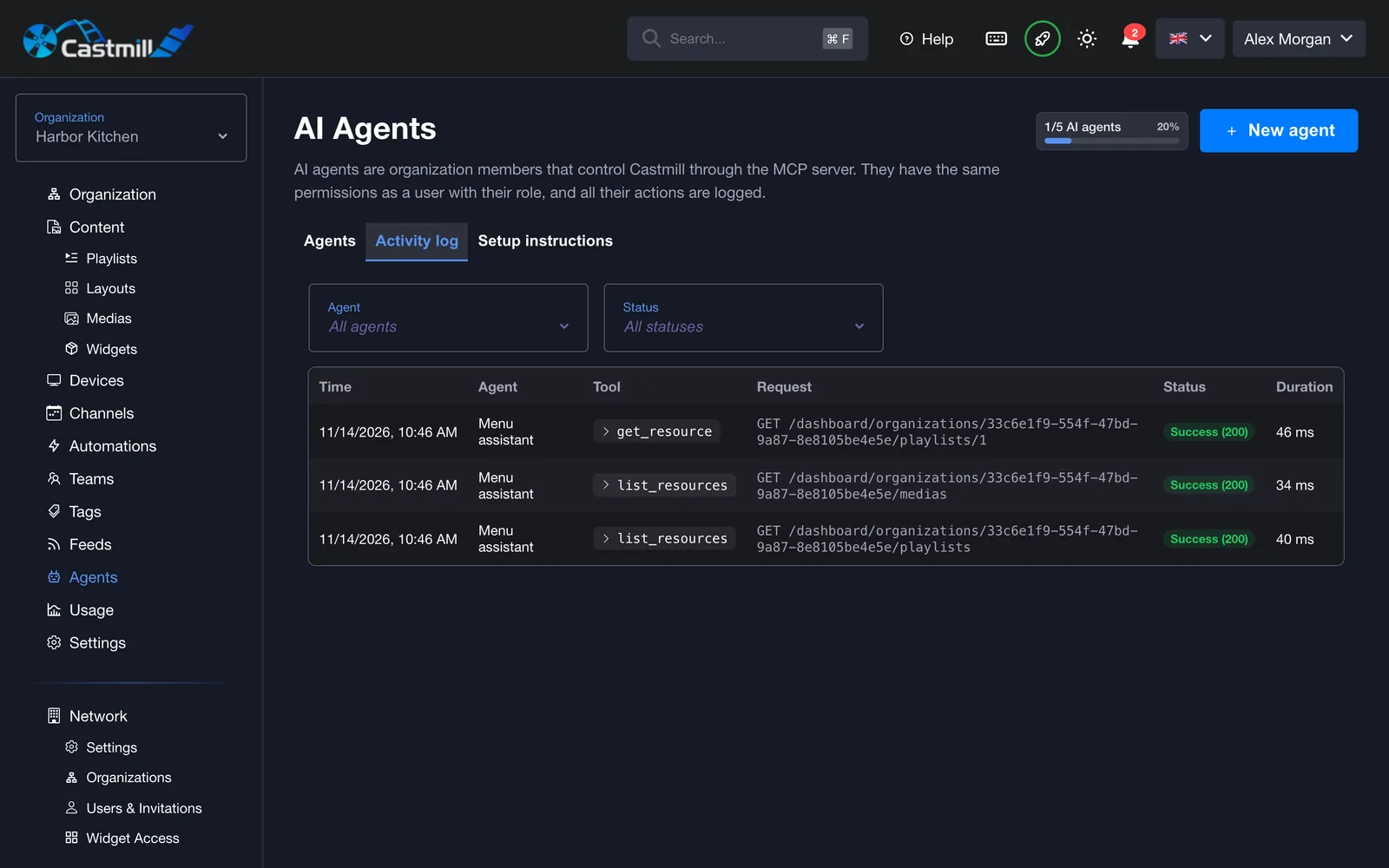
The Activity log tab lists every tool call made by the organization's agents: when it happened, which agent made it, the tool, the underlying API request, the result and how long it took. Filter by agent or by status (success or error), and click a row to see the arguments, the error message and the client IP address.
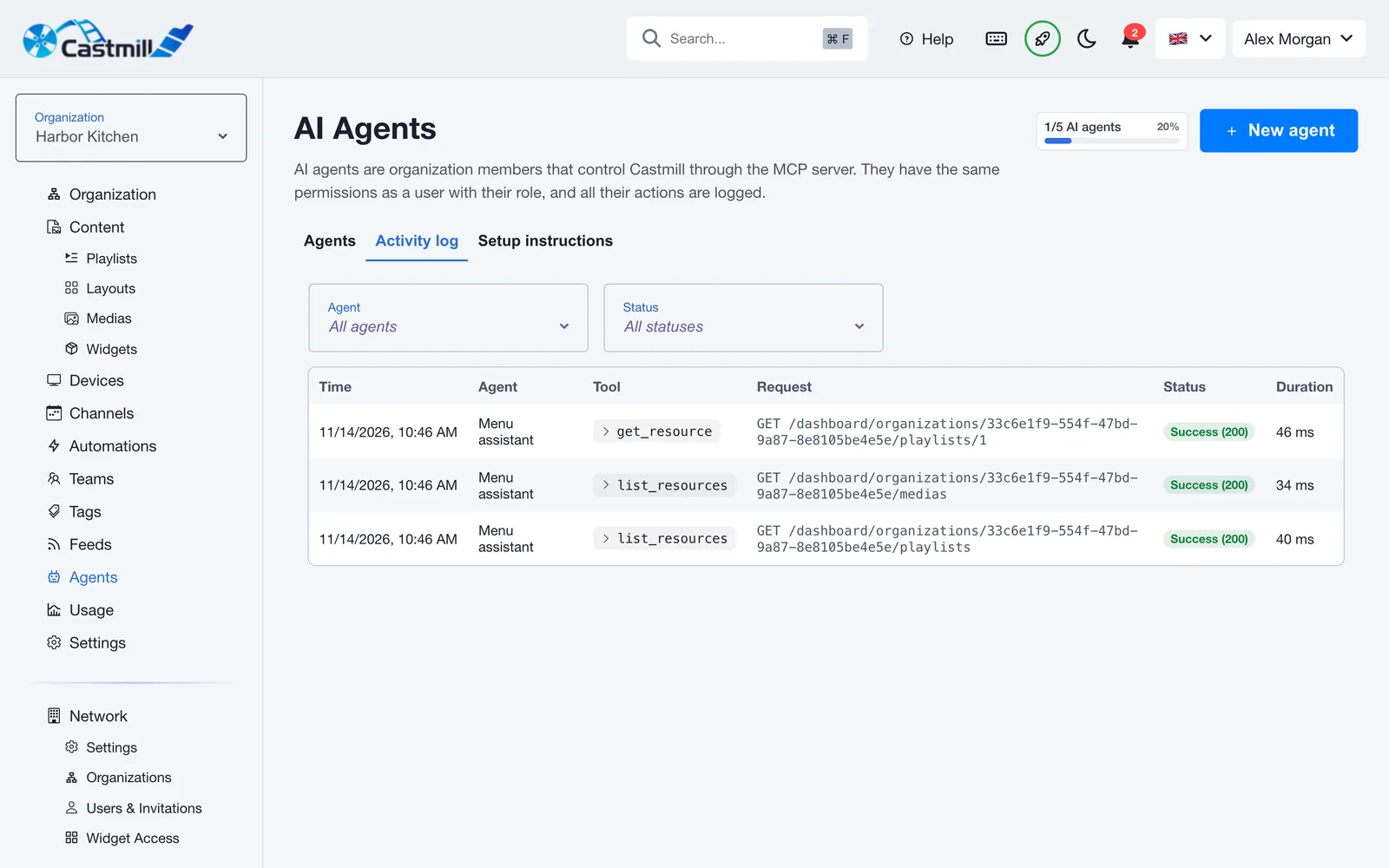
Agent secrets and Authorization headers are never written to the log. Argument values that look like secrets (credentials, passwords, tokens, API keys) are shown as [REDACTED].
Security notes
- Agent secrets are long-lived and act on behalf of your organization. Treat them like passwords: do not commit them to source control, and prefer your client's secret storage or environment variables.
- Agents cannot sign in to the dashboard. Their secrets can authenticate to MCP and the Feeds API, but dashboard sessions cannot be used on the MCP server.
- If the organization is blocked, its agents are blocked too.
- Agents cannot create, modify or view other agents.
For the tool reference and protocol details, see MCP server. Each agent counts toward your plan's agent quota; see Usage and quotas.