Network administration
Network administrators manage a whole network from the dashboard. They see an extra Network section in the sidebar. To become one, ask the operator of the installation to add you in the admin tool.
Network administration is separate from organization roles. To work on an organization's playlists or devices, you need a role in that organization like anyone else.
If you don't belong to any organization yet, the dashboard says so and greys out the organization pages in the sidebar, while the Network section keeps working. Create an organization under Organizations with Add me as an administrator checked, or Join an existing one there.
Overview
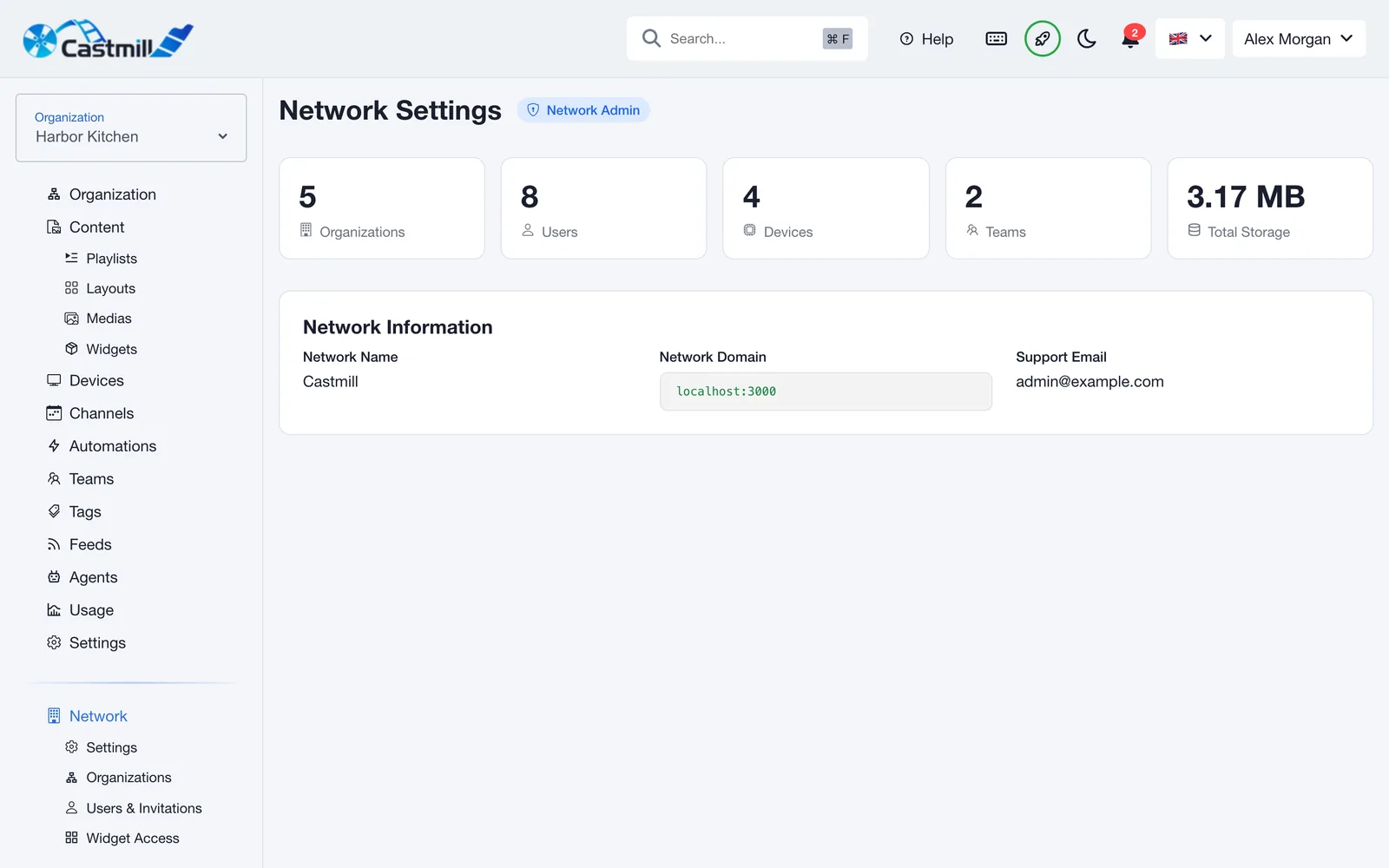
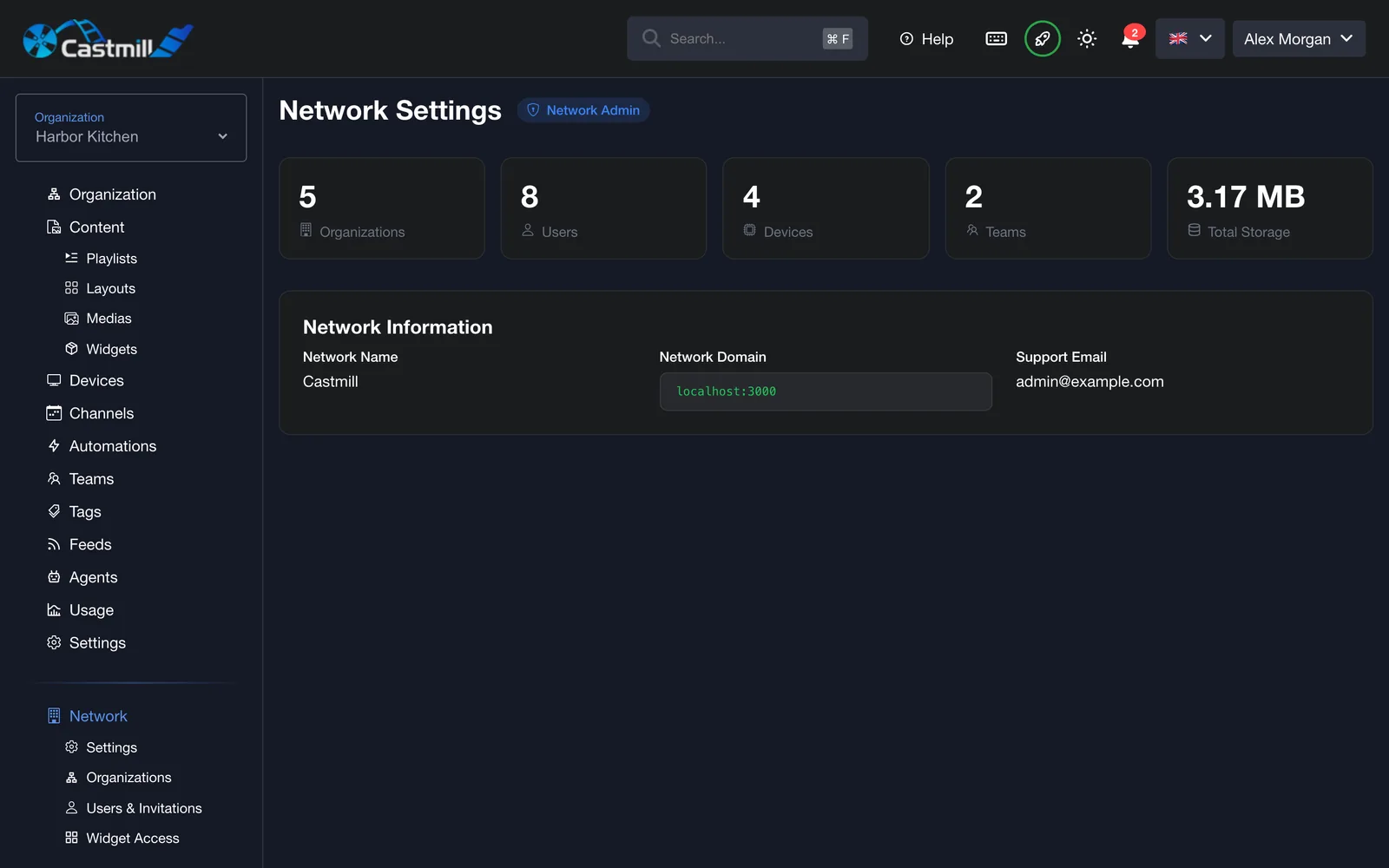
Network → Overview shows the number of organizations, users, devices and teams in the network, the total storage used, and the network details.
Settings
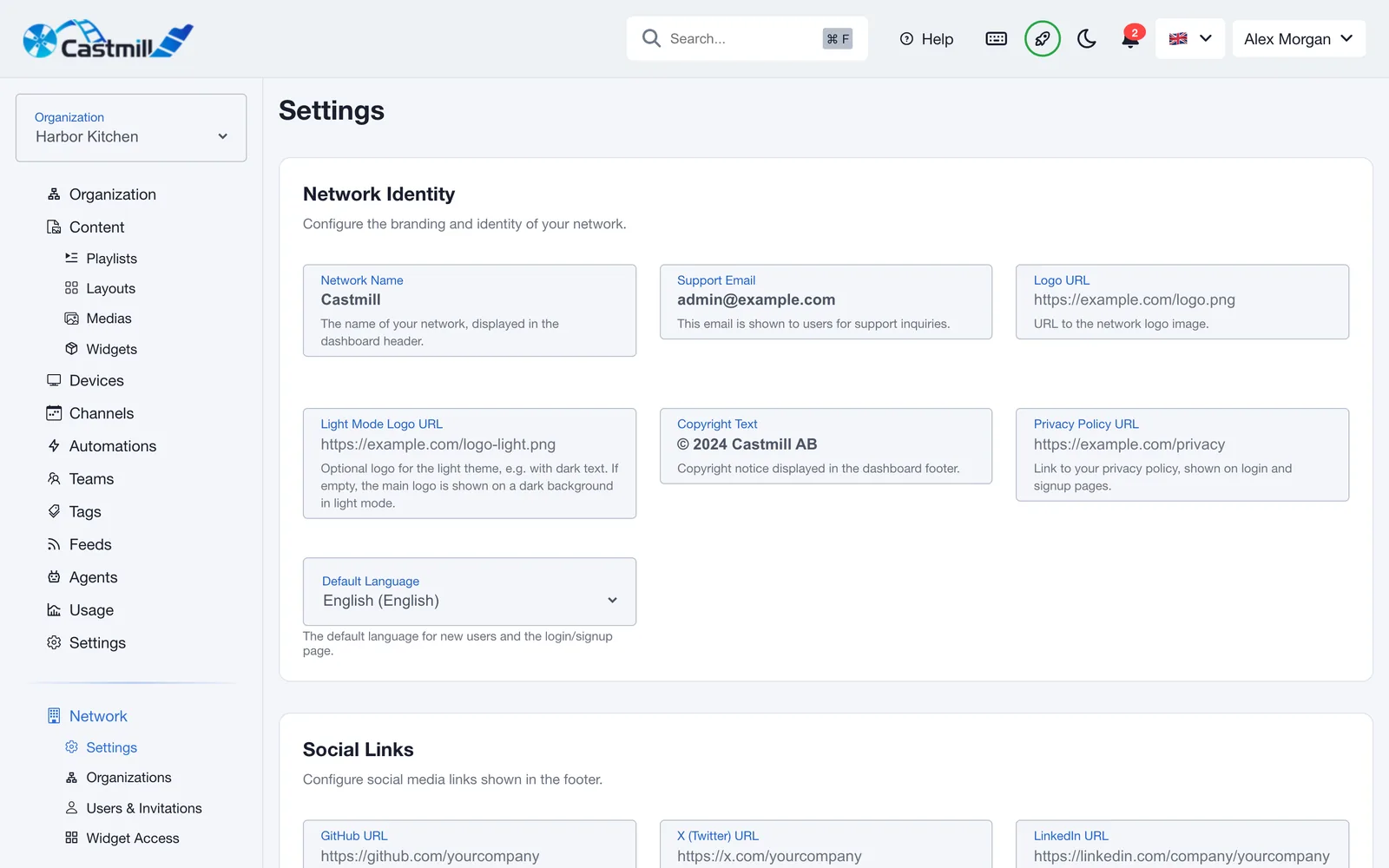
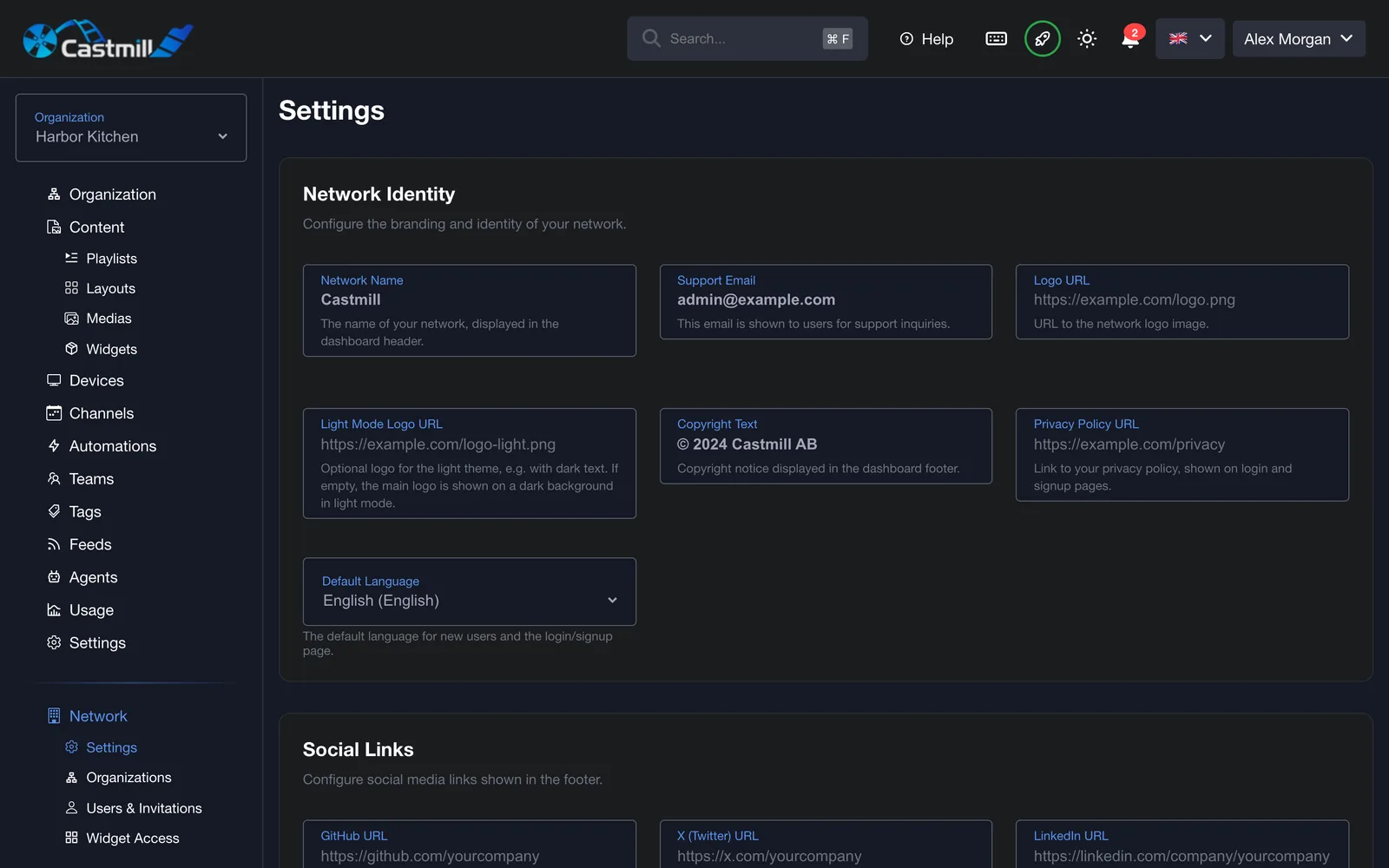
Network → Settings has these groups:
| Group | Settings |
|---|---|
| Network Identity | Network Name, Support Email, Logo URL, Copyright Text, Privacy Policy URL (shown on the sign-in and sign-up pages) and Default Language for new users and the sign-in page |
| Social Links | GitHub, X, LinkedIn and Facebook addresses for the dashboard footer |
| Domain Configuration | The network domain. It is read-only here; the installation operator changes it in the admin tool. |
| Access Control | Invitation Only: when on, people can only join through an invitation and public sign-up is disabled. |
Emails
Emails sent for your network carry your network's identity instead of Castmill's. This covers invitations, sign-up and welcome emails, network administrator setup links, and credential recovery from your network's domain:
- The sender name is the Network Name. The sender address is the server's shared address (
MAILER_FROM). - Replies go to the Support Email, which is also shown as the contact address in the email.
- The footer shows the Copyright Text. If it still names Castmill, emails show © year Network Name instead.
Keep the Network Name and Support Email up to date, because recipients see them in every email.
Organizations
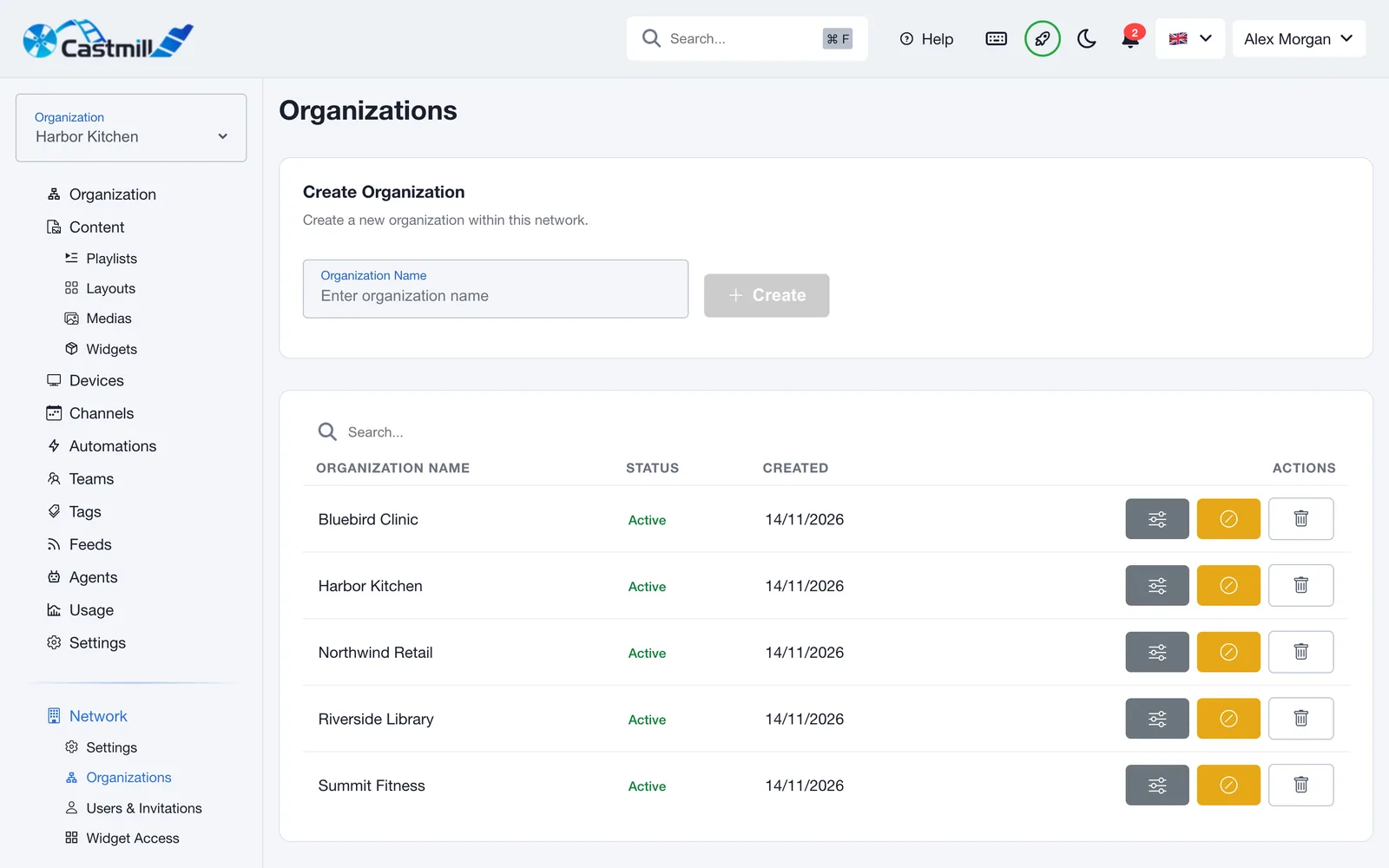
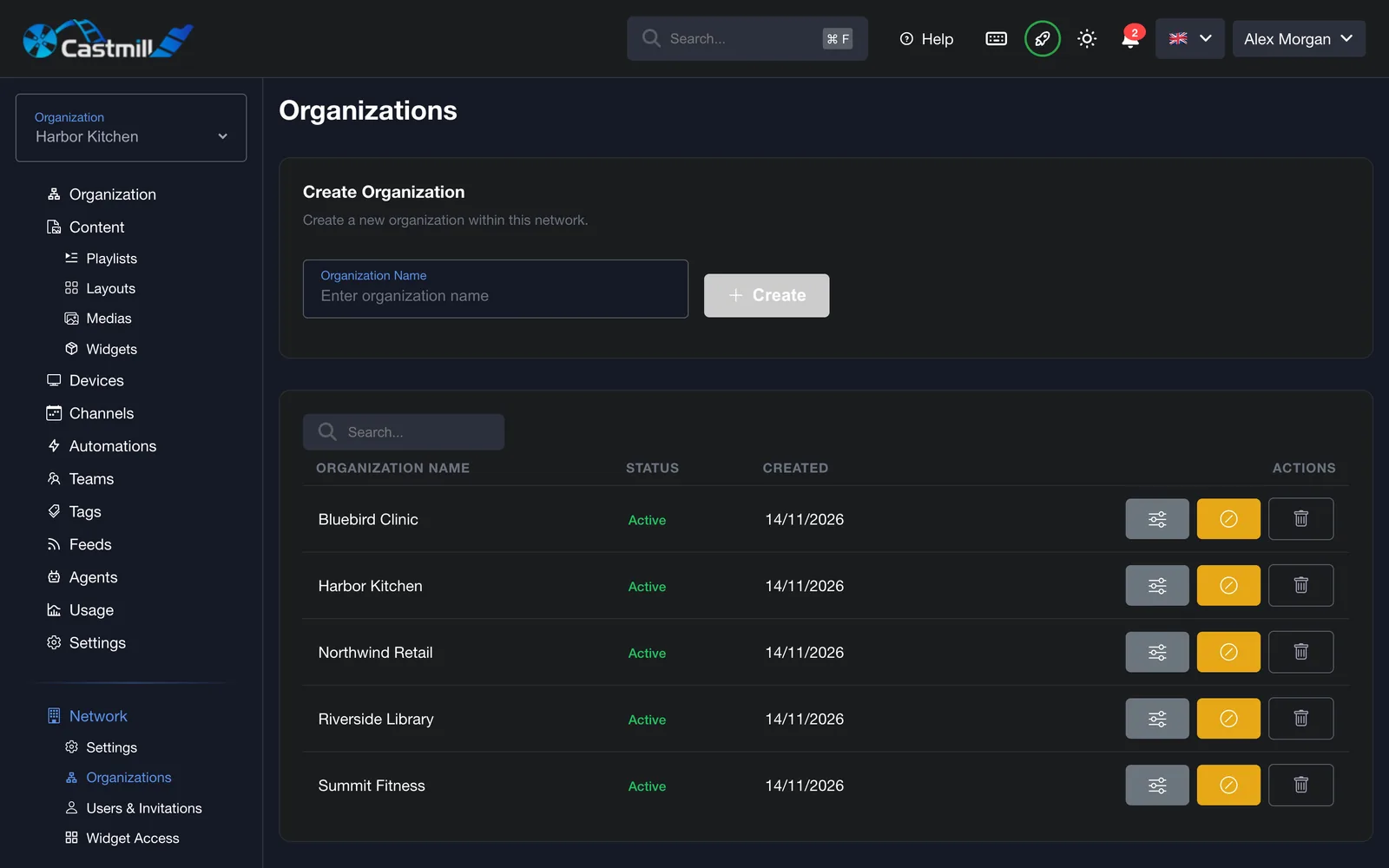
Network → Organizations lists every organization in the network. From here you can:
- Create Organization. Leave Add me as an administrator checked to work in it yourself, or invite its first administrator from Users & Invitations.
- Join an organization you are not a member of. You become one of its administrators.
- Block an organization. Its users can no longer sign in until you Unblock it. Network administrators are never locked out this way.
- Delete an organization with all its content. This cannot be undone.
- Edit Integration settings: values that network-level widgets need per organization, for example an office ID. Only network administrators can change them.
Users and invitations
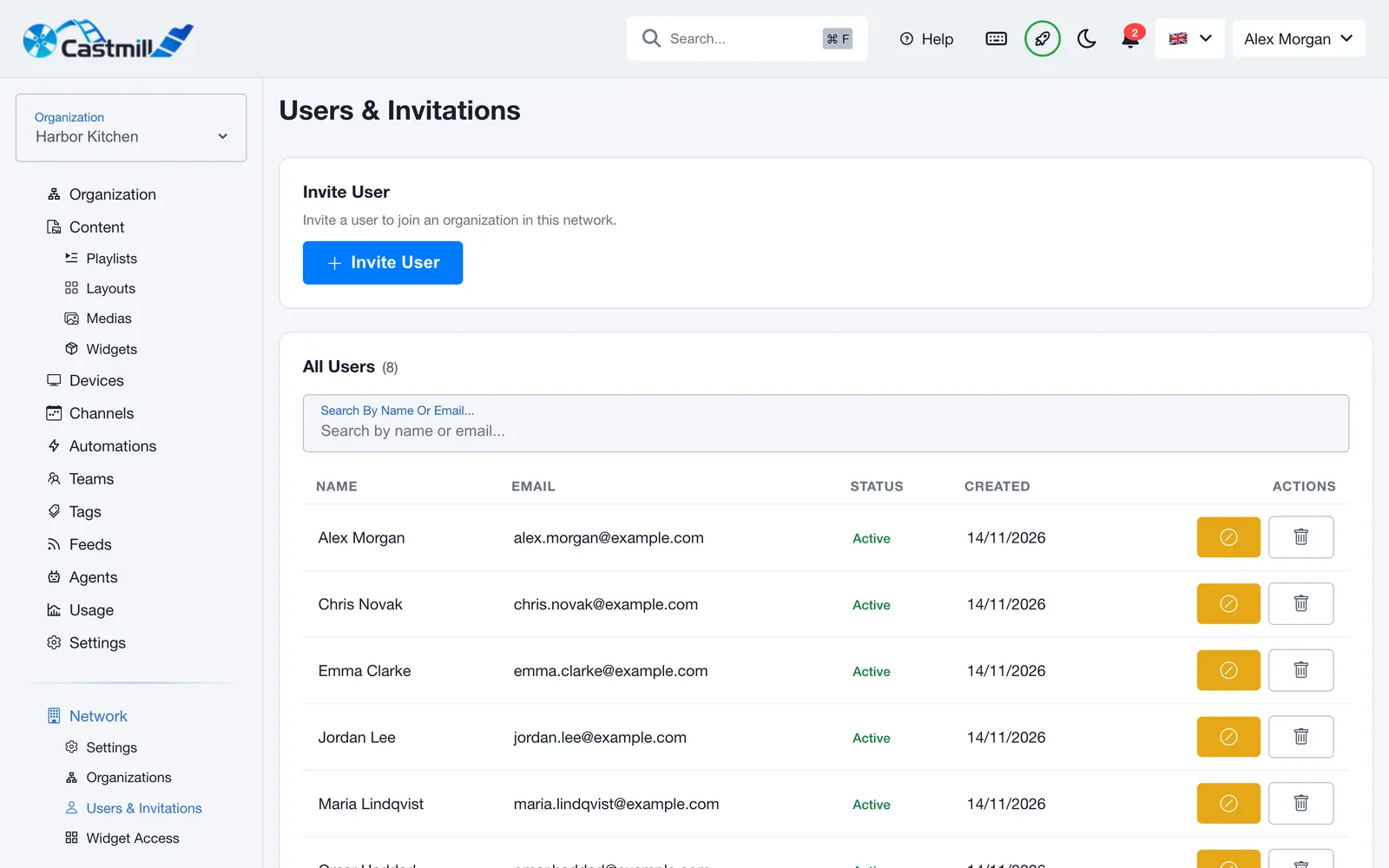
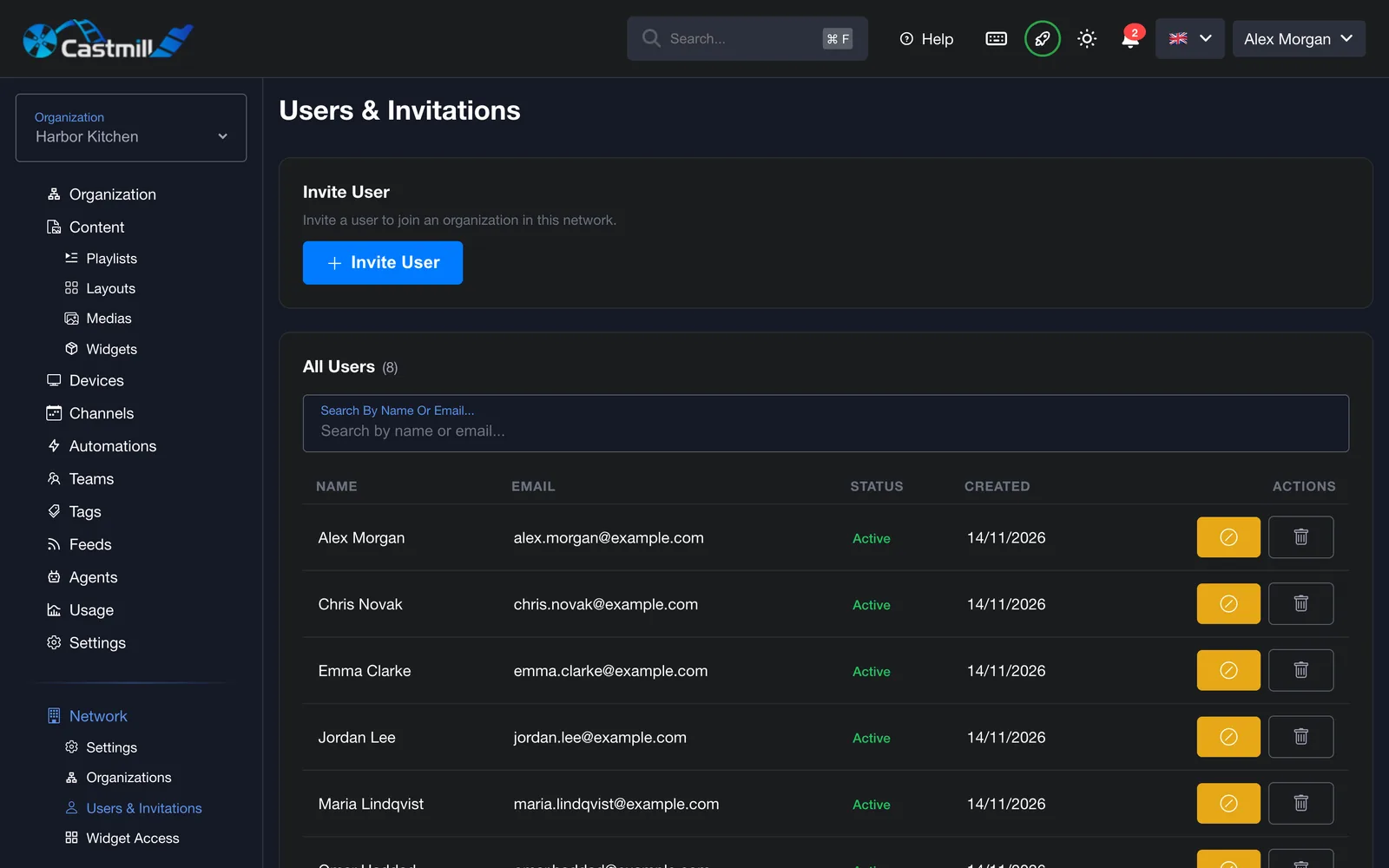
Network → Users & Invitations lists every user and every pending invitation.
- Invite User sends an invitation to join a chosen organization as Administrator or Member. This is how people join an invitation-only network.
- The Network role column shows who is a Network admin. Make network admin gives a user of the network the same network administration rights as you; Remove network admin makes an administrator a regular member again. They keep their roles in organizations. You cannot remove your own admin role, so the network always keeps at least one administrator, and blocked users must be unblocked first.
- Block a user to stop them from signing in, optionally with a reason. Unblock restores access. You cannot block yourself or another network administrator.
- Delete a user permanently. Network administrators and your own account cannot be deleted.
- Delete pending invitations.
Widget access
Network → Widget Access controls which widgets the organizations in the network can use. Select a widget, then choose who can use it:
| Access | Meaning |
|---|---|
| All organizations | Every organization, including ones created later |
| All except… | Every organization except the ones you exclude. New organizations get the widget. |
| Only selected… | Only the organizations you add. New organizations do not get the widget. |
| Hidden | No organization can add the widget to playlists |
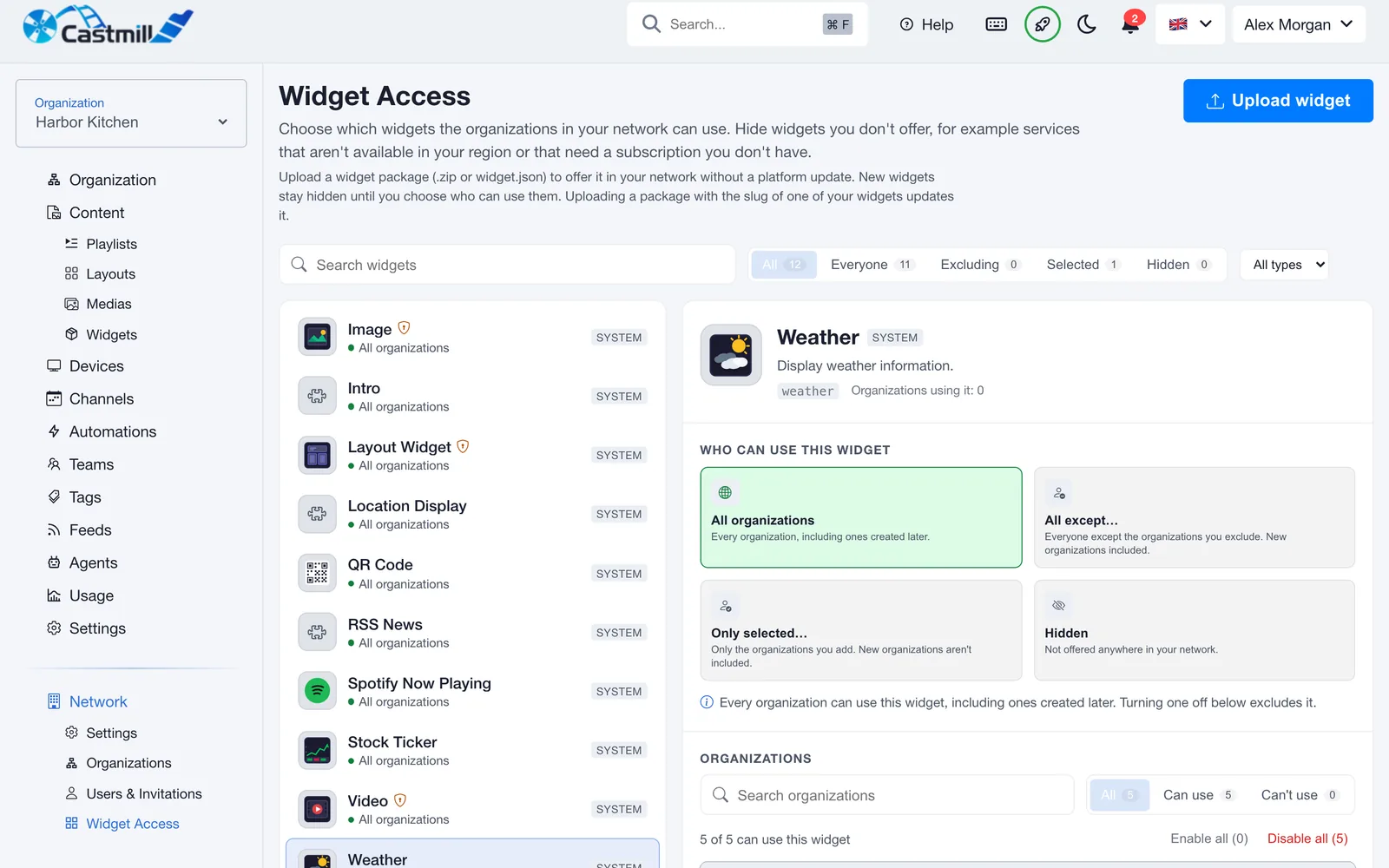
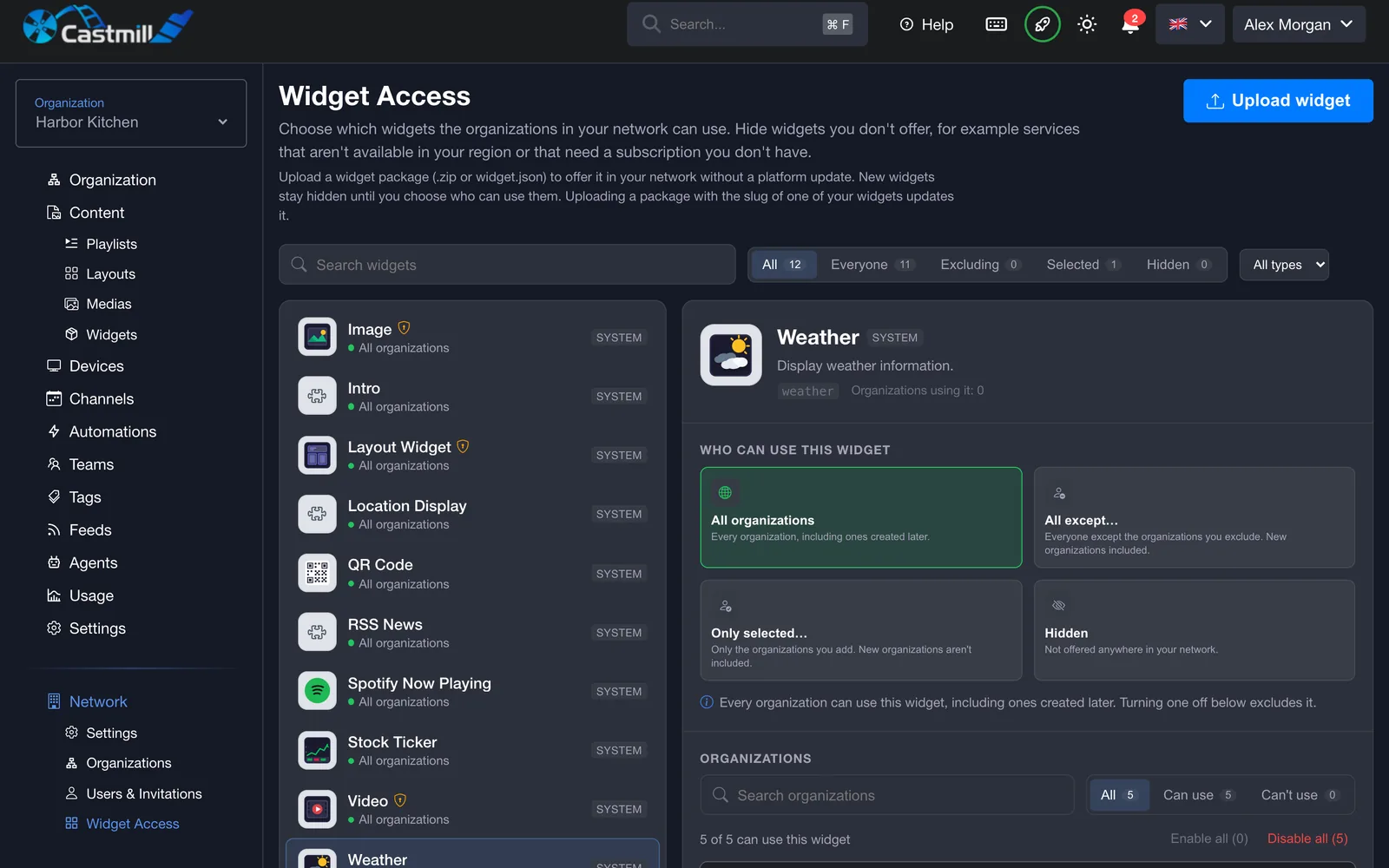
Core widgets, such as image and video, are always available, because playlists and media depend on them. You cannot remove access from an organization that uses the widget in a playlist; remove it from those playlists first. The list shows how many organizations use each widget.
Widgets are either System widgets, which come with Castmill, or Network widgets, which were added for this network only. See Widget scopes for how widgets are installed.
Uploading network widgets
Click Upload widget and select a widget package (a widget.json file or a ZIP with widget.json and an assets/ folder; see Installing a widget). The widget is added to your network, hidden, so you can enable it for a test organization before offering it to others.
To publish a new version, upload a package with the same slug. The widget keeps who can use it. An upload is refused, with an explanation, when:
- another widget already uses the slug, or the widget is installed by the platform;
- the widget's integration needs a fetcher this server doesn't have;
- the new version would break playlist items that use the widget, which are listed.
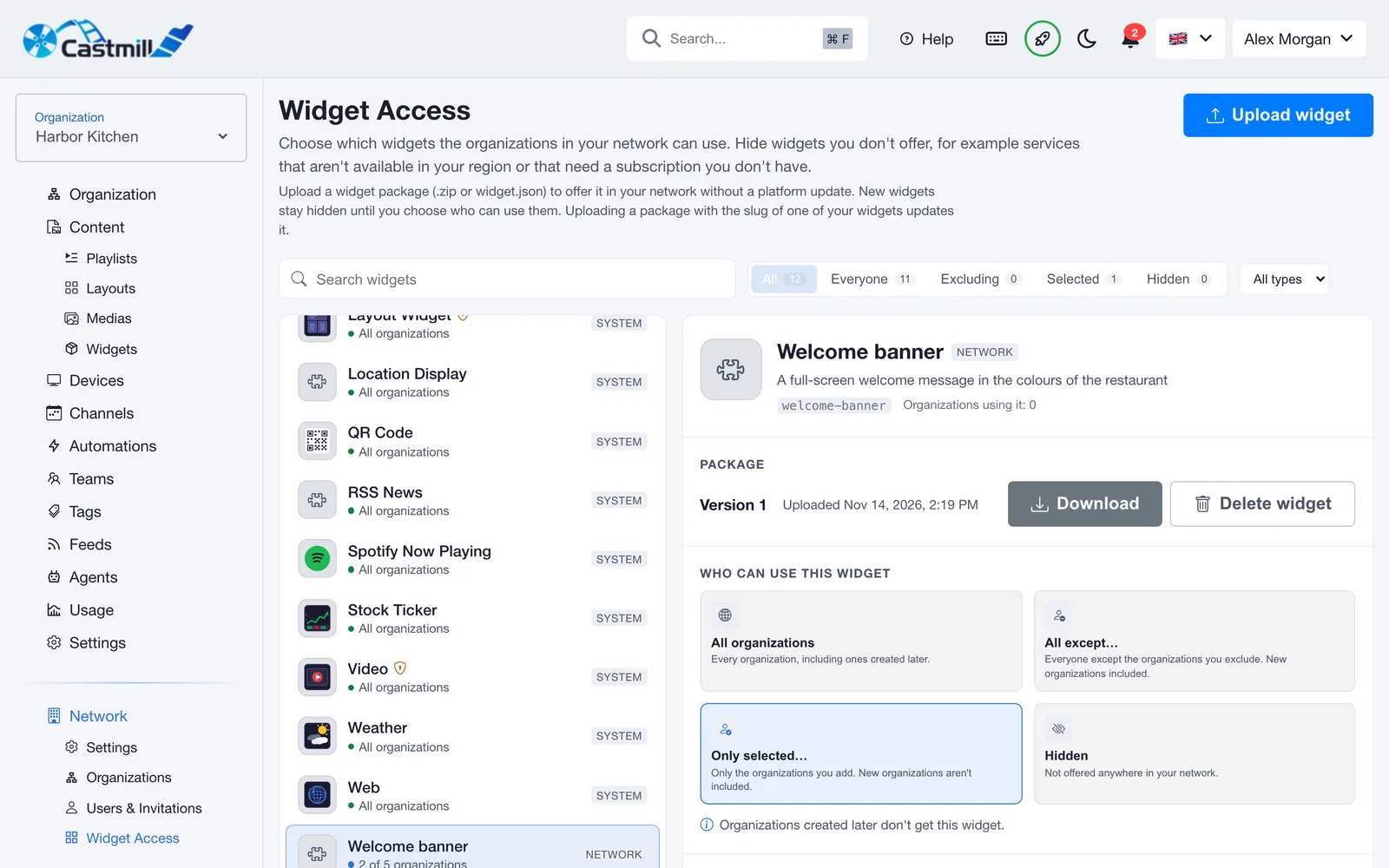
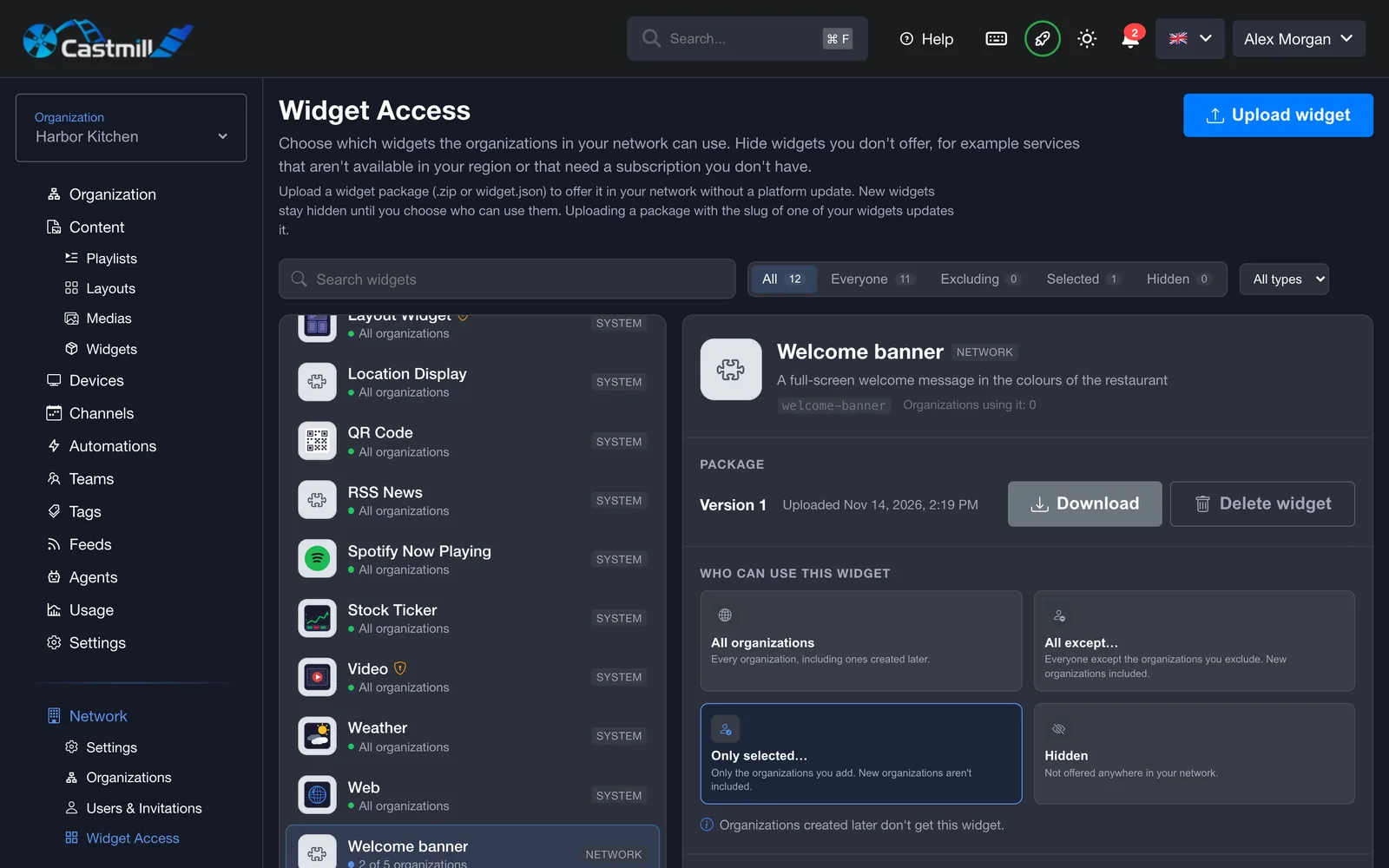
The Package section of an uploaded widget shows its version, downloads the uploaded package, and deletes the widget once no playlist uses it. If the widget declares integration settings, such as an agency and office IDs, set them for each organization under Organizations → Integration settings.
Plans and quotas
Each organization has limits on how many resources it can create. Plans are managed by the installation operator. See Plans and quotas.