Automations
An automation makes displays react to a trigger. Today the trigger is a clock and the action interrupts playback with a playlist. Use automations for content that must appear at fixed moments regardless of the channel schedule, for example an offer every hour, a reminder at 12:00 or an announcement at the start of each shift.
An automation contains one or more rules. Each rule has a When (the trigger) and a Then (what the displays do). You then assign the automation to devices, to channels, or both.
Creating an automation
- Open Automations in the sidebar.
- Click New automation, enter a name, for example "Hourly spring offer", and create it.
- On the Rules tab, click Add rule and set the trigger and the action. See Rules.
- Click Save rule.
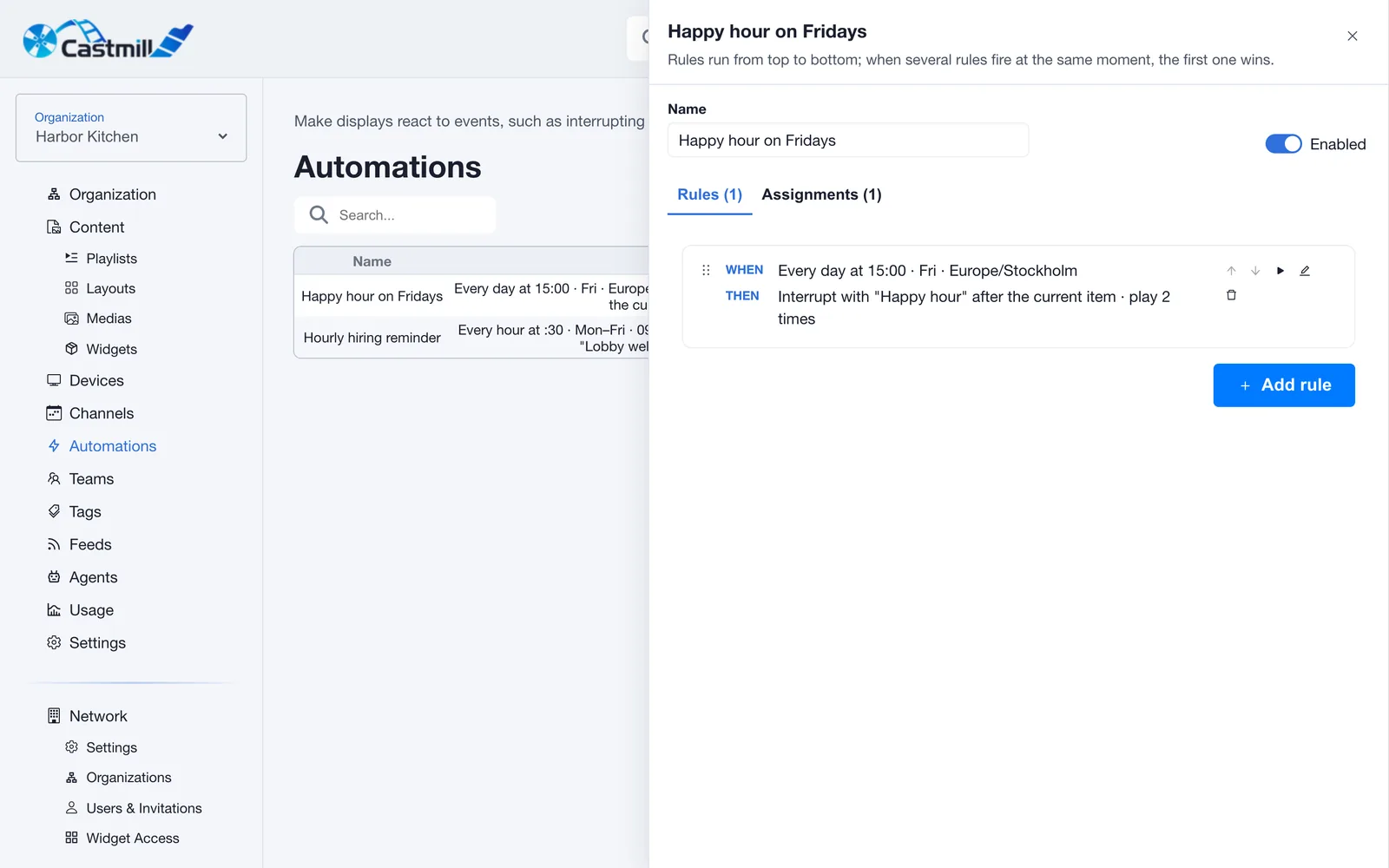
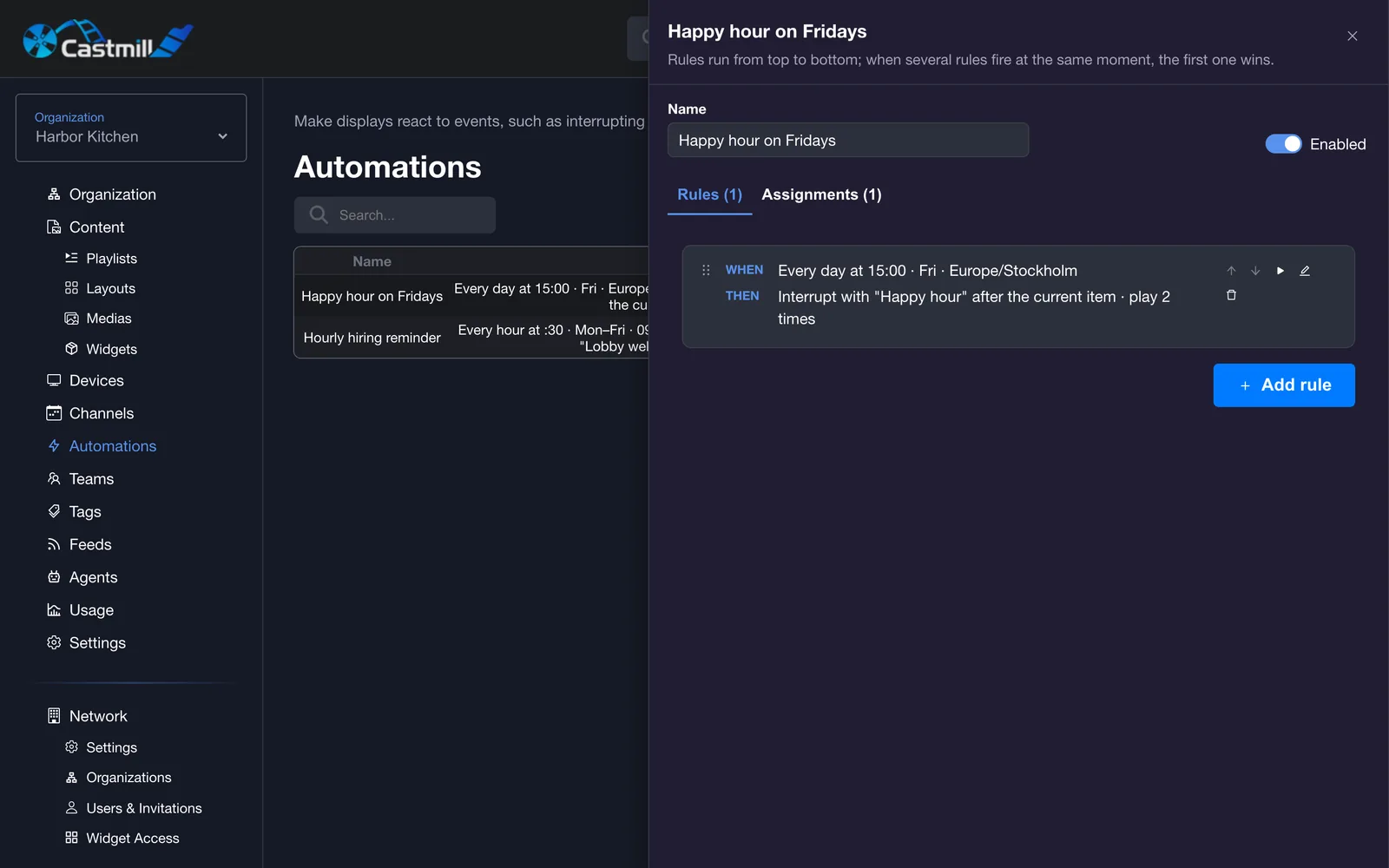
- On the Assignments tab, add the devices and channels that should run the automation, then click Save assignments.
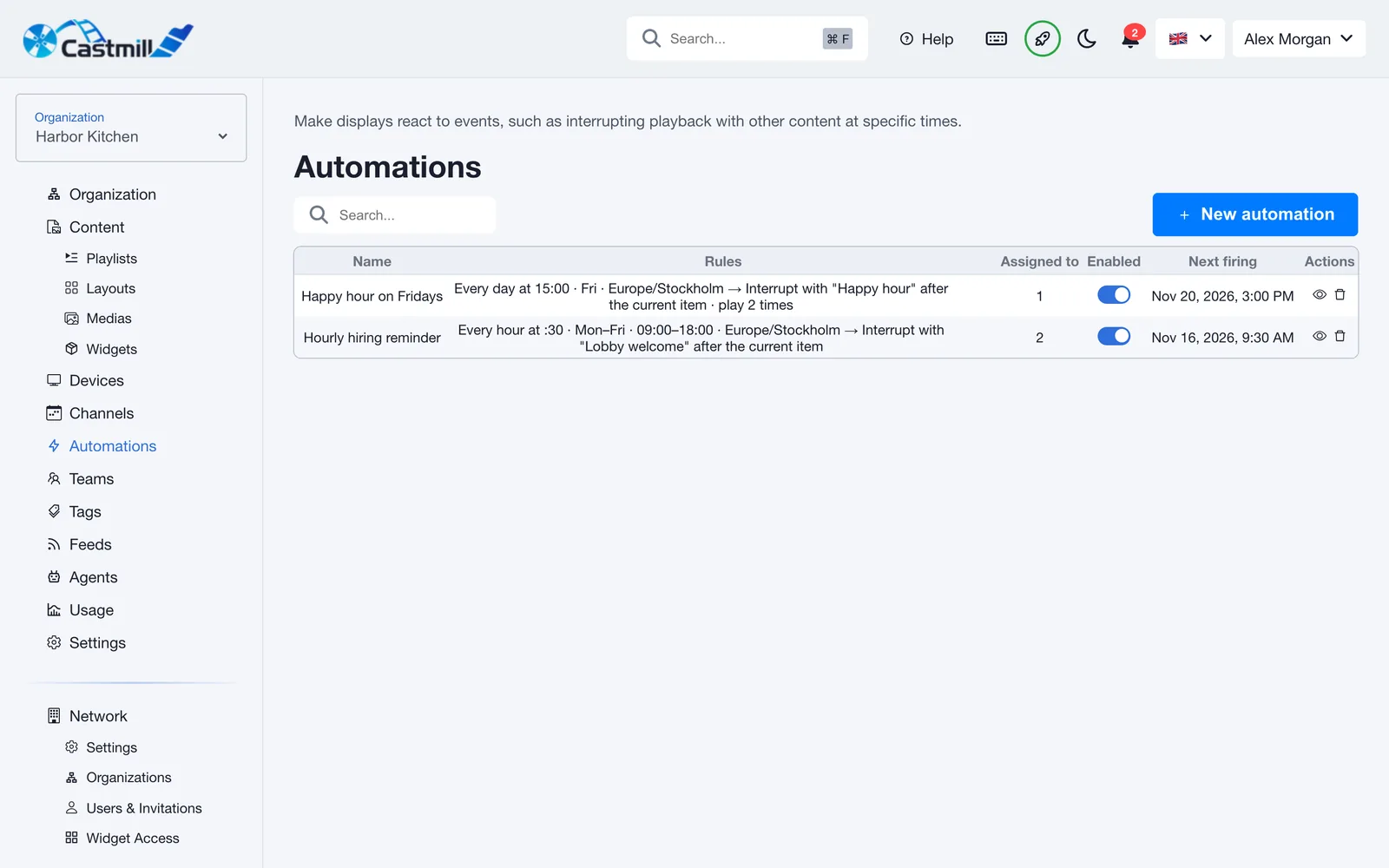
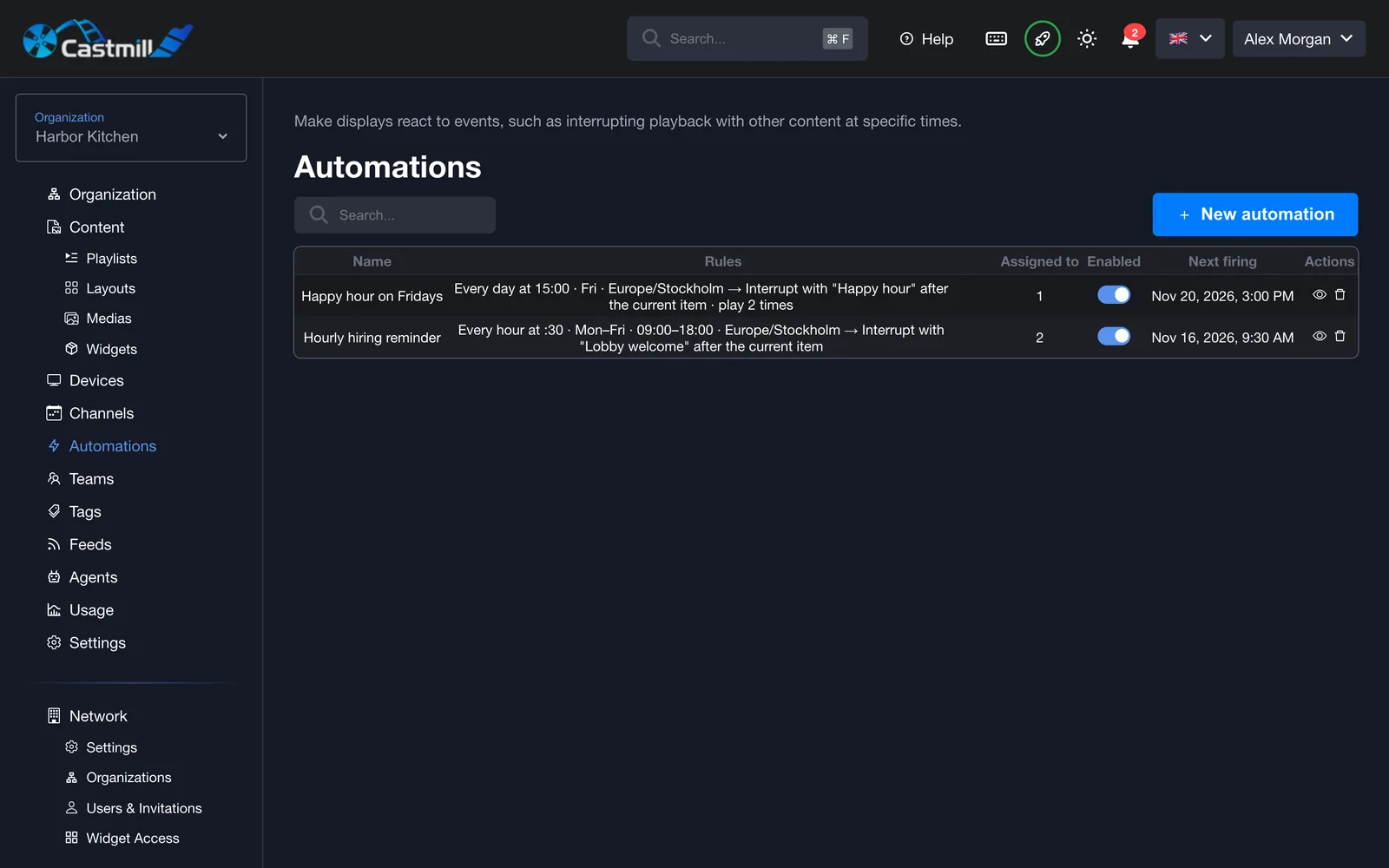
The list on the Automations page shows each automation's Rules, what it is Assigned to and its Next firing. Use the switch to set it Enabled or Disabled. Disabled automations never fire on displays.
Rules
A rule has three parts:
| Part | Content |
|---|---|
| When | The trigger. Currently Clock. |
| Then | The action. Currently Interrupt with content. |
| Options | Cooldown (seconds): the minimum time between two runs of this rule on the same display. 0 means no cooldown. |
Rules run from top to bottom. When several rules fire at the same moment, the first one wins. Use Move up and Move down to change the order. An automation can have up to 50 rules.
Clock trigger
Choose how often the rule fires under Repeat:
| Schedule | Fires | Settings |
|---|---|---|
| Hourly | Once an hour | Minute past the hour, 0–59 |
| Every N minutes | At a fixed interval | Every (minutes), 5–1440. Counted from the start of the time window, or from midnight. |
| At times | At fixed times each day | Times of day: 1 to 48 times, HH:MM, each time once |
| Once | One time | Date and Time |
Except for Once, you can narrow a schedule further:
- Days of the week: only on the selected weekdays.
- Only during a daily time window: From and To. The window must start before it ends, so it cannot cross midnight.
- Only within a date range: Start date and End date.
Time zone sets the zone the times refer to, for example Europe/Stockholm. Leave it empty to use each display's own time zone, so 12:00 means noon locally on every display.
Next firings previews the upcoming firing times, so you can check the schedule before you save it.
Interrupt with content
The interrupt action temporarily plays a playlist, then returns to the regular schedule.
| Setting | Meaning |
|---|---|
| Playlist | The playlist to play. |
| Start | Immediately stops the current item right away. After the current item waits for the current item to finish, so nothing is cut off. |
| Maximum wait (seconds) | With After the current item: if the current item is longer than this, the display interrupts anyway. 0–3600, default 120. |
| Plays | How many times the playlist plays before returning, 1–100. |
| Priority | Normal or High. A high-priority interruption takes precedence over a running normal one. |
After the interruption, playback continues with the item after the interrupted one. The interrupted item does not resume where it stopped.
A playlist used by an automation cannot be deleted. Remove it from the automation's rules first.
Running a rule now
Run now sends a rule to all assigned displays that are online, so you can test it. The display runs the rule's action once, ignoring the cooldown. This works only for enabled automations.
Assignments
On the Assignments tab you choose the Devices and Channels that run the automation.
- A device runs the automations assigned to it directly.
- A device also runs the automations assigned to each channel it plays. An automation that reaches a device in both ways runs once.
You assign automations only on the Automations page. A device's Automations section and a channel's Automations section show what applies to them, with upcoming firings, but you cannot change assignments there. See Devices and Channels.
If a device's player does not support an automation feature, the assignment shows a warning such as "does not support interrupt". Update the player to fix it.
Offline behaviour
The server calculates the firing times for the next 14 days and sends them to each device. The device stores them, so automations keep firing while it is offline. Devices refresh the times when they start, when an automation changes, and daily.
- A firing that a device misses, for example because it was off, is not repeated later.
- A device that stays offline for more than 14 days stops firing automations until it reconnects.
Limits
Your plan sets the maximum number of automations and of automation rules. See Usage and quotas.