Admin tool
The admin tool is a separate web interface served by the Castmill server at /admin, for example https://api.example.com/admin. It is meant for the operator of the installation. It works across all networks, while the dashboard always works inside one network.
Sign in
The admin tool signs in the root user with an admin passkey. Admin passkeys are separate from the passkeys you use in the dashboard.
The root user is created by the first database migration from CASTMILL_ROOT_USER_EMAIL and CASTMILL_ROOT_USER_PASSWORD; changing the variables later does not change the account.
- The first time, enter the root user's Email and Password and choose Set up first passkey. Register the passkey within five minutes; until then, the password gives no access.
- After that, choose Sign in with a passkey. Select Keep me signed in to stay signed in on this computer.
Once a passkey is registered, the password no longer signs you in. Register a backup passkey on another device under Admin passkeys in the sidebar. You cannot remove the last one.
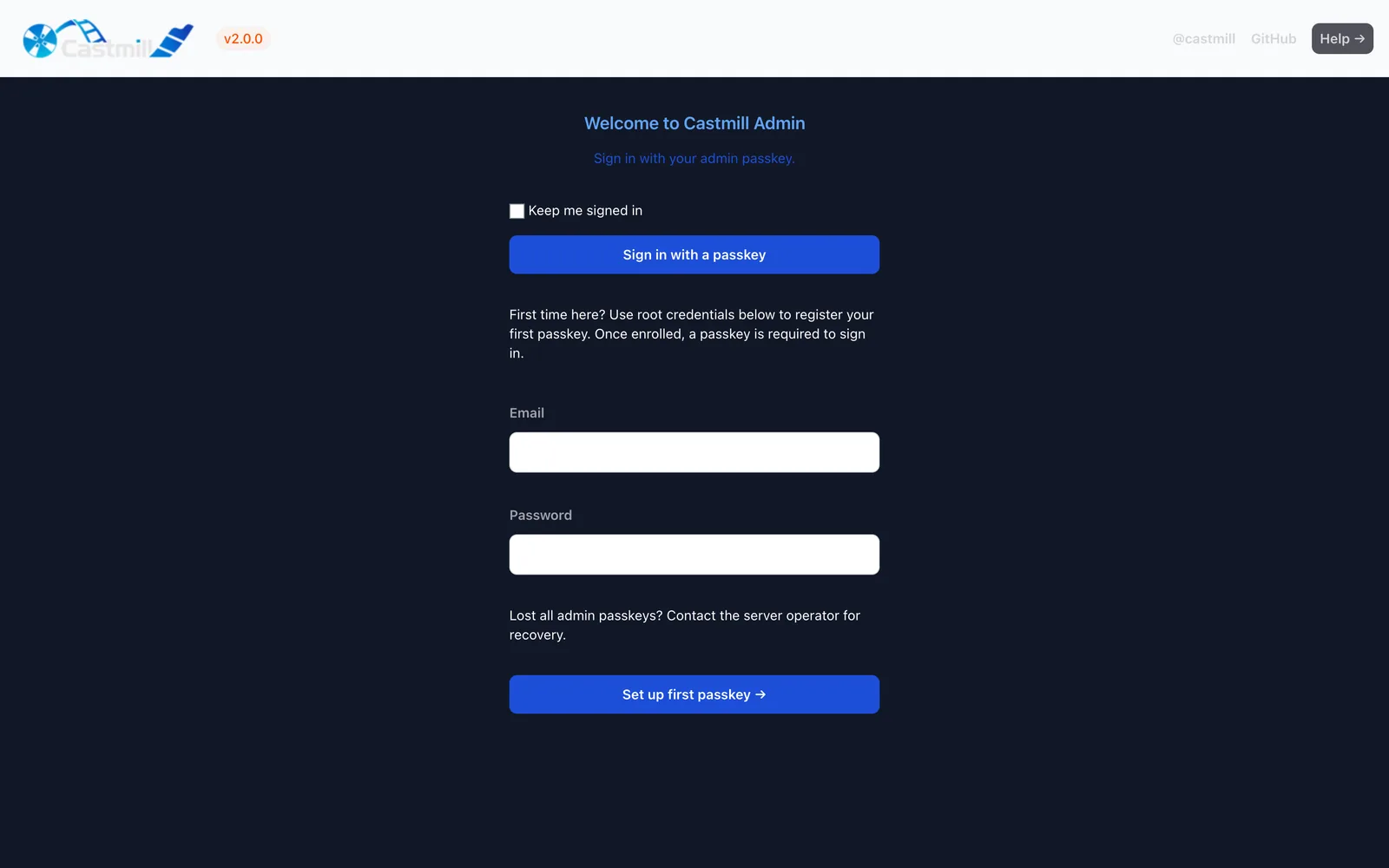
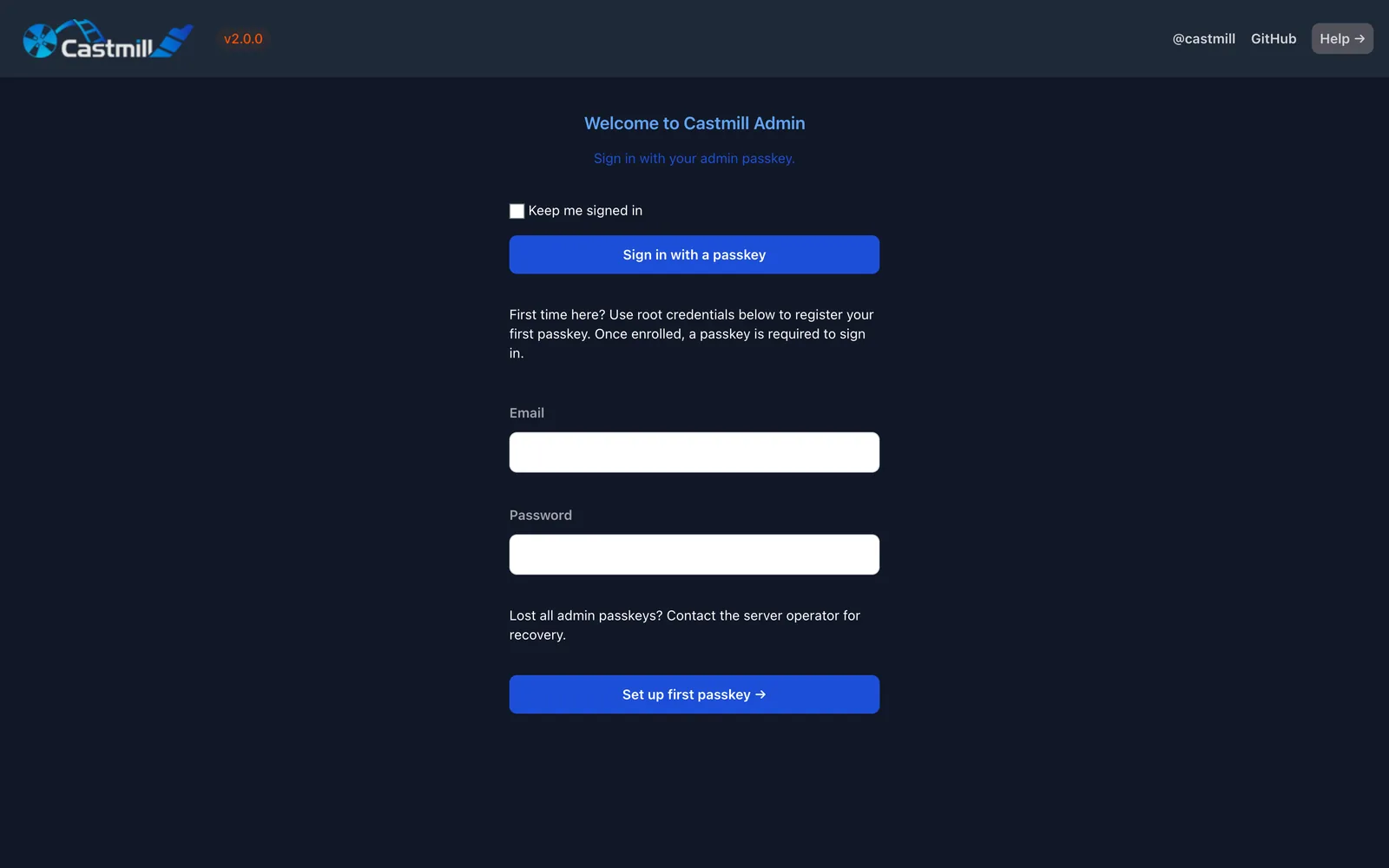
If all admin passkeys are lost, an operator with access to a release console of the server (for example bin/castmill remote) can remove them, so that the root credentials can set up a new one:
user = Castmill.Accounts.get_user_by_email("root@example.com")
Castmill.Accounts.AdminPasskeys.reset(user.id)
The root user has full access to every network. Use a strong password, keep a backup passkey, and consider making /admin reachable only from your internal network or VPN at the reverse proxy.
Sections
The sidebar lists Networks, Organizations, Teams, Users, Devices, Channels, Playlists, Medias and Admin passkeys. Each section is a searchable table. Open a row to see its details and related records.
Networks
A network is the top level of an installation: one dashboard domain with its own users, organizations, plans and branding. Most installations have one network.
To create a network, open Networks and create a new one:
| Field | Description |
|---|---|
| Name | Shown in the dashboard and in emails. |
| Support address shown to users. | |
| Domain | Host name of the dashboard, without https://, for example app.example.com. Include the port if it is not the default, for example localhost:3000. |
| Logo, Copyright | Branding shown in the dashboard. |
| Invitation Only Mode | When on, people can only join by invitation. New networks have it on. |
Creating a network also creates a Default Plan with default quotas and makes it the network's default. See Plans and quotas.
Open a network to see its Organizations, Invitations, Teams, Users, Admins, Devices, Channels, Playlists, Medias, Widgets and Integrations.
Network administrators
Network administrators manage a network from the dashboard; see Network administration. Existing network administrators can appoint others from the dashboard's Network → Users page. To appoint one from the admin tool, for example the first administrator of a new network:
- Open the network and select the Admins tab.
- Add the person's email address. They get an account if they do not have one, and are emailed a link to create a passkey for the network's domain.
- If the email does not arrive, use Show setup link on their row and send them the link yourself. It works once and expires after 7 days.
The next time the person loads the dashboard, the Network section appears in the sidebar.
Organizations
You can create organizations in a network and invite their first administrator from the network's Organizations and Invitations tabs. Network administrators can do the same from the dashboard, which is usually more convenient.
To add someone to an organization directly, open the organization's Users tab and choose New. Enter their email and a role: existing users, yourself included, are added right away, and new people get an account in the organization's network. People without a passkey create one with Lost your credentials? on the network's dashboard.
Integrations
The Integrations tab of a network holds network-wide credentials for widget integrations, for example an API key that all organizations share. Credentials are encrypted with ENCRYPTION_MASTER_KEY. See Widgets.