Browser player
Every Castmill server serves a browser-based player at its root URL. Open the address of your server, for example https://castmill.example.com/, and the player starts. It needs no installation, which makes it the quickest way to test channels, try a layout at a given screen size, or run a demo.
The browser player uses the same runtime as the installed players, so registration, scheduling, the on-screen menu, the debug overlay, and error reporting behave the same way.
Start and register the player
- Open the root URL of your Castmill server in a browser.
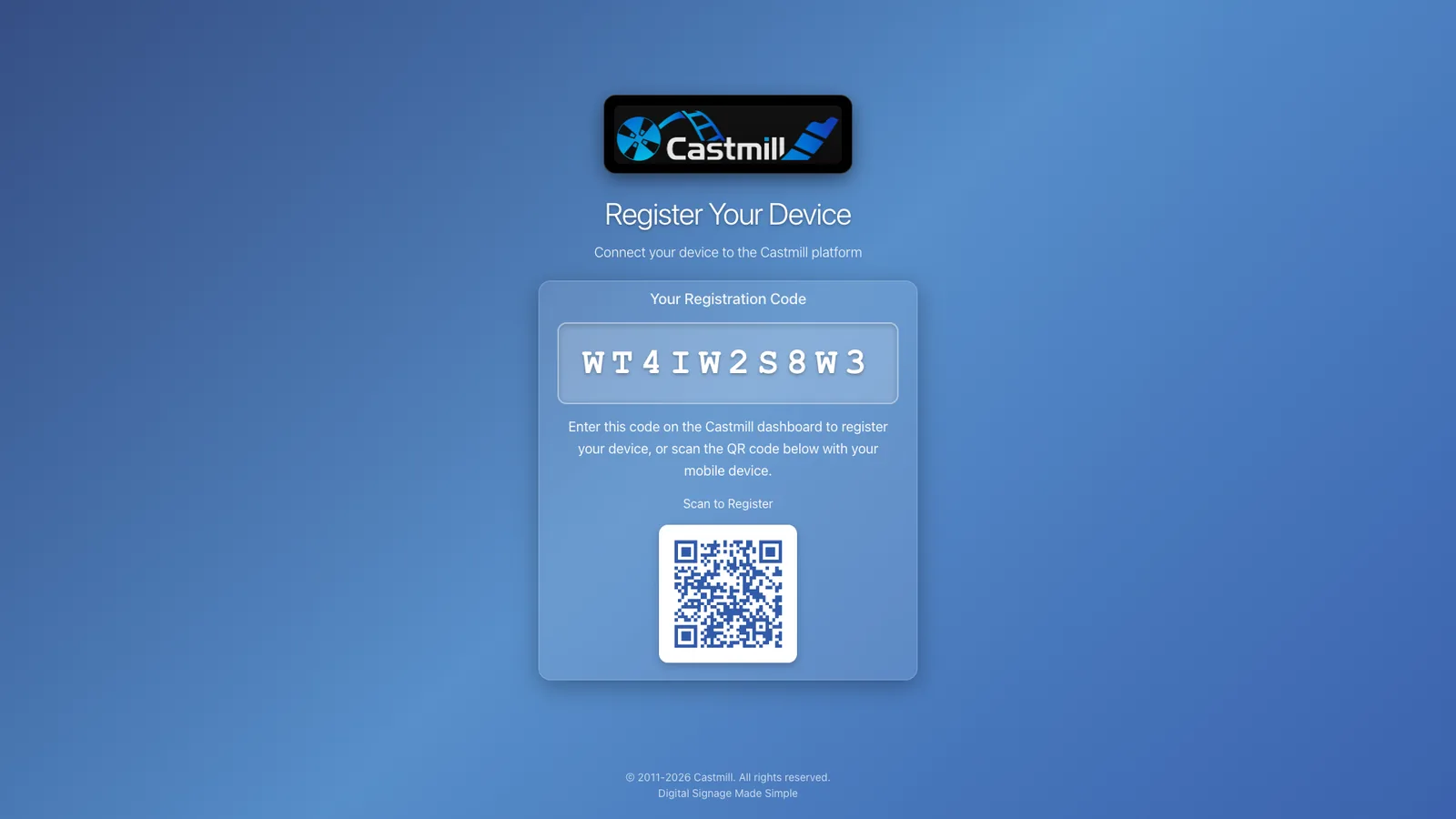
- Wait for the Register Your Device screen with the pincode and QR code.
- Register the player in the dashboard as described in Players overview.
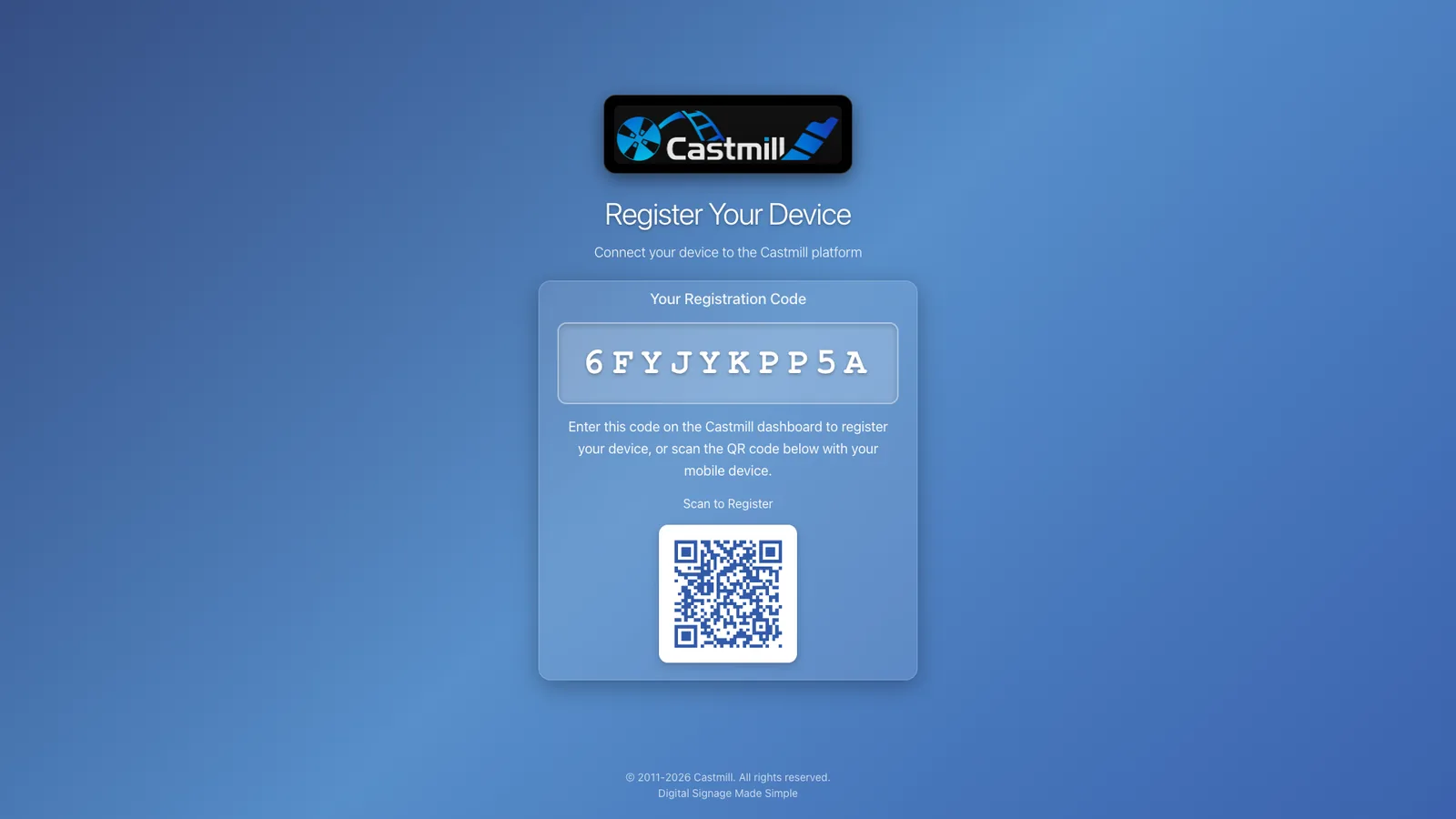
Unless server addresses were compiled into the player, it connects to the server it was loaded from. It stores its credentials and a randomly generated device ID in the browser's local storage for that origin, so the same browser profile reopens as the same registered device.
Run the browser player as a kiosk
For an unattended screen, run Chrome or Chromium in kiosk mode with a dedicated profile:
google-chrome \
  --kiosk \
  --user-data-dir="$HOME/.castmill-kiosk" \
  --autoplay-policy=no-user-gesture-required \
  https://castmill.example.com/
The command name depends on your system, for example chromium or chromium-browser on many Linux distributions. Use these settings:
--kioskopens the page full screen without browser controls.--user-data-dirkeeps the player's local storage, including its device ID and credentials, in a profile that is not shared with other browsing. Do not use a private or incognito window: its storage is discarded when it closes, and the player must be registered again.--autoplay-policy=no-user-gesture-requiredlets videos with sound start without a click.
To start the player automatically, add the command to the operating system's startup applications for the user that is logged in on the screen. Also disable screen blanking, sleep, and browser or operating system update prompts on that computer.
Limitations
- No offline cold start. The page is served by the Castmill server. Content that is already cached keeps playing while the page stays open, but the browser cannot start the player while the server is unreachable.
- Identity depends on browser storage. Clearing site data, using a different browser profile, or opening the page in a private window creates a new device that must be registered.
- Limited maintenance. Refresh and Restart App reload the page, and Clear Cache empties the player's cache before reloading. The browser cannot reboot, shut down, or update the computer, and there is no firmware update.
- CSS rotation only. Orientation set in the dashboard rotates the playback area in the page. Use the operating system's display settings if the whole desktop must be rotated, and leave the dashboard orientation at 0 degrees in that case to avoid rotating twice.
- Browser policies apply. Autoplay rules, power saving, and tab throttling can interfere with playback when the page is not in the foreground. Keep the player as the only visible window.
For production screens, prefer an installed player: Android, LG webOS Signage, or Electron.